128-color Type
A2-22
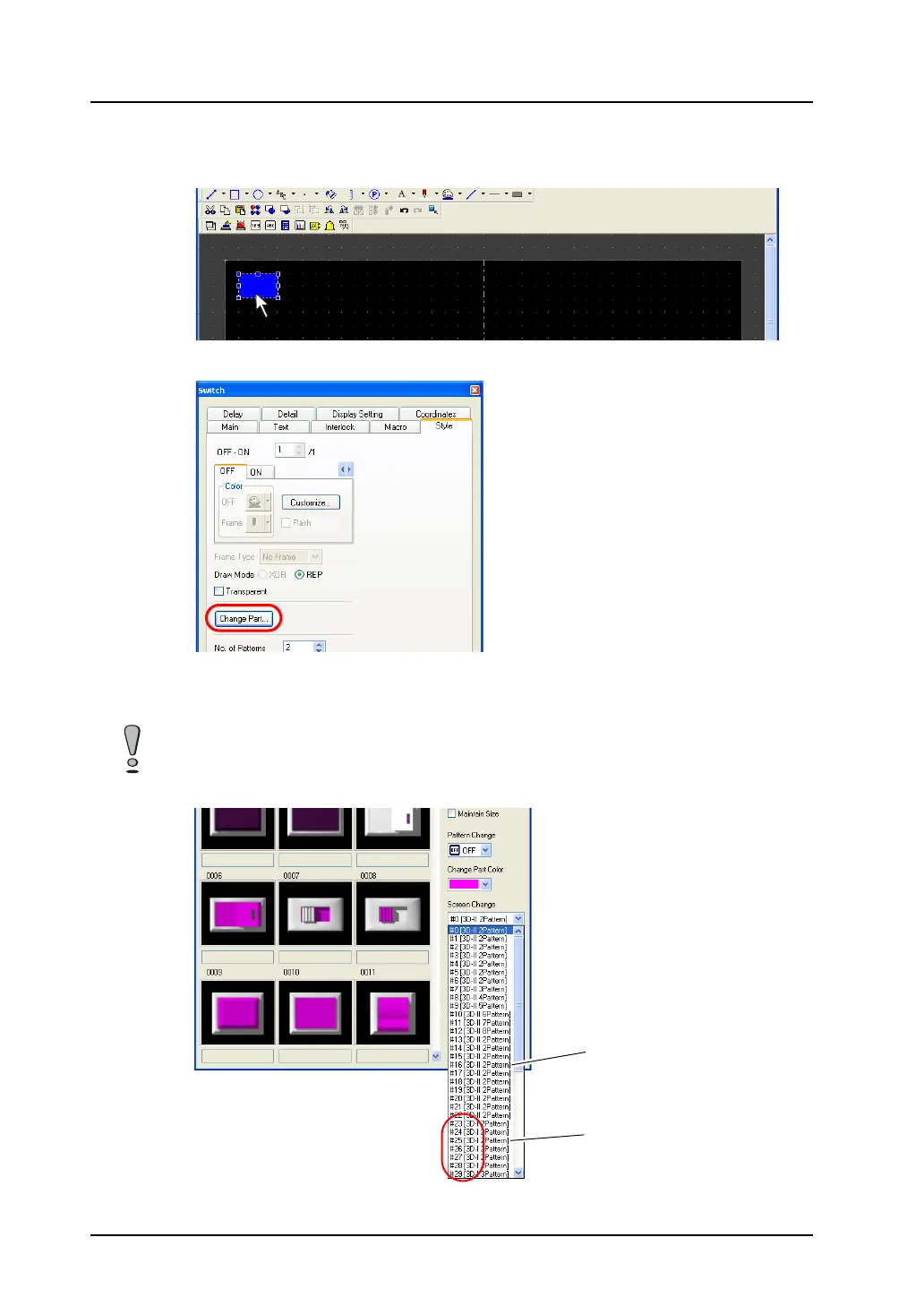
Selection from [Change Part] (with a part already placed)
1. Click or double-click the switch placed on the screen.
2. In the [Switch] dialog, open the [Style] tab window and click [Change Part].
3. The [Change Part] dialog is displayed. Find the desired part, which is with “I” (such as “3D-I”) in its
comment field, in the switch parts list. The list is changed by scrolling in the dialog or selection
from the [Screen Change] pull-down menu.
* For more information on the [Change Part] dialog, refer to “How to Modify the Placed Part”
page 3-55.
Using a part with “II” in its comment field will issue a warning during error check, and the part will not be
colored correctly.
“II”: 64k-/32k-color type
“I”: 128-color type
(V6-compatible)



 To Next Page