3.6 Parts
3-56
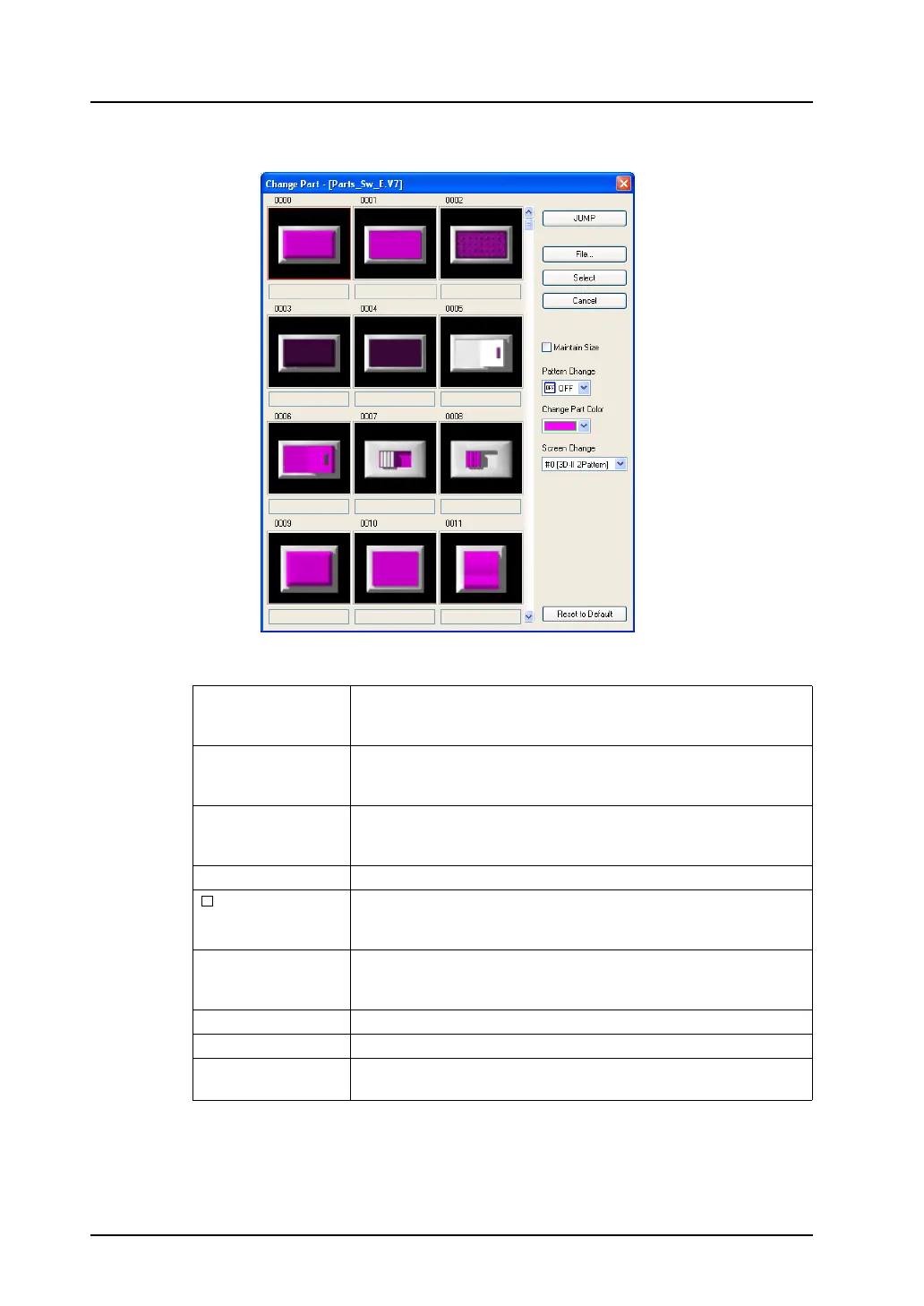
3. The switch parts list is displayed in the [Change Part] dialog.
The setting options in the list are described below.
JUMP Clicking this menu brings up the [Part Call] dialog.
By specifying a part number and clicking [OK], the parts list including
the specified number is displayed.
File Allows you to select the screen data file (*.V8) or parts file (*.V7P).
This button is used when a desired part cannot be found in the list or
the file including the part to be used is not opened.
Select Determines the parts selected from the list. Clicking this button
replaces the existing part with the new one, and closes the [Change
Part] dialog.
Cancel Closes the [Change Part] dialog.
Maintain Size When this box is checked, the design of the placed part can be
changed while its size and other settings are maintained.
When this box is unchecked, the default size of each part takes effect.
Pattern Change This option is valid only for the switch or lamp part.
The status display of the OFF, ON or P3 patterns can be shown on the
parts list.
Change Part Color This option is valid only for the 3D part. The part color is selected.
Screen Change Changes the parts list display.
Reset to Default Displays the default parts list which is selected at the first start-up of
the editor.



 To Next Page