3.7 Parts Placement and Setting
3-77
3
Screen Editing
Property change for multiple data cells
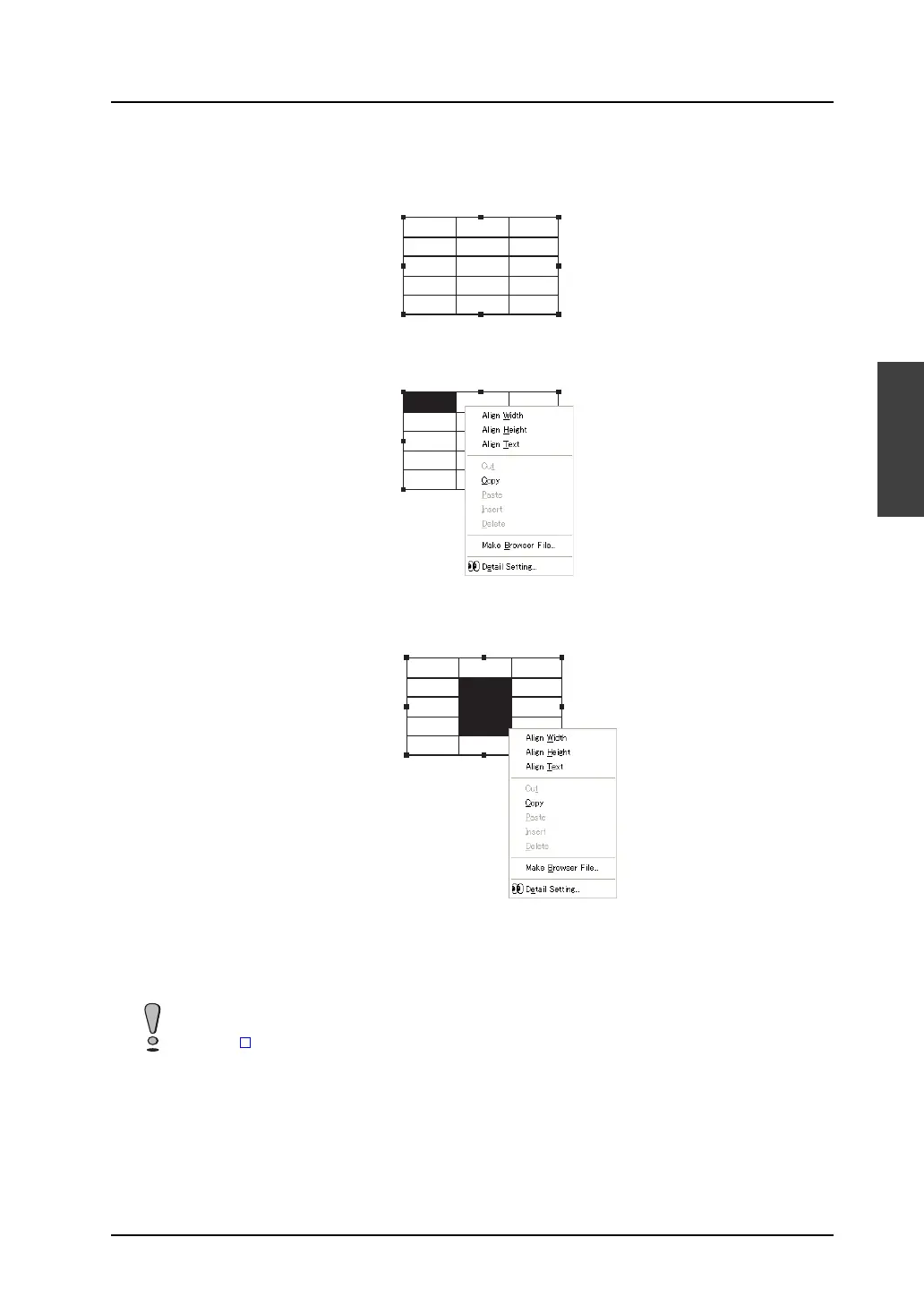
1. Click the table data display part. The item dialog is brought up and handles are shown all around
the part.
2. Right-click the mouse on a cell whose setting is to be changed. The cell is highlighted and the
right-click menu is displayed.
3. Select two or more desired cells by right-dragging. The cells are highlighted. The right-click menu
is displayed at the same time.
4. Select [Detail Setting] from the menu. The [Table Data Display (Num. Display)] item dialog is
displayed.
When data cells of different types are selected, the [Table Data Display (xxxx)] dialog for the top
left cell is displayed.
12345 12345 12345
12345 12345 12345
12345 12345 12345
12345 12345 12345
12345 12345 12345
12345 12345 12345
12345 12345 12345
12345 12345 12345
12345 12345 12345
12345 12345 12345
12345 12345 12345
12345 12345 12345
12345 12345 12345
12345 12345 12345
12345 12345 12345
After the [Table Data Display (xxxx)] dialog displayed as mentioned above is set, the setting is
reflected through the remaining selected cells.
(When [ Inc. Direction] is not checked, the previous memory address setting is maintained.)



 To Next Page