Parts Editing
A3-7
A3
Parts Editing
Properties of graphic frames and areas
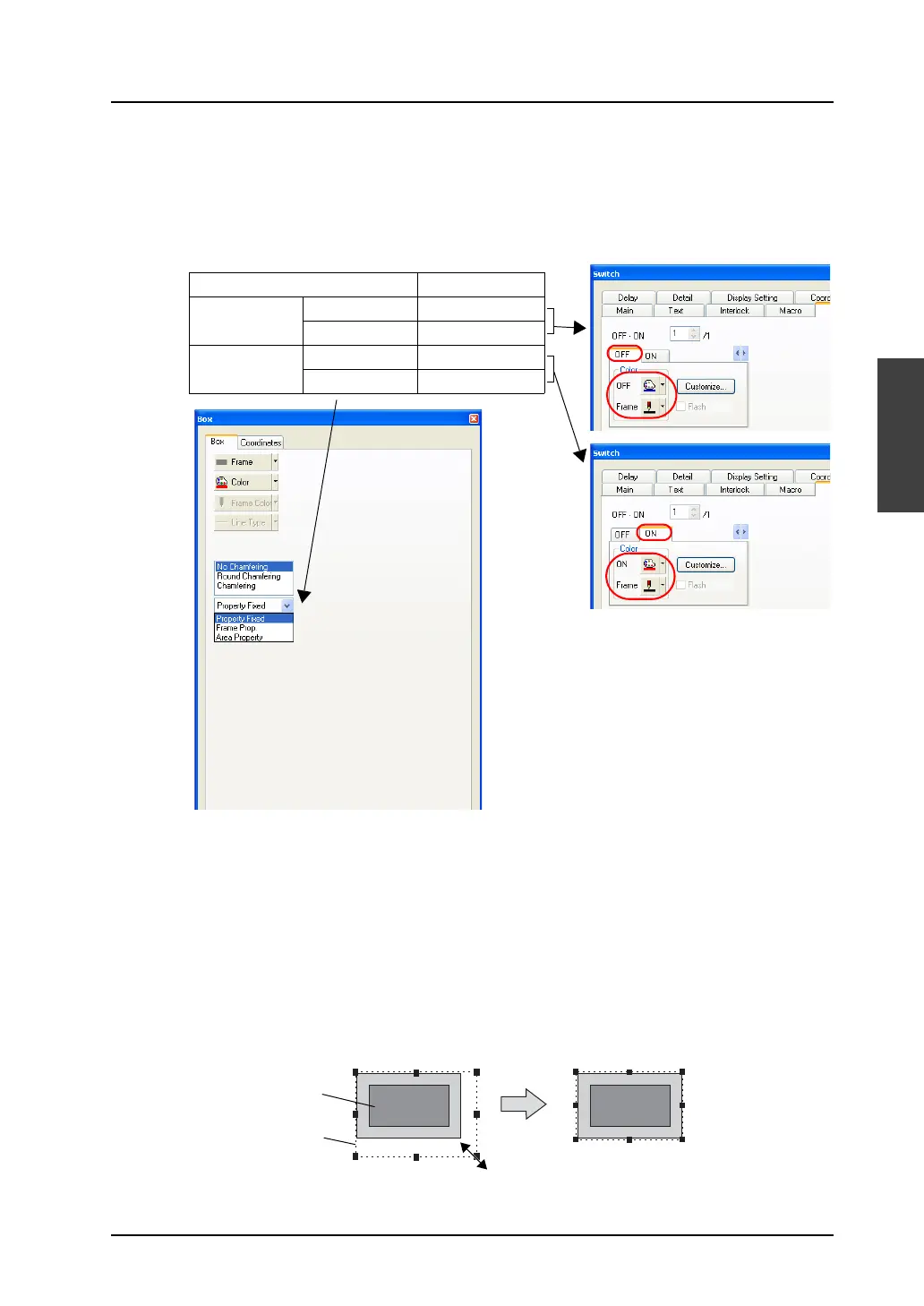
In the case of editing a switch or lamp part, frame and area properties can be set for the graphics of
ON and OFF patterns. Once a pattern of a switch or a lamp is provided with the frame property
([Frame Prop.]) or area property ([Area Property]) setting, its color can be changed directly from the
[Switch] or [Lamp] dialog. When [Frame Prop.] or [Area Property] is selected, its corresponding color
setting can be made in the following location:
Re-setting the touch area
Every switch part has a touch area. Pressing the touch area activates the switch. If the graphic data
of a switch part deviates from the touch area during editing, the switch may become inactive or may be
activated by pressing anywhere outside the switch. Re-setting the touch area is required to avoid such
a deviation problem.
When a switch is placed on V-SFT, its dotted frame denotes the touch area.
There are the following two methods of touch area setting:
• Dragging
1) Select the dotted frame of the target switch part. Or, click [View] → [View] → [Item List], and
select the target switch part.
2) The handles now appear along the touch area. Drag one of the handles with the mouse.
Graphic Properties On Switch / Lamp
Editing the OFF
pattern graphic
Frame property OFF frame color
Area property OFF color
Editing the ON
pattern graphic
Frame property ON frame color
Area property ON color
* The same applies to lamp parts.
Touch area
Graphic data



 To Next Page