Parts Editing
A3-8
• Move to an arbitrary position
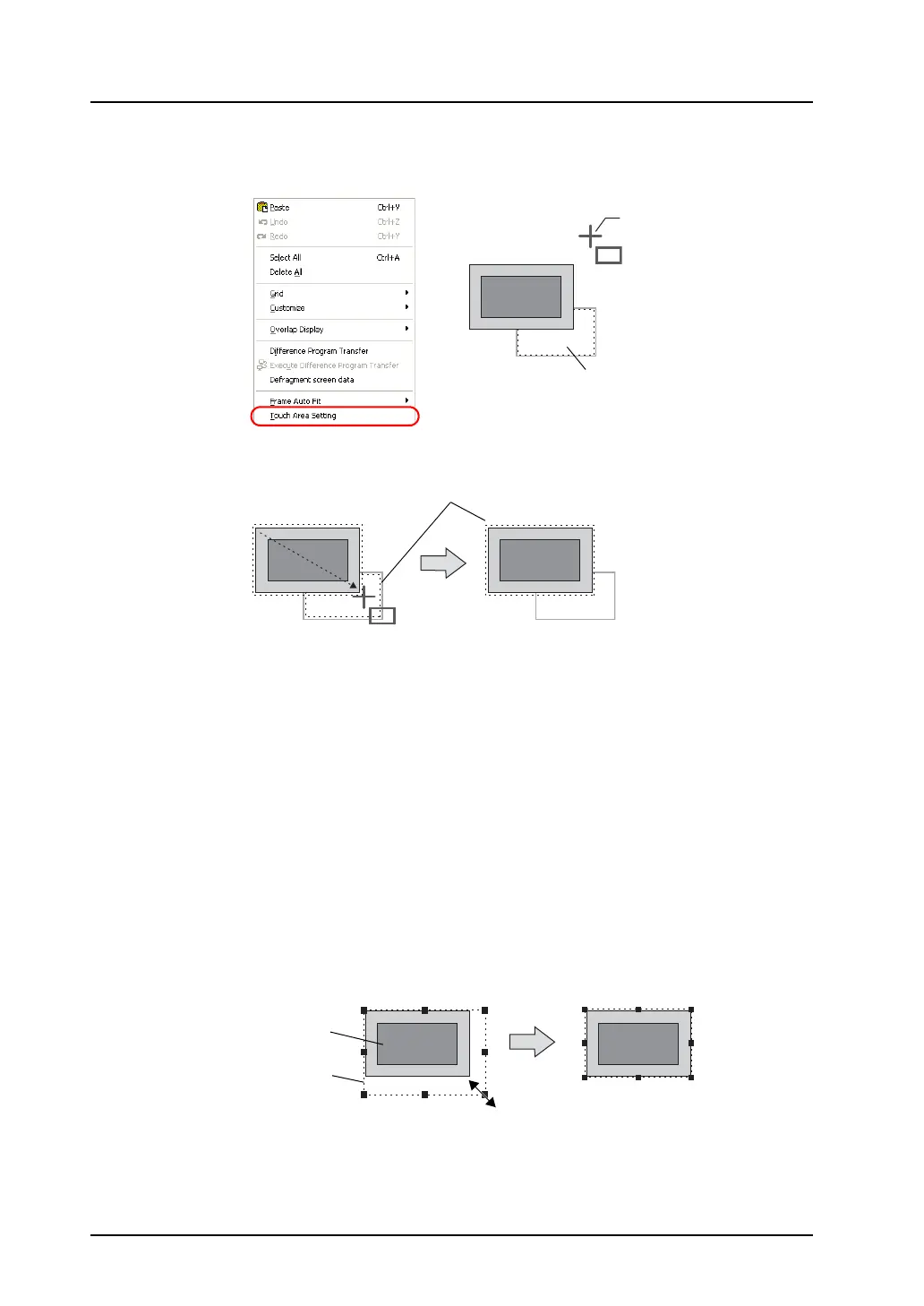
1) In the right-click menu, click [Touch Area Setting]. A cross-shaped cursor appears.
2) Adjust the touch area to your desired position by dragging the cross-shaped cursor.
Re-setting the part basic area
Every part has a part basic area*, which is a part identifying area.
If an edited graphic of a lamp part, for example, deviates from its basic area, the ON and OFF patterns
of the lamp will not be switched correctly due to the deviation.
Re-setting the part basic area is required to avoid such a deviation problem.
When a part is placed on V-SFT, its dotted frame denotes the part basic area.
The following section explains the procedure for setting a part basic area, taking a lamp part for
example.
* As for a switch part, its touch area is equivalent to the part basic area.
For how to re-set the touch area, refer to “Re-setting the touch area” (page A3-7).
1) Select the dotted frame of the target lamp part. Or, click [View] → [View] → [Item List], and
select the target lamp part.
2) The handles now appear along the basic area. Drag one of the handles with the mouse.
Cross-shaped
cursor
Touch area
The touch area is moved.Dragging the
cross-shaped cursor fit to
the switch moves the
touch area.
Touch area
Part basic area
Graphic data



 To Next Page