Operating InstructionsFacsimile Reference (option) <Advanced Features>
184
Note
❒ If a size is already programmed, it is
shown on the display. If not, “*Not Pro-
gramed” is shown.
F
FF
F
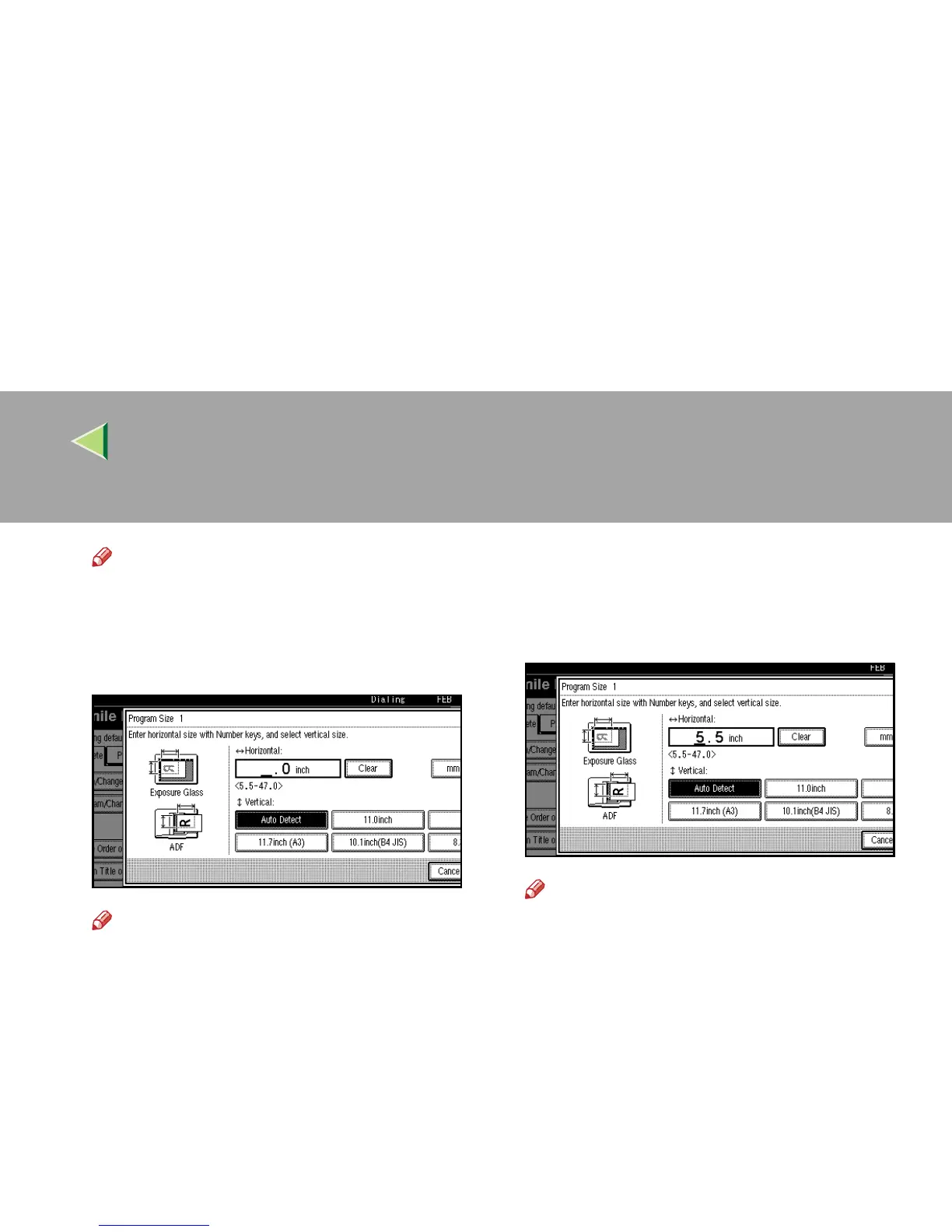
Enter a horizontal size with the number keys.
Note
❒
You can specify a horizontal length from 128
to 1,200mm or from 5.5 to 47 inches. You
cannot specify a length shorter than 128mm
(5.5") or longer than 1,200mm (47").
❒
Each time you press
[
mm
]
or
[
inch
]
, the units
change between “mm” and “inch” alternately.
If you enter a length and change the unit by
pressing
[
mm
]
or
[
inch
]
, the length is convert-
ed automatically according to the unit (frac-
tions are rounded off). For Example, When
you enter
{
{{
{
2
}
}}
}
,
{
{{
{
5
}
}}
}
and
{
{{
{
0
}
}}
}
in millimeters and
change to “inch”, the length “9.8inch” is
shown on the display. If you press
[
mm
]
or
[
inch
]
again, “249mm” is displayed.
❒ If you make a mistake, press [
Clear
] or the
{
{{
{Clear/Stop}
}}
} key and try again.
❒ To cancel a Scan Size, press [Cancel].
G
GG
G
Select a vertical size.
Note
❒ A displayed vertical size differs depending
on the selected unit. When [
mm
] is select-
ed, [
Auto Detect
], [
210mm (A4)
], [
257mm (B4
JIS)
], [
297mm (A3)
], [
216mm (8 1/2)
] and
[
279mm (11)
] are shown. When [
inch
] is se-
lected, [Auto Detect], [8.3inch (A4)], [10.1inch
(B4 JIS)], [11.7inch (A3)], [8.5inch] and
[11.0inch] are shown.
❒ To cancel a Scan Size, press [Cancel].
H
HH
H
Press [OK].
I
II
I
Press [Exit].
J
JJ
J
Press the {
{{
{User Tools/Counter}
}}
} key.
The initial display is shown.



 To Next Page