Operating Instructions Scanner Reference
38
D
DD
D
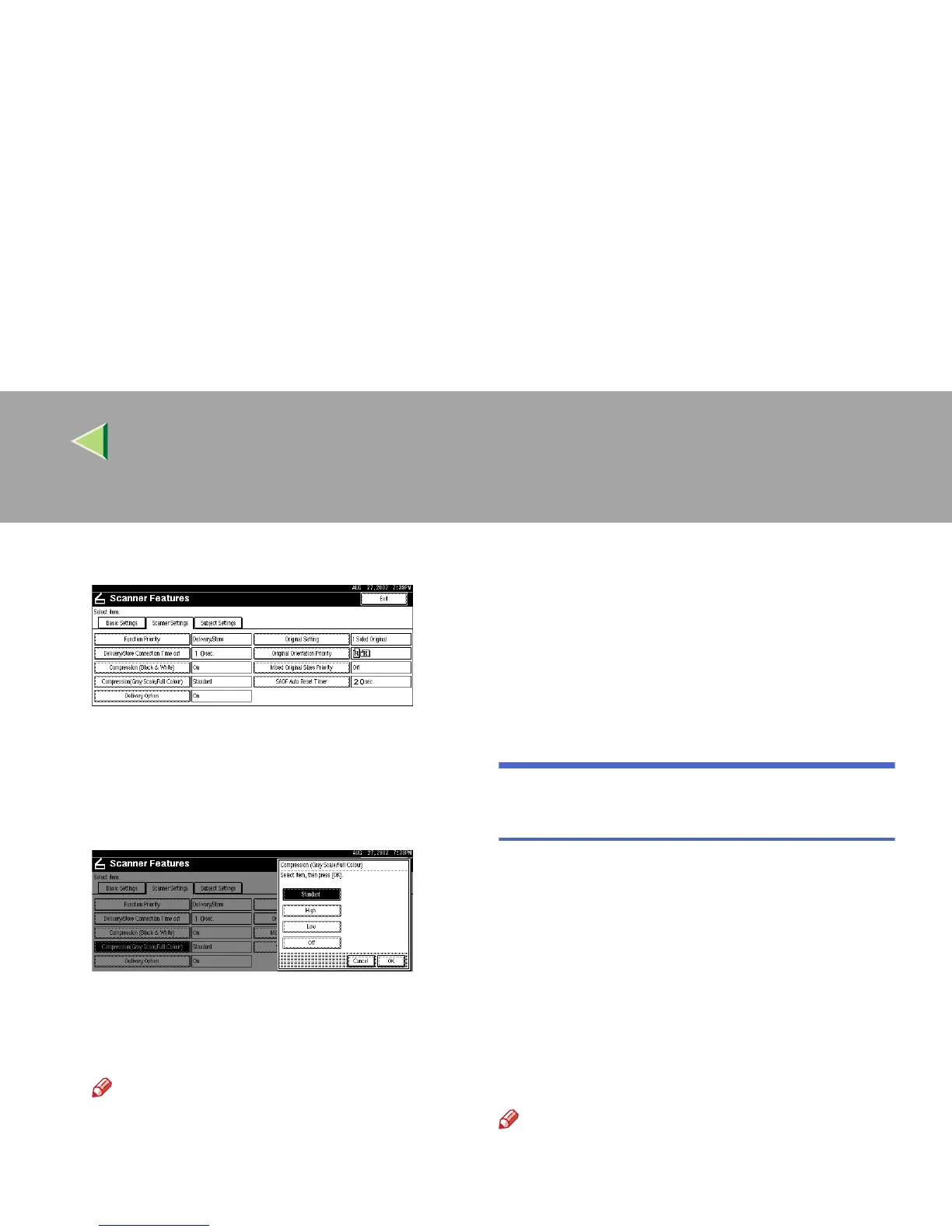
Press the item to be set.
The screen for changing the item setting ap-
pears.
Example: "Compression (Gray Scale)" setting
E
EE
E
Change the setting.
• To select an item, touch its key on the
screen. The item is highlighted.
• To enter numerals, use the number keys.
Note
❒ To cancel a setting, press [
Cancel
]. The
value is not changed and the display re-
turns to the previous condition before
pressing the [OK].
F
FF
F
Press [OK].
G
GG
G
Repeat steps
D
DD
D
to
F
FF
F
to make other settings.
H
HH
H
Press [Exit].
The display returns to the Scanner Features
screen.
I
II
I
Press [Exit].
The main menu is shown again.
Making Scan Data Subject Set-
tings
Subject information can be added to the scan data
files. This information added to the data to be de-
livered. When the file is delivered by e-mail with
optional ScanRouter V2 Professional, the subject
is automatically entered as the title in the subject
of the e-mail. If you often send files with similar
content, storing subject names will allow you to
easily select a subject at the time of delivery.
The subject can be up to 16 characters long. Up
to 12 subjects can be stored.
Note
❒ To deliver the file by e-mail, optional Scan-
Router V2 Professional is necessary.
❒ The subject can be set when "On" in the "De-
livery Option" of Initial Scanner Setup is set.



 To Next Page