Adjusting the Color Calibration
45
2
Adjusting the Color Calibration
The color calibration can change
slightly as a result of a number of fac-
tors. For instance, the color may
change after many prints have been
made or after a new toner cartridge
has been installed. If this happens, the
machine can be made to produce the
appropriate color by adjusting the
color calibration. Normally, however,
you do not need to do this.
Note
❒ Adjusting a printer's color calibra-
tion will affect the output of all us-
ers who use that printer.
❒ You cannot print the Test Pattern
Sheet using paper loaded in the
Bypass Tray.
Auto Color Calibration
In color calibration, this machine au-
tomatically adjusts the printed high-
lights and mid-tones.
Note
❒ The machine will not carry out
Auto Color Calibration if the toner
has almost run out.
❒ Use the same type of paper for
each test pattern print. Inaccurate
calibration can occur if different
types of paper are used.
A
AA
A
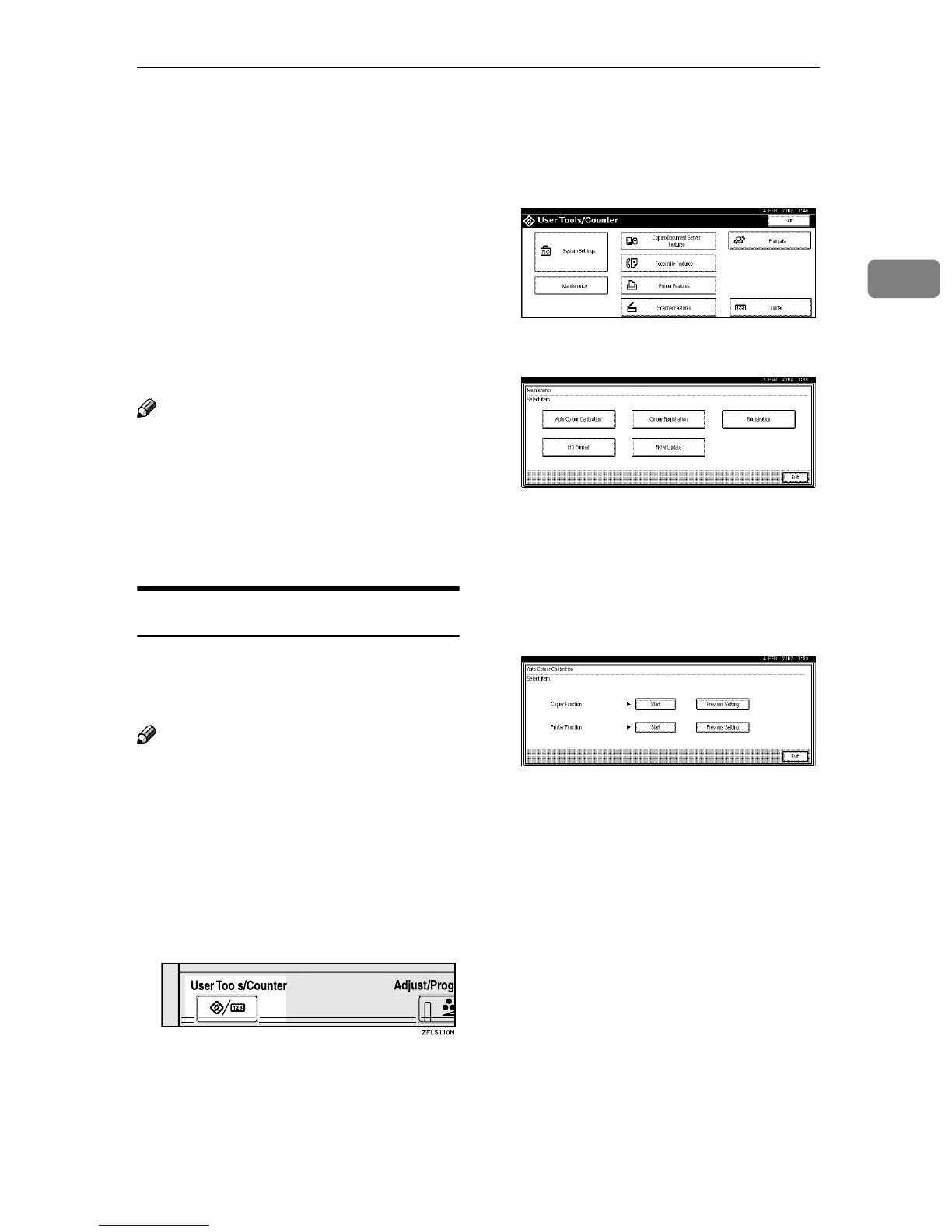
Press the {
{{
{User Tools/Counter}
}}
} key.
"User Tools/Counter" appears on
the panel display.
B
BB
B
Press [Maintenance].
C
CC
C
Press [Auto Color Calibration].
D
DD
D
When adjusting the color calibra-
tion in copy mode, press [Start] to
the right of [Copier Function]. When
adjusting the color calibration in
printer mode, press [Start] to the
right of [Printer Function].
E
EE
E
Print the Test Pattern.
If you have adjusted the color cali-
bration in copy mode, go to step
A.
If you have adjusted the color cali-
bration in printer mode, the reso-
lution selection display appears. In
this case, go to step B.



 To Next Page