Placing Originals
17
2
❒ Make sure that all ink, correcting
fluid etc., has completely dried be-
fore placing your original. If it is
still wet, the exposure glass will be
marked and those marks will ap-
pear on the received image.
❒ If you place an A4 size original in the
portrait direction, the machine ro-
tates the image by 90 degrees before
sending it. ⇒ Chapter 4, “Transmis-
sion with Image Rotation” in the
Advanced Features manual
Reference
For how to place 2-sided docu-
ments, see Chapter 4, “2-sided
Transmission” in the Advanced
Features manual.
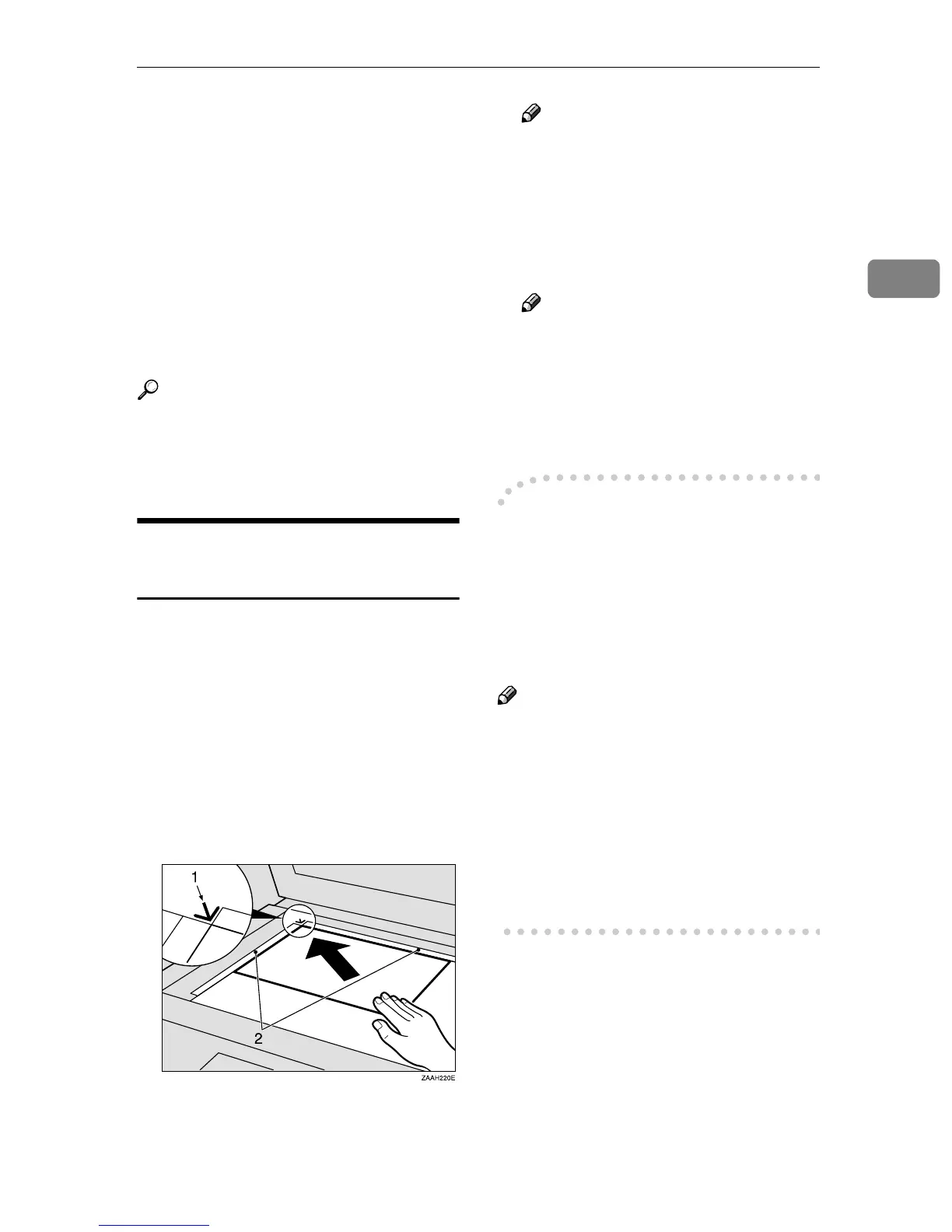
Placing a Single Original on
the Exposure Glass
Place originals that cannot be placed
in the optional Document Feeder
(ADF), such as a book, on the expo-
sure glass one page at a time.
A
AA
A
Lift the optional Document Feed-
er (ADF) by at least 30 degrees.
Place the original face down and
align its upper left corner with the
reference mark at the upper left
corner of the exposure glass.
1. Reference mark
2. Scale
Note
❒ If you do not raise the optional
Document Feeder (ADF) by at
least 30 degrees, the original
size will not be detected.
B
BB
B
Close the optional Document
Feeder (ADF).
Note
❒ When setting a bound original,
the received image may contain
some black areas. To reduce this
effect, hold down the original to
prevent its bound part from ris-
ing.
-
--
-Bound Original Page Order
When sending bound originals
(books, magazines, etc.), you can
choose to have either the left page or
right page sent first. ⇒ Chapter 4,
“Book Fax” in the Advanced Features
manual
Note
❒ You can have bound originals
scanned in left page first or right
page first. You can set which page
(left or right) the machine scans
first by default with the User Pa-
rameters.⇒ Chapter 8, “Changing
the User Parameters”(Switch06,
Bit6) in the Advanced Features
manual



 To Next Page