Basic Copying
26
1
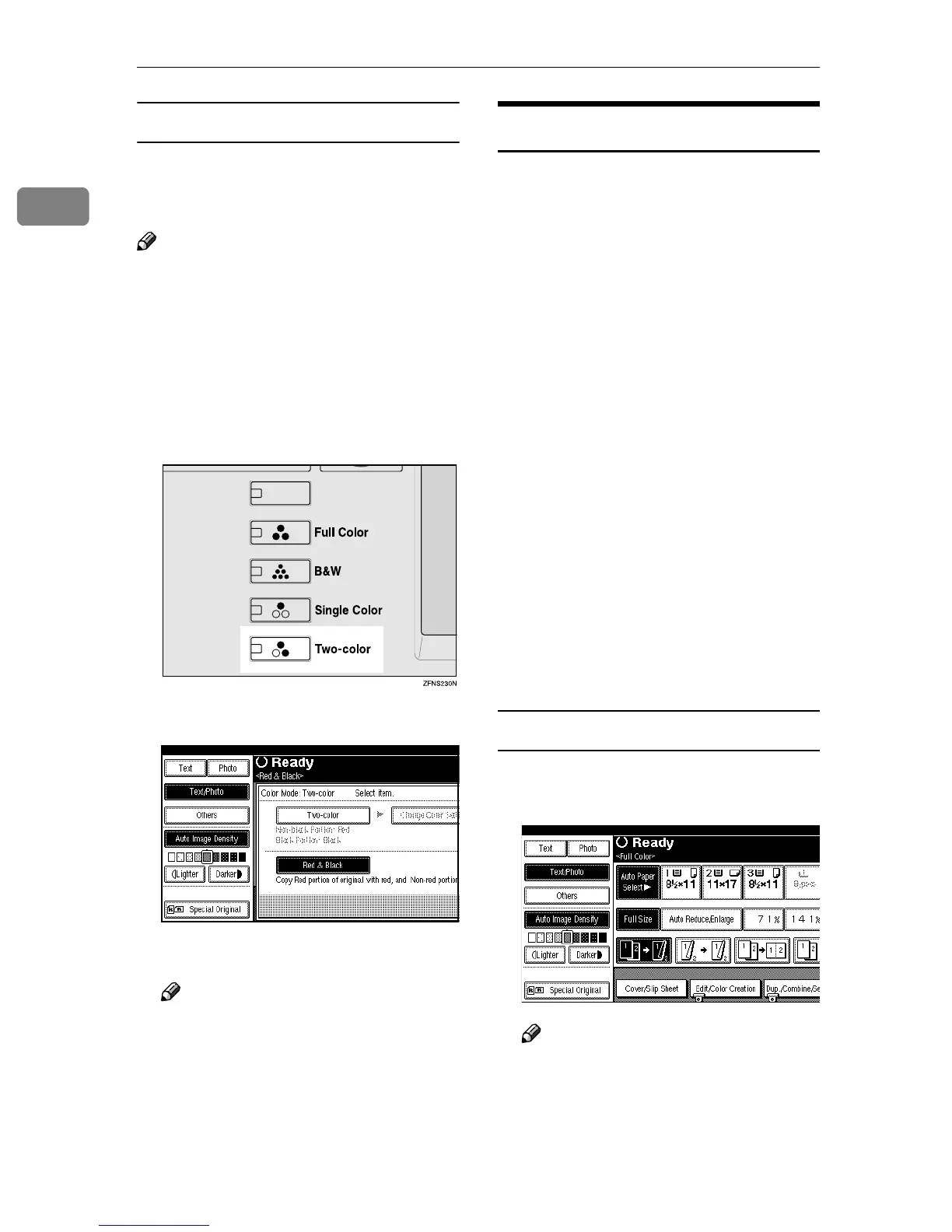
Two Color Mode (Red & Black)
Copies the red colored areas in the
original in red, and other areas in
black or white.
Note
❒ If you set the color width to
“Wide” a reddish color close to or-
ange or purple will be recognized
as a Red. This adjustment is also
active when using “Erase Color”.
⇒ “Erasing Colors”, Advanced Fea-
tures manual
A
AA
A
Press the {
{{
{Two-color}
}}
} key.
B
BB
B
Press [Red & Black].
C
CC
C
Press [OK].
Note
❒ If you do not wish to set any
other functions, press the
{
{{
{Start}
}}
} key to start copying.
Adjusting Copy Image Density
You can adjust the copy image densi-
ty to match your originals.
There are three types of adjustment
available:
❖
❖❖
❖ Auto Image Density
The machine automatically detects
and adjusts the image density and
copies so that the background of
dirty originals, such as newspa-
pers and recycled paper, does not
come out.
❖
❖❖
❖ Manual Image Density
You can adjust the image density
manually from 9 levels.
❖
❖❖
❖ Combined Auto and Manual Image
Density
Use when copying originals with a
dirty background (such as news-
papers). You can adjust the fore-
ground density while leaving the
background unchanged.
Auto Image Density
A
AA
A
Make sure that [Auto Image Density]
is selected.
Note
❒ If [Auto Image Density] is not se-
lected, press [Auto Image Density].
❒ If you do not wish to set any
other functions, press the
{
{{
{Start}
}}
} key to start copying.



 To Next Page