Faxing
30
2
Immediate Transmission
With Immediate Transmission, when
you press the {
{{
{Start}
}}
} key, the fax
number is dialed immediately. The
message is scanned and transmitted
page by page without being stored
into memory. This contrasts with
Memory Transmission which scans
all pages into memory before dialing
the destination.
Immediate Transmission is useful if
you want immediate confirmation
that the message is being sent to the
correct destination (just check for the
other terminal's Own Name or Own
Fax Number on the operation panel
during transmission).
Note
❒ You cannot send the same message
to multiple destinations (Broad-
casting). The Memory Transmis-
sion allows for this purpose.
❒ Place the original on the exposure
glass or in the optional Document
Feeder (ADF). To send two or
more pages from the exposure
glass, set them one page at a time.
❒ You can scan some pages of your
original from the exposure glass
and the remainder from the option-
al Document Feeder (ADF). When
you have finished scanning from
the exposure glass, place the re-
mainder of the pages in the optional
Document Feeder (ADF) and press
the {
{{
{Start}
}}
} key within ten seconds.
❒
You can set whether the machine is
in Memory Transmission mode or
Immediate transmission mode right
after the power is turned on. ⇒
Chapter 7, “General Settings/Ad-
justment” in the Advanced Features
manual
A
AA
A
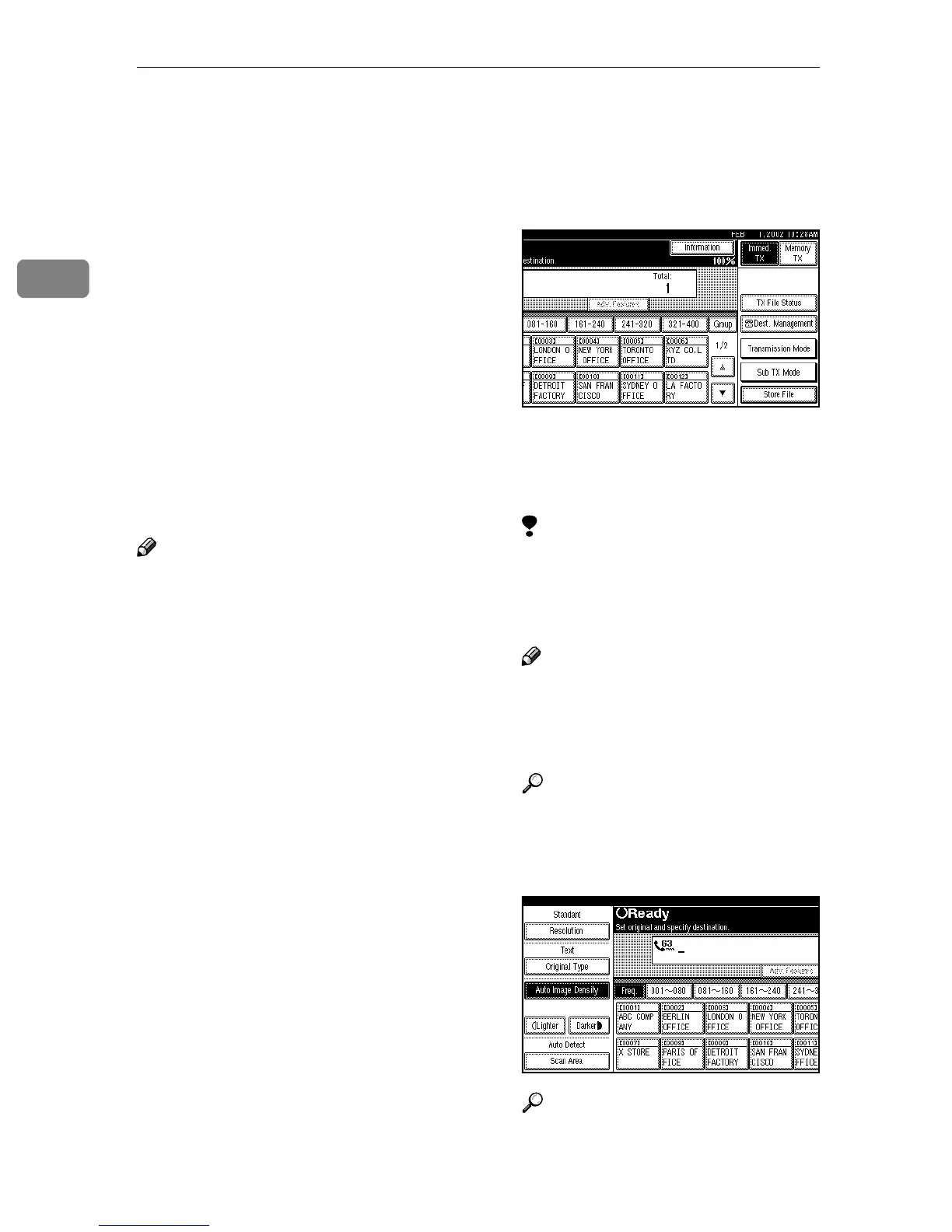
Make sure that Immediate Trans-
mission is selected.
If it is not selected, press [Immed.
TX].
B
BB
B
Place the original.
Limitation
❒ Do not open the optional Docu-
ment Feeder (ADF) while it is
scanning the originals. This can
cause originals to jam.
Note
❒ The original can be placed in ei-
ther the optional Document
Feeder (ADF) or exposure glass
until the {
{{
{Start}
}}
} key is pressed.
Reference
⇒ p.16 “Placing Originals”
C
CC
C
Select any scan settings you re-
quire.
Reference
⇒ p.34 “Scan Settings”



 To Next Page