Operating Instructions Copy Reference <Advanced Features>
32
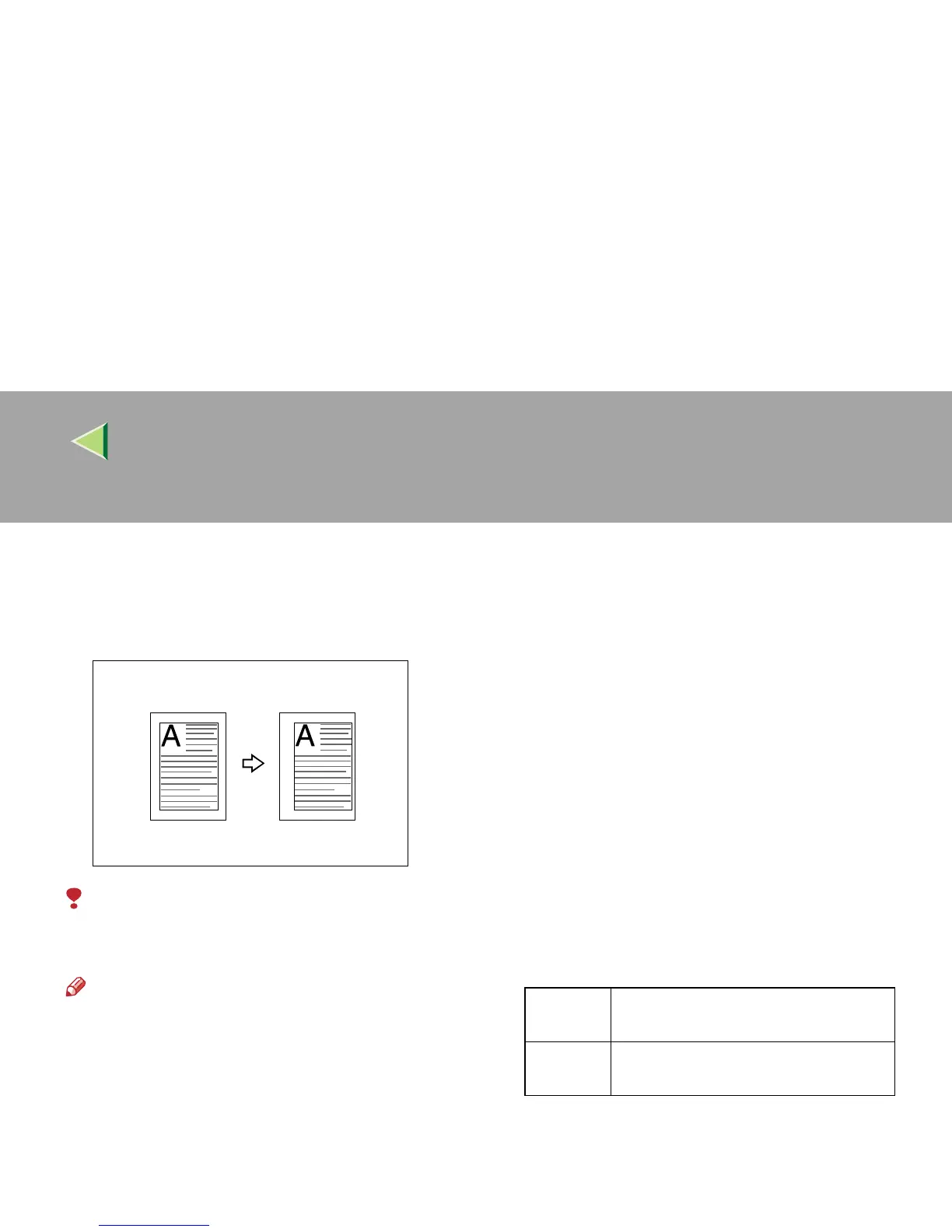
Margin Adjustment
You can shift the image to the left, right, top or
bottom to make a binding margin.
Limitation
❒ If you set the margin too wide, areas you do
not want to delete might be erased.
Note
❒ You can change the margin adjustment set-
ting with the User Tools. ⇒ p.115 “Front Mar-
gin: Left/Right”, p.115 “Back Margin:
Left/Right”, p.115 “Front Margin: Top/Bot-
tom”, p.116 “Back Margin: Top/Bottom”
❒ When making 2 Sided copies from 1 Sided
originals, you can set a binding margin for
back side pages. ⇒ p.116 “1 sided→2 sided
Auto Margin:T to T”, p.116 “1 Sided→2 Sided
Auto Margin: TtoB”
❒ When making copies in Combine mode, the
binding margins are made on the copies after
the combining is finished.
❒ When making copies in Double Copies or Im-
age Repeat, the margins will appear on the
copies.
❒ When “2 Sided → 1 Sided” is selected, set the
binding margins for front and back pages of
the original.
❒ You can change the width of the binding mar-
gin as follows:
Metric
version
0 – 30mm (in 1mm steps)
Inch
version
0" – 1.2" (in 0.1" steps)



 To Next Page