Troubleshooting
76
4
Error Messages and Their Meanings
If there is an error, one of the following messages may appear on the display. It
might just flash briefly, so if you are watching for errors, stay by the machine and
check the display.
-
--
-Out of paper display message
If the paper tray runs out of paper, you can have a message "No paper. Load it,
then press [Exit]." appear on the display asking you to add more paper.
Note
❒ You can turn this function on or off with the User Parameters. ⇒ Chapter 8,
“Changing the User Parameters” (Switch05, Bit7) in the Advanced Features
manual
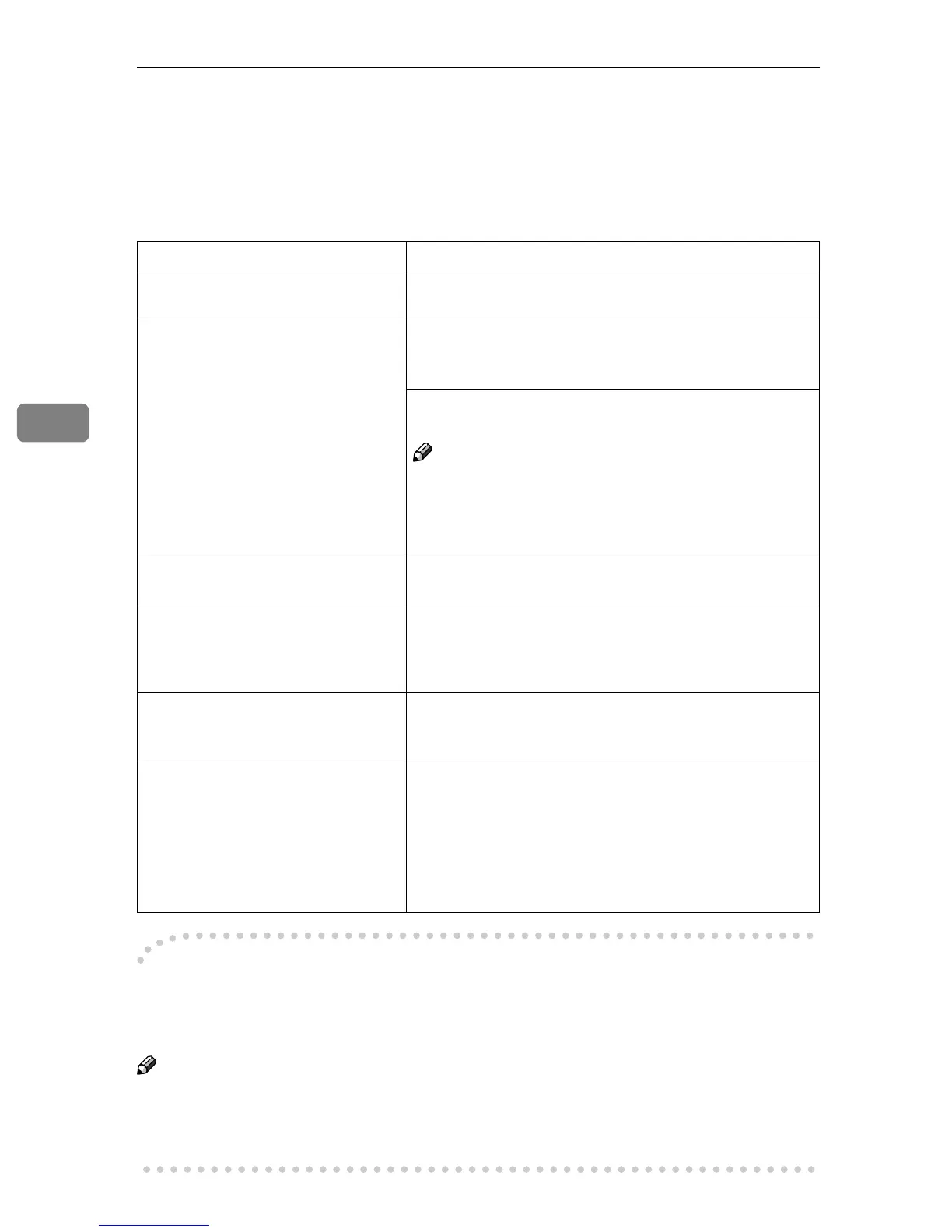
Message Problem and Solution
Put original back, check it and press
[Start].
Original jammed during Memory Transmission. Place
originals that have not been scanned again.
Error occurred, and transmission
was canceled.
A document jam occurred during Immediate Transmis-
sion. Press [OK], and then re-send the page which has not
been sent.
An error occurred during Immediate Transmission.
Press [OK], and then re-send the original.
Note
❒ There may be a problem with the machine or the tele-
phone line (for example noise or cross talk). If the er-
ror re-occurs frequently, contact your service
representative.
Cannot detect original size. Place
original again, then press [Start].
The machine failed to detect the size of the original. Place
originals again, and then press the {
{{
{Start}
}}
} key.
LCall Service
Functional problems with facsimile.
Please call service.
There is a problem with the fax function. Record the code
number shown in the display and contact your service
representative. The copier function will still work nor-
mally.
Memory is full. Cannot scan more.
Transmitting only scanned pages.
If you press [OK], the machine returns to the standby
mode and starts transmitting pages which have been
scanned.
Cannot scan to send fax message as
scanner is in use for other function.
The Copy or Document Server function is in use. To can-
cel the job in process, do the following, and then try fax-
ing again.
Press [Exit], and then press the {
{{
{Copy}
}}
} or {
{{
{Document Serv-
er}
}}
} key. Next press the {
{{
{Clear/Stop}
}}
} key. When the mes-
sage "[Stop] key was pressed. Stop printing?" or "[Stop]
key was pressed. Stop storing?" appears, press [Stop].



 To Next Page