Basic Copying
38
1
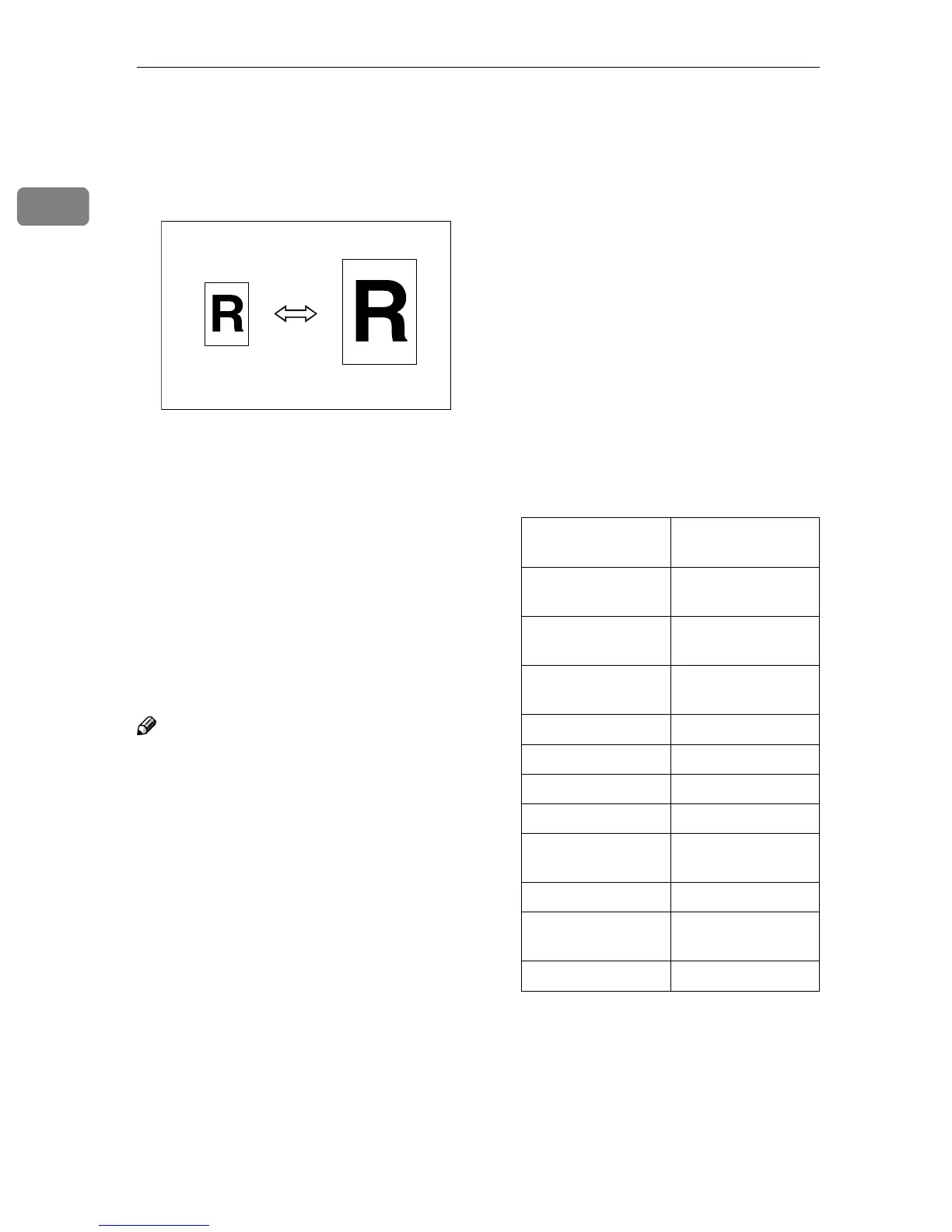
Preset Reduce/Enlarge
You can select a preset ratio for copy-
ing.
❖
❖❖
❖ The Starting Point
The starting position for enlarging
and reducing varies depending on
how the original is scanned. When
placing originals on the exposure
glass, the starting point will be
where the original touches the ref-
erence mark on the far left. When
placing originals in the optional
document feeder (ADF), the origi-
nals' lower left corner will be the
starting point.
Note
❒ Use “Create Margin” to reduce the
image to 93% of its original size
with the center as reference. You
can register this function in a
shortcut key on the initial display.
⇒ p.40 “Create Margin Mode”
❒ You can change the preset ratios to
other ratios you frequently use. ⇒
“Enlarge” and “Reduce”, Advanced
Features manual
❒ You can set and display three ra-
tios on the initial display. ⇒
“Shortcut R/E”, Advanced Features
manual
❒ You can specify if [Reduce], [En-
large] or [Mag. Ratio] is to be given
priority and displayed when [Re-
duce/Enlarge] is pressed. ⇒ “Repro-
duction Ratio 2/2”, Advanced
Features manual
❒ You can select a ratio regardless of
the size of an original or copy pa-
per. With some ratios, parts of the
image might not be copied or mar-
gins will appear on copies.
❒ Copies can be reduced or enlarged
as follows:
❖
❖❖
❖ Metric version
Ratio (%)
Original
→
→→
→
Copy
paper size
400 (enlarge area
by 16)
--
200 (enlarge area
by 4)
A5→A3
141 (enlarge area
by 2)
A4→A3, A5→A4
122 F→A3, A4→B4
115 B4→A3
82 F→A4, B4→A4
75 B4→F4, B4→F
71 (reduce area by
1
/
2
)
A3→A4, A4→A5
65 A3→F
50 (reduce area by
1
/
4
)
A3→A5, F→A5
25 --



 To Next Page