8
Display Panel
The display panel shows the status of the machine, error messages and function menus.
Important
❒ Do not apply a strong shock or force of about 30 N (about 3 kgf ) or more to
the display panel. If you do, the display can be damaged.
*1
N = Newton
*2
Kgf = Kilogram force (1 kgf 9.8 N)
Note
❒ The function items displayed serve as selector keys. You can select or specify
an item by lightly pressing it.
❒ When you select or specify an item on the display panel, it is highlighted like
.
❒ Keys appearing as cannot be used.
Displays and Key Operations
Note
❒ The following illustrations are examples for a machine with the optional 2
Tray Finisher, paper bank, duplex unit and hard disk unit (40 GB) installed.
❖
❖❖
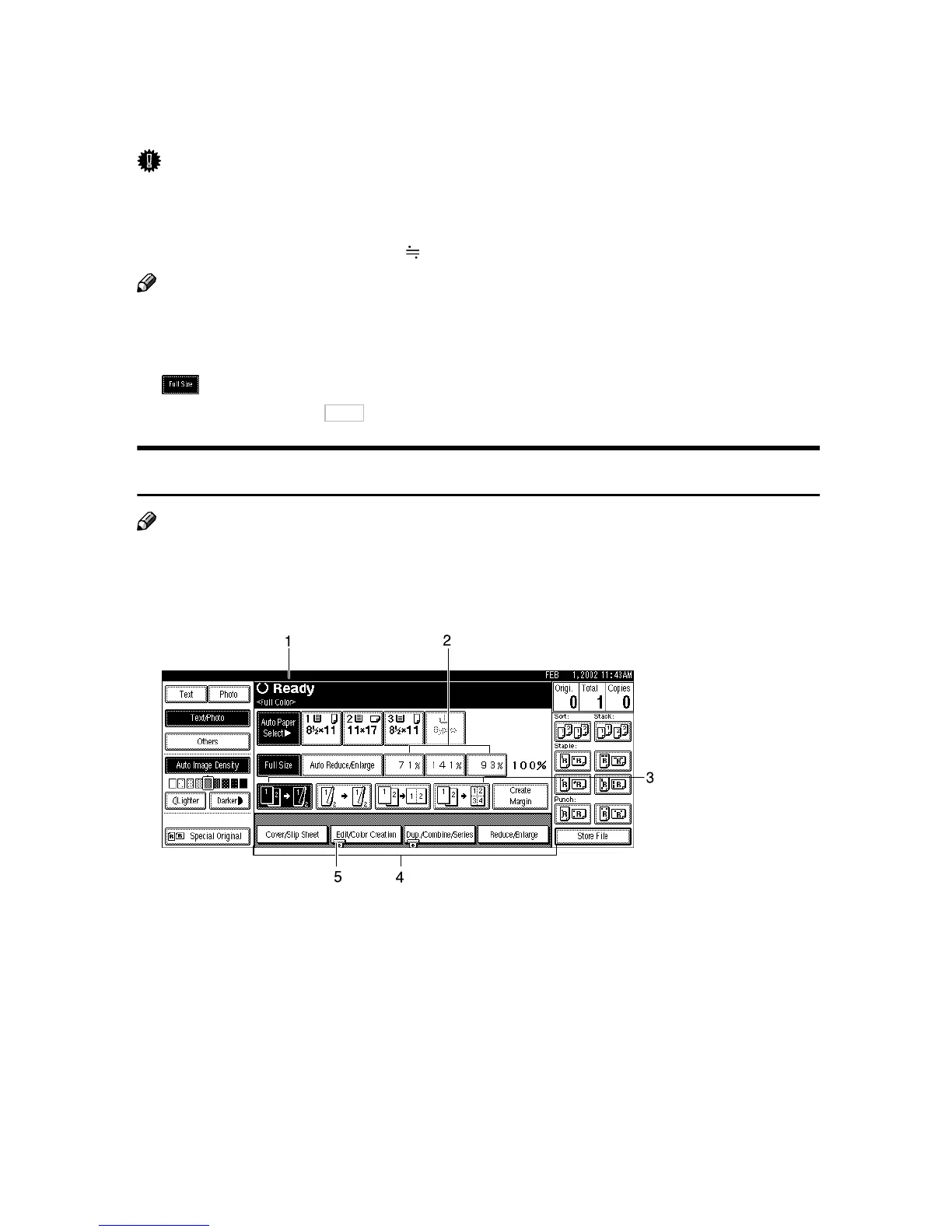
❖ Initial copy display (Full Color/Black & White/Two-Color)
1. Displays the operational status,
selected color mode, or messages.
2. You can register up to three fre-
quently used reduce/enlarge ratios
other than the fixed reduce/enlarge
ratios. ⇒
⇒⇒
⇒ “Shortcut R/E”, Advanced
Features manual
3. Displays the contents of the
Shortcut keys. You can register fre-
quently used functions in these
keys. ⇒
⇒⇒
⇒ “Copy Function Key: F1–
F5”, Advanced Features manual
4. Shows the available functions.
Press a function name to display its
menu. For example, press [Reduce/En-
large] to bring up the Reduce/Enlarge
menu.
5. A clip mark appears for a current-
ly set function.
OK



 To Next Page