Faxing
36
2
❒ You can set whether the machine
returns to the original type default
setting after every transmission
with the [Gen. Settings/Adjust] key.
⇒ Chapter 7, “General Set-
tings/Adjustment” in the Ad-
vanced Features manual
A
AA
A
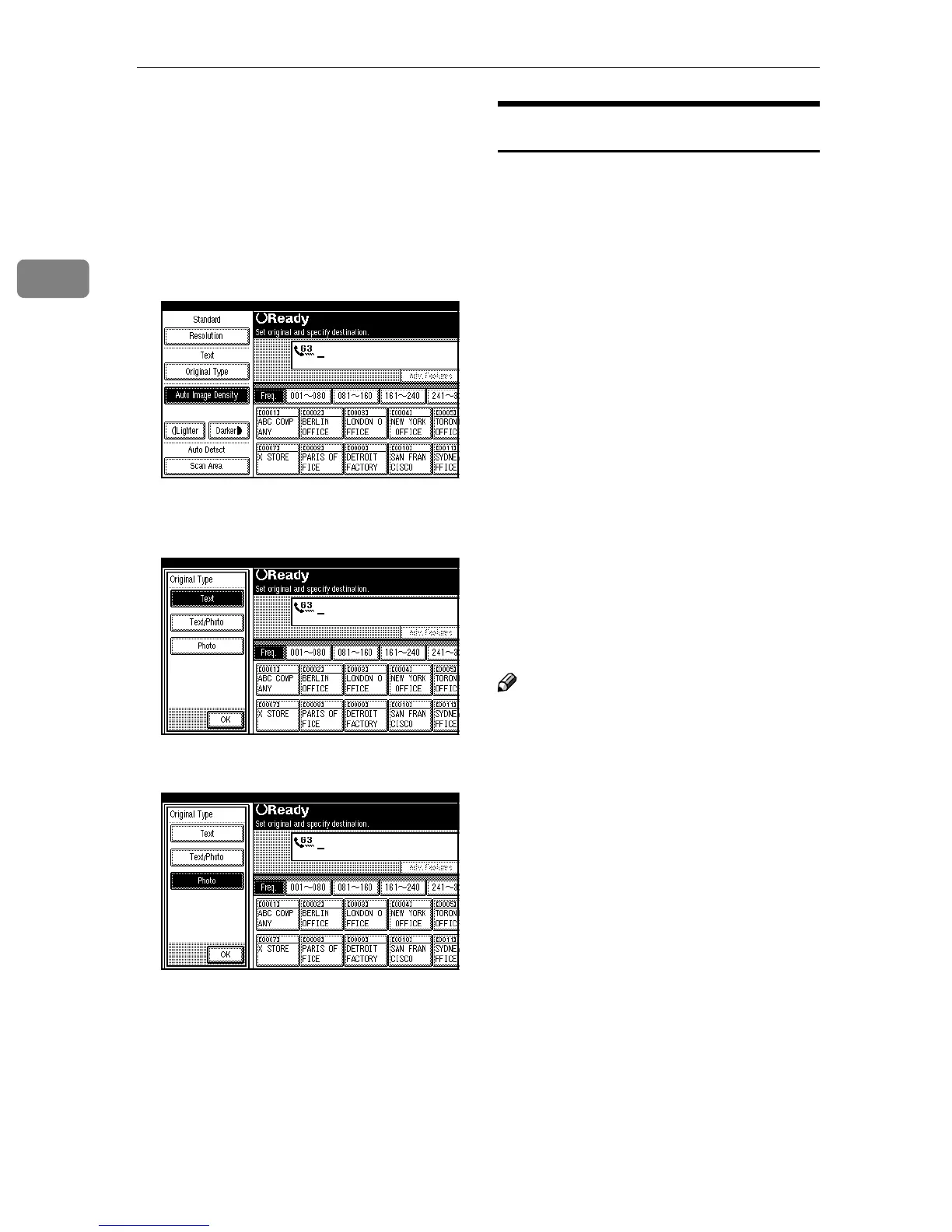
Press [Original Type].
B
BB
B
Select the original type you re-
quire.
C
CC
C
Press [OK].
Image Density (Contrast)
The text and diagrams in your origi-
nal should stand out clearly from the
paper they are written on. If your
original has a darker background
than normal (for example, a newspa-
per clipping), or if the writing is faint,
adjust the image density.
❖
❖❖
❖ Auto Image Density
The appropriate density setting for
the original is automatically select-
ed.
❖
❖❖
❖ Manual Image Density
Use manual image density to set
image density yourself.
❖
❖❖
❖ Combined Auto and Manual Image
Density
You can adjust image density for
only photographs, illustrations or
diagrams when the original has a
dark background.
Note
❒ You can select the image density
that is selected right after the ma-
chine is turned on or modes are
cleared with the [Gen. Settings/Ad-
just] key. ⇒ Chapter 7, “General
Settings/Adjustment” in the Ad-
vanced Features manual
❒ You can set whether the machine
returns to the image density de-
fault setting after every transmis-
sion with the [Gen. Settings/Adjust]
key. ⇒ Chapter 7, “General Set-
tings/Adjustment” in the Ad-
vanced Features manual



 To Next Page