Basic Copying
34
1
When Copying onto OHP
Transparencies or Thick Paper
To make copies onto OHP transpar-
encies or thick paper, you need to
specify the paper type. ⇒ p.34 “When
Copying onto Custom Size Paper”,
p.36 “When Copying on the Back Side
of the Paper”
Note
❒ Copying onto OHP transparencies
or thick paper may take about 2
minutes.
A
AA
A
Open the Bypass Tray, and then
adjust the guides to the paper
size.
Important
❒ If the guides are not flushed
with the copy paper, a skewed
image or paper misfeed might
occur.
B
BB
B
Gently insert the OHP transpar-
encies or a thick paper face up un-
til the beeper sounds.
Important
❒ When you load an OHP trans-
parency, make sure that its front
and back faces are properly po-
sitioned.
❒ To avoid paper misfeeds, fan
the paper before loading it in
the tray.
C
CC
C
Press the {
{{
{#}
}}
} key.
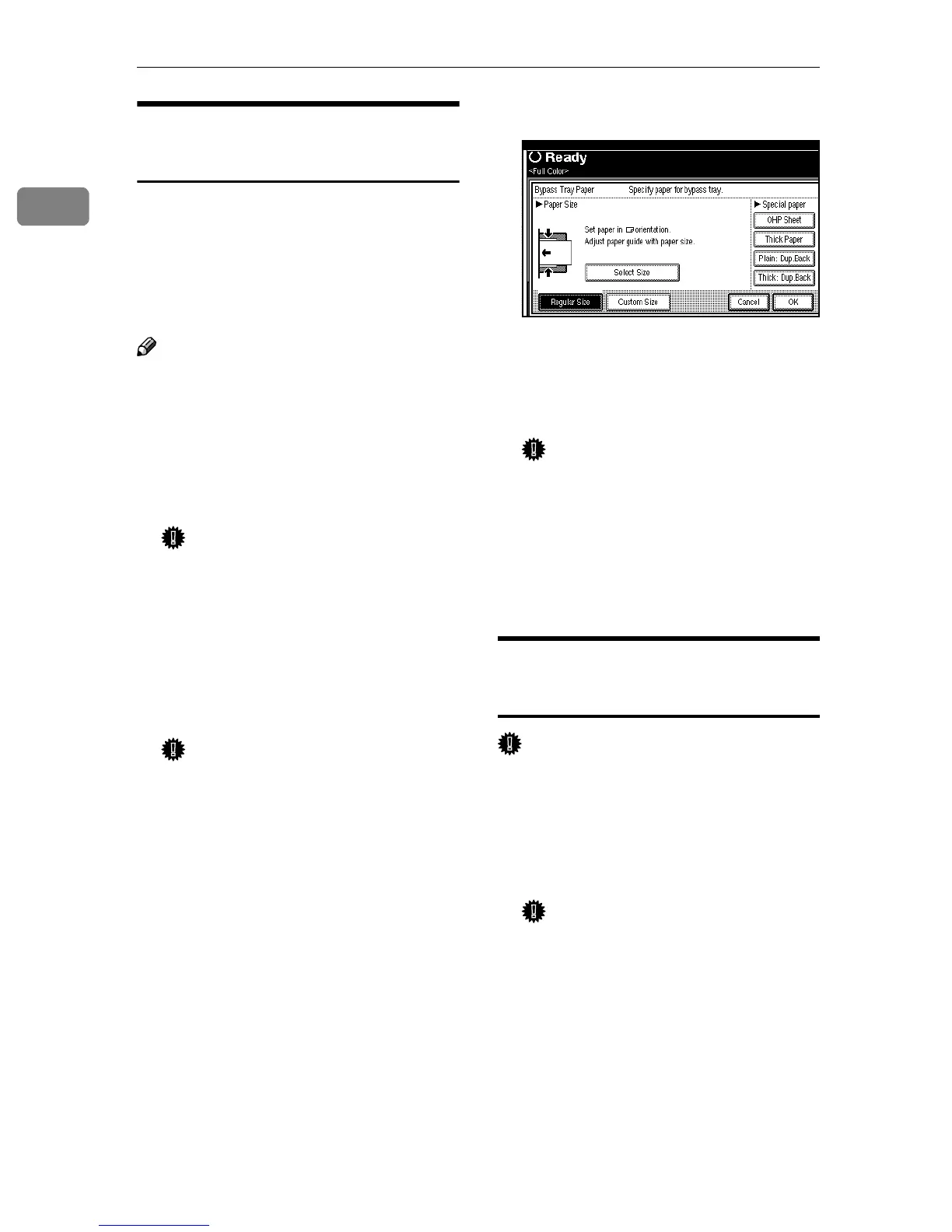
Display for “Bypass Tray Paper” is
shown.
D
DD
D
Select [OHP Sheet] or [Thick Paper].
E
EE
E
Press [OK].
F
FF
F
Place your originals, and then
press the {
{{
{Start}
}}
} key.
Important
❒ When copying onto OHP trans-
parencies, remove copied sheets
one by one.
G
GG
G
When your copy job is finished,
press the {
{{
{Clear Modes}
}}
} key to
clear the settings.
When Copying onto Custom
Size Paper
Important
❒ You should specify the size of copy
paper to avoid paper misfeeds.
A
AA
A
Open the Bypass Tray, and then
adjust the guides to the paper
size.
Important
❒ If the guides are not flushed
with the copy paper, a skewed
image or paper misfeeds might
occur.
B
BB
B
Gently insert the paper face up
until the beeper sounds.
The k indicator on the display au-
tomatically goes on.



 To Next Page