Guide to the Machine
6
1
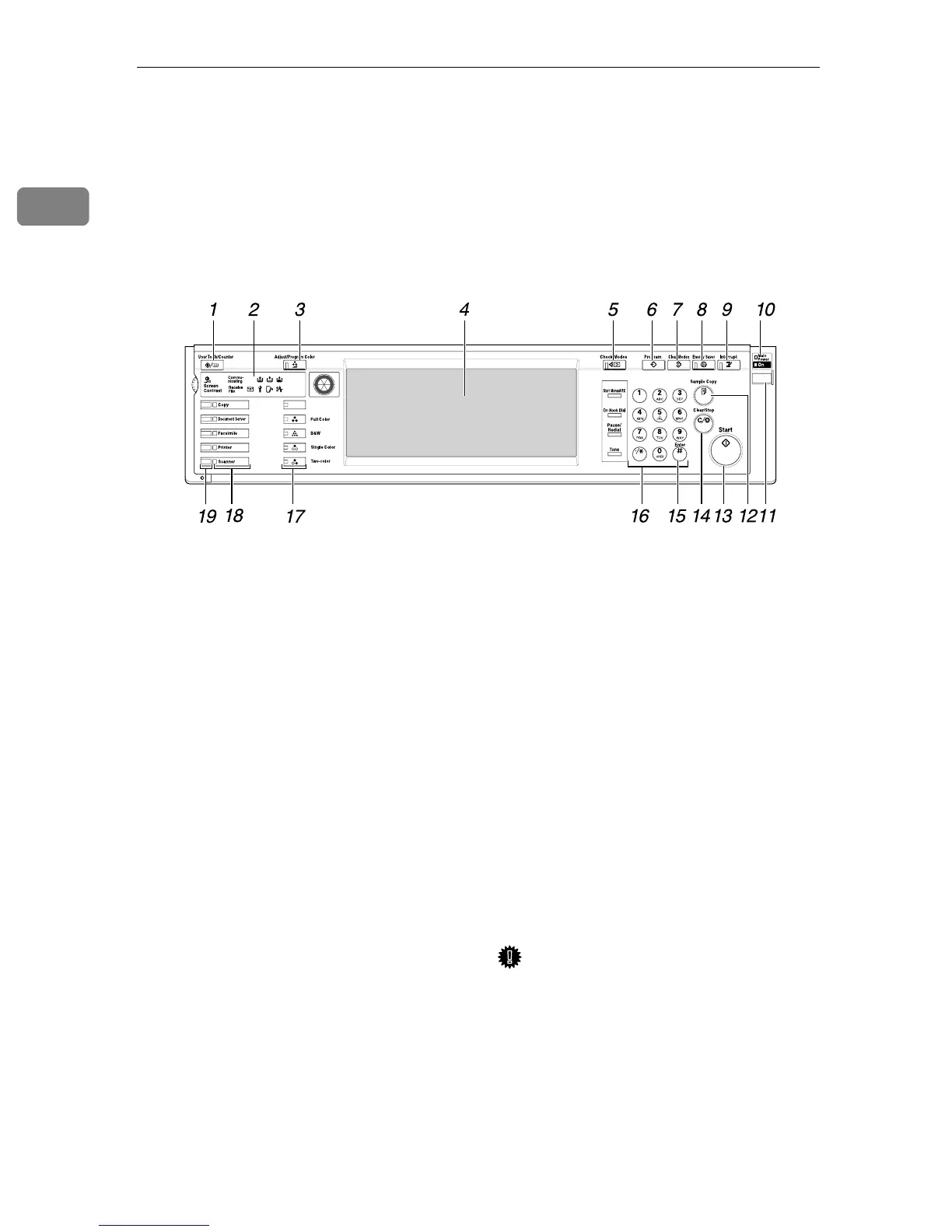
Control Panel
The illustration of the control panel will vary depending on the installed option-
al unit. The following illustration has all the options installed.
1. {
{{
{User Tools/Counter}
}}
} key
• User Tools
Press to change the default settings
and conditions to meet your require-
ments. ⇒"User Tools (System Set-
tings)" in Administrator Reference 2
Copier System Edition
• Counter
Press to check or print the total num-
ber of pages.
2. Indicators
Show errors and machine status.
3. {
{{
{Adjust/Program Color}
}}
} key
Use this key to register or adjust a color.
⇒Copy Reference <Basic Features>
4. Display panel
Shows operation status, error messages,
and function menus.
5. {
{{
{Check Modes}
}}
} key
Press to check the entered settings.
6. {
{{
{Program}
}}
} key
Press to select the program mode.
⇒Copy Reference <Advanced Features>
⇒Facsimile Reference <Advanced Fea-
tures>
7. {
{{
{Clear Modes}
}}
} key
Press to clear the previously entered set-
tings.
8. {
{{
{Energy Saver}
}}
} key
Press to switch to and from Energy Saver
mode.
9. {
{{
{Interrupt}
}}
} key
Press to interrupt a long job to make cop-
ies.
10. Main power indicator and On
indicator
The main power indicator goes on when
you turn on the main power switch.
The On indicator blinks when the power
is on.
Important
❒ Do not turn off the power while
the On indicator is blinking. Doing
so may damage the hard disk.
ZFNS010N



 To Next Page