Basic Functions
27
1
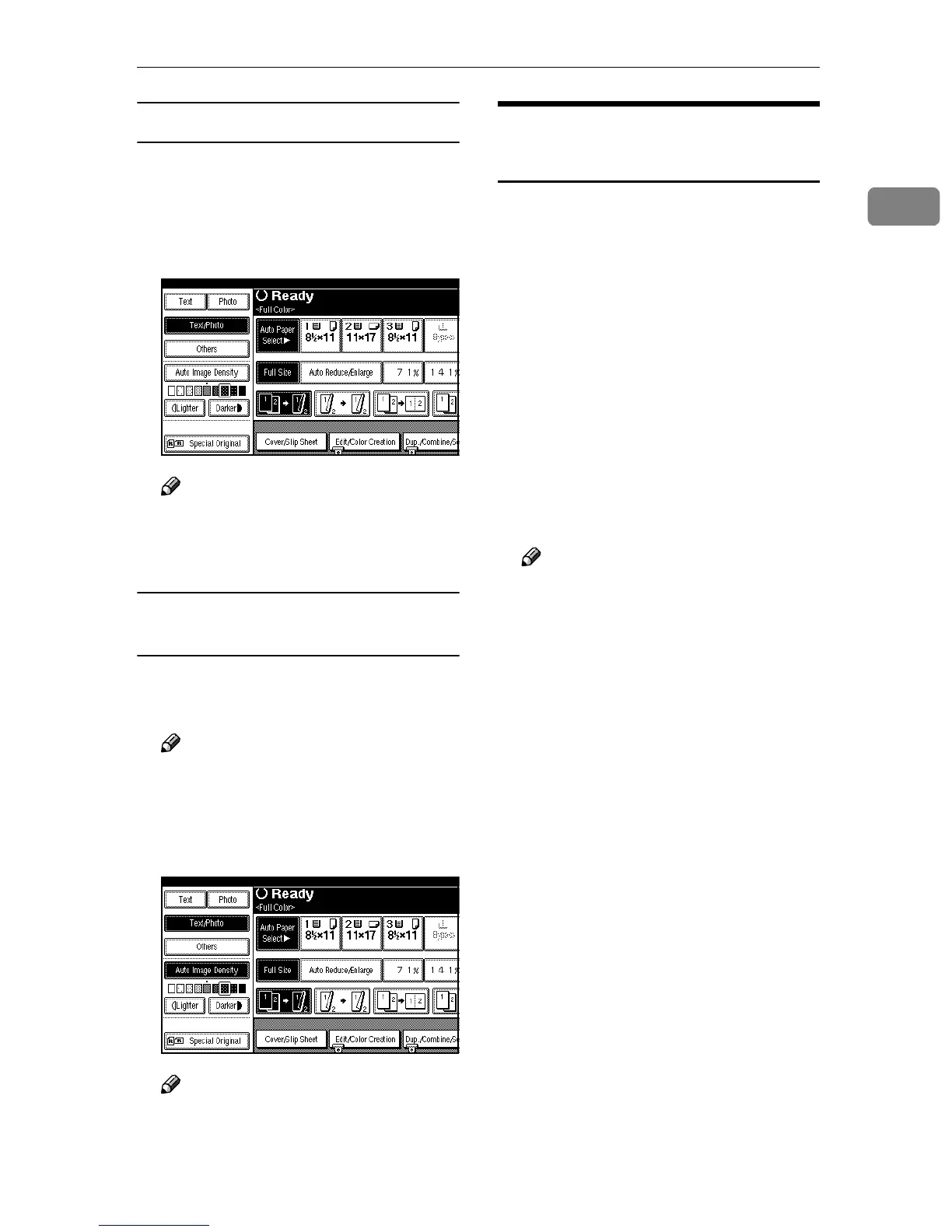
Manual Image Density
A
AA
A
Press [Auto Image Density] to cancel
it.
B
BB
B
Press [Lighter] or [Darker] to adjust
the image density.
Note
❒ If you do not wish to set any
other functions, press the
{
{{
{Start}
}}
} key to start copying.
Combined Auto and Manual Image
Density
A
AA
A
Make sure that [Auto Image Density]
is selected.
Note
❒ If [Auto Image Density] is not se-
lected, press [Auto Image Density].
B
BB
B
Press [Lighter] or [Darker] to adjust
the density.
Note
❒ If you do not wish to set any
other functions, press the
{
{{
{Start}
}}
} key to start copying.
Selecting Original Type
Setting
Select one of the following types to
match your originals:
❖
❖❖
❖ Text
Select this mode when your origi-
nals contain only text (no pictures).
❖
❖❖
❖ Text/Photo
Select Text/Photo when your orig-
inals contain photographs or pic-
tures with texts.
❖
❖❖
❖ Photo
Delicate tones of photographs and
pictures can be reproduced with
this mode.
Note
❒ If you select “Text/Photo” or
“Photo” for the original type,
select the photo type from the
three below:
• Glossy Photo
• Printed Photo
• Copied Photo
❖
❖❖
❖ Generation
If your originals are copies (gener-
ation copies), the copy image can
be reproduced sharply and clearly.
❖
❖❖
❖ Pale
Select this mode for originals that
have lighter lines written in pencil
or for faint copied slips. The faint
lines will be clearly copied.
❖
❖❖
❖ Map
Reading with settings suitable for
Map originals. “Others” is dis-
played when “Original Type Dis-
play” (copy/document server box
initial settings) has been set to
“Display”.



 To Next Page