Clearing and Adjusting the Machine
46
2
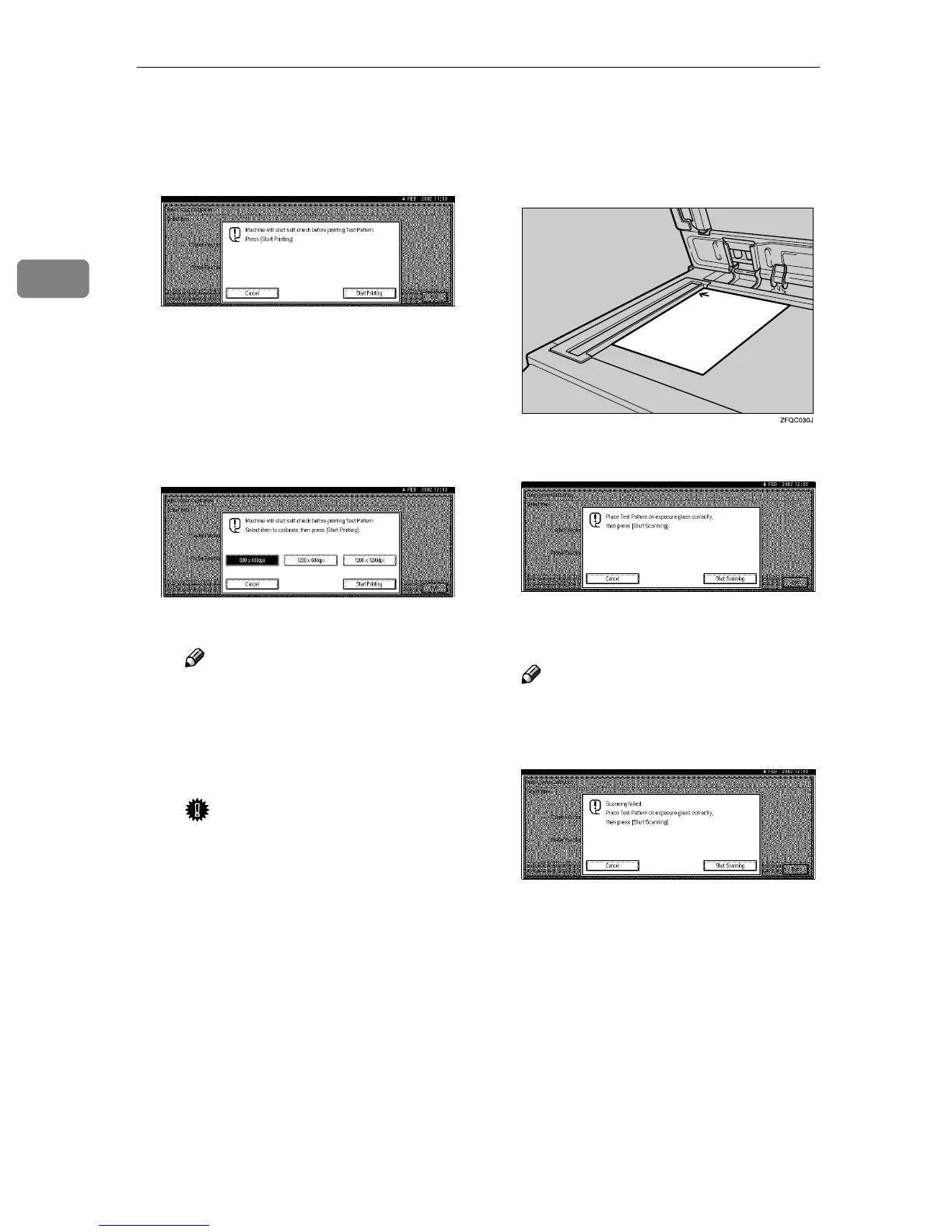
A If you have adjusted the color
calibration in copy mode, the
following display appears.
Press [Start Printing].
B If you have adjusted the color
calibration in printer mode, the
following display appears. Se-
lect [600 x 600 dpi], [1200 x 600
dpi], or [1200 x 1200 dpi] as the
resolution for color calibration,
and then press [Start Printing].
The test pattern will be printed.
Note
❒ Immediately after selecting
[Start Printing] from this
menu, a self-check starts.
Wait a few minutes for the
test pattern to be printed.
Important
❒ If the toner has almost run
out, the message "Test Pat-
tern could not be printed.
Print it again." appears on the
control panel and the ma-
chine does not carry out
Auto Color Calibration.
Make sure there is sufficient
toner for Auto Color Calibra-
tion. If there is not, replace
the cartridge. See p.4 “Re-
placing the Toner Car-
tridge”.
F
FF
F
Place the printed arrow of the test
pattern sheet at the left corner of
the exposure glass with the print-
ed side down.
G
GG
G
Press [Start Scanning].
Adjustment of the color calibration
starts.
Note
❒ If the sheet is not loaded proper-
ly, the following message ap-
pears.
H
HH
H
When all the settings have been
made, press the
{
{{
{
User Tools/Counter
}
}}
}
key.
The initial display is shown.



 To Next Page