Operating Instructions Administrator Reference 2
78
❒ If you cannot find the desired document
using the names, you can print the first
page of a document to check its contents.
Press the line for the desired document,
and press [
Print 1st Page
] followed by the
{
{{
{Start}
}}
} key.
❒ Press the selected line again to cancel the
print job.
C
CC
C
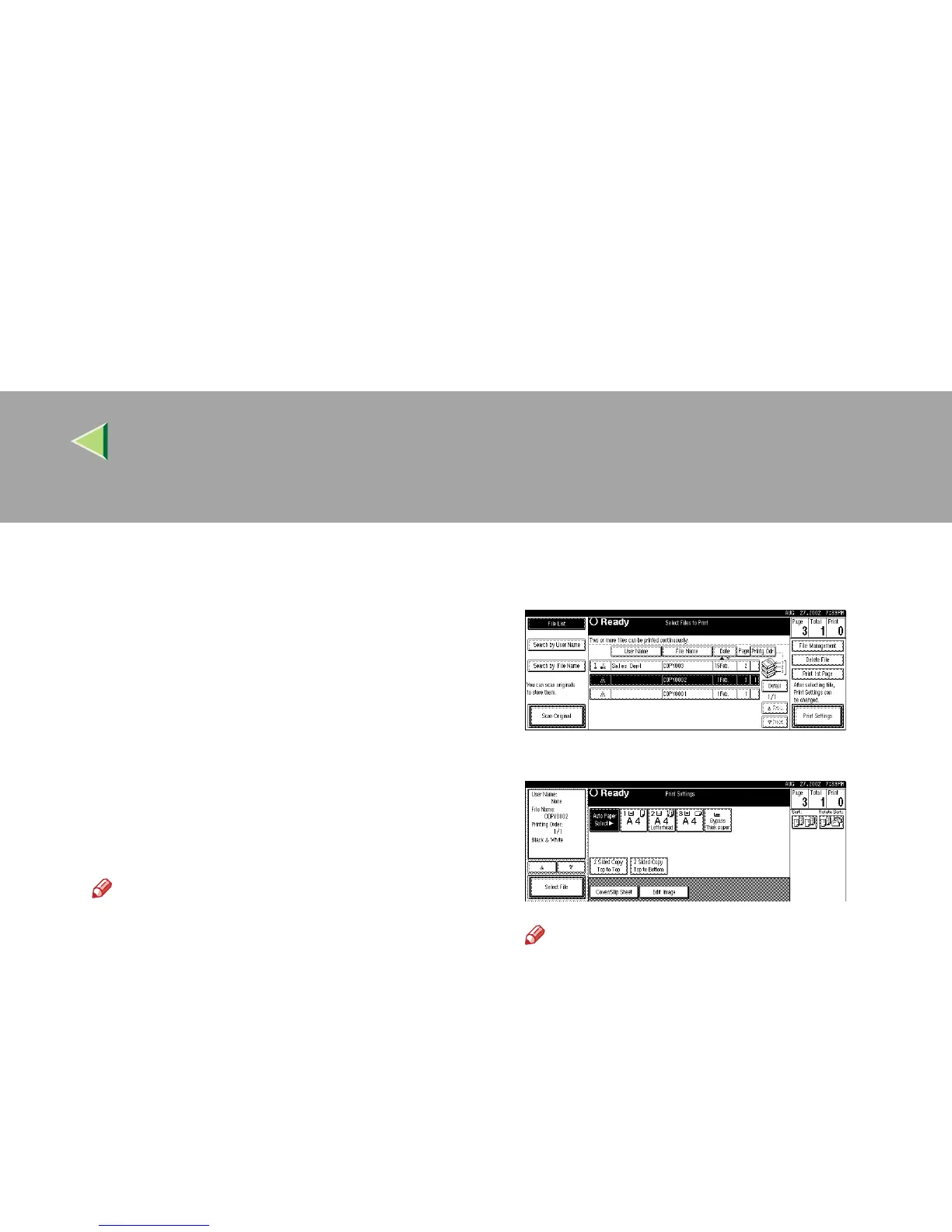
To print more than one document, repeat
step
B
to select the desired documents in
the order you want to print them out.
The selected order is shown in the priority
column next to the selected document(s).
Note
❒ Up to 30 documents can be selected for
printing.
❒ If several files have been selected, you
may not be able to print if the size or the
resolution of each file is different.
❒ To change the print order, press the high-
lighted lines to cancel their selection, and
then select them again in the order you
want to print.
❒ Press the {
{{
{Clear Modes}
}}
} key to cancel all
the settings.
❒ If you press [Printg Odr], the selected doc-
uments are displayed in printing order.
D
DD
D
If you need to change any of the print set-
tings, press [Print Settings].
The “Print Settings” display appears.
Note
❒ The print settings are stored in the ma-
chine after printing and applied to the next
printing.
❒ If several files have been selected, the
print settings of the first file are stored in
memory but those of the other files are not.
❒ The print setting items are listed below.
For more information about the print re-
sults according to each setting, see the
Copy Reference <Basic Features>.



 To Next Page