Adjusting the Color Registration
39
2
E
EE
E
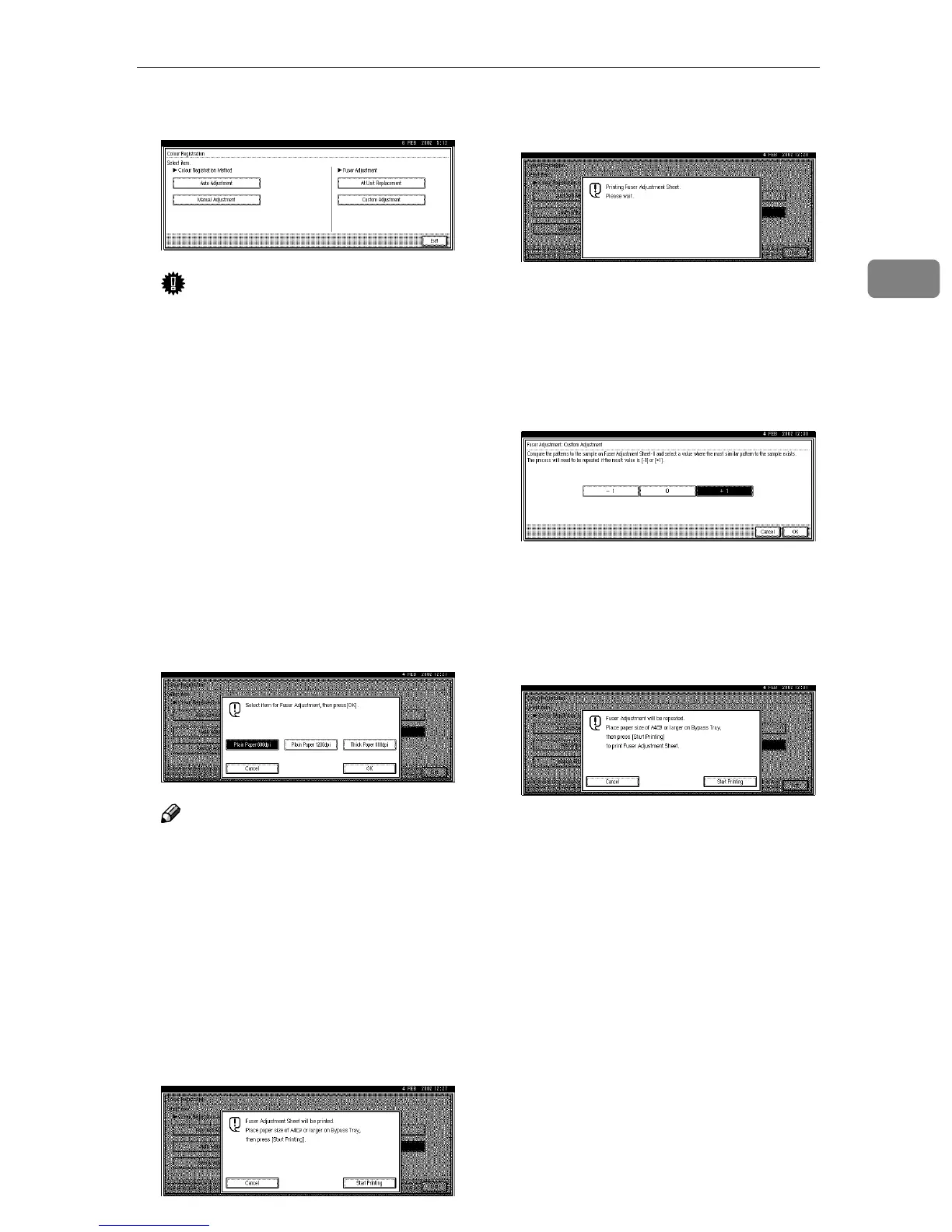
Press [Custom Adjustment].
Important
❒ When the toner cartridge is al-
most empty or "Auto Adjust-
ment" is not finished, the
following message appears on
the panel display and Fuser Ad-
justment is not available.
Confirm that the toner is not emp-
ty. If the toner is empty, replace the
toner cartridge.
If the toner cartridge is not empty,
perform "Auto Adjustment". See
p.36 “Auto Adjustment”.
F
FF
F
Select "Plain: 600dpi", "Plain:
1200dpi", or "Thick: 600dpi" as the
value to adjust, and then press [
OK
].
Note
❒ The current resolution can be
checked in the printer driver.
❒ To adjust the color registration
for thick paper, select "Thick:
600dpi" regardless of the cur-
rent resolution.
G
GG
G
To print the Fuser Adjustment
Sheet, make sure that A4 or larger
paper is loaded in the Bypass Tray,
and then press [
Start Printing
].
Fuser Adjustment Sheet II is print-
ed. See p.42 “Test Sheet Samples”.
H
HH
H
Compare box A of the printed pat-
tern with the white square in the
printed Fuser Adjustment Sheet.
Specify which square in the box
matches the printed Fuser Adjust-
ment Sheet.
If you specify "0", setting is fin-
ished and the display that ap-
peared in step
E
returns.
If you specify "-1" or "+1", the fol-
lowing display appears.
Press [Start Printing]. An adjusted
Fuser Adjustment Sheet II is print-
ed and the display that appeared
in step
H
reappears. Keep adjust-
ing until the printed pattern looks
the same as the printed pattern,
and then specify "0".
I
II
I
After making all the settings,
press the {
{{
{User Tools/Counter}
}}
} key.
The initial display is shown.



 To Next Page