Displaying a preview
Display a preview of stored documents.
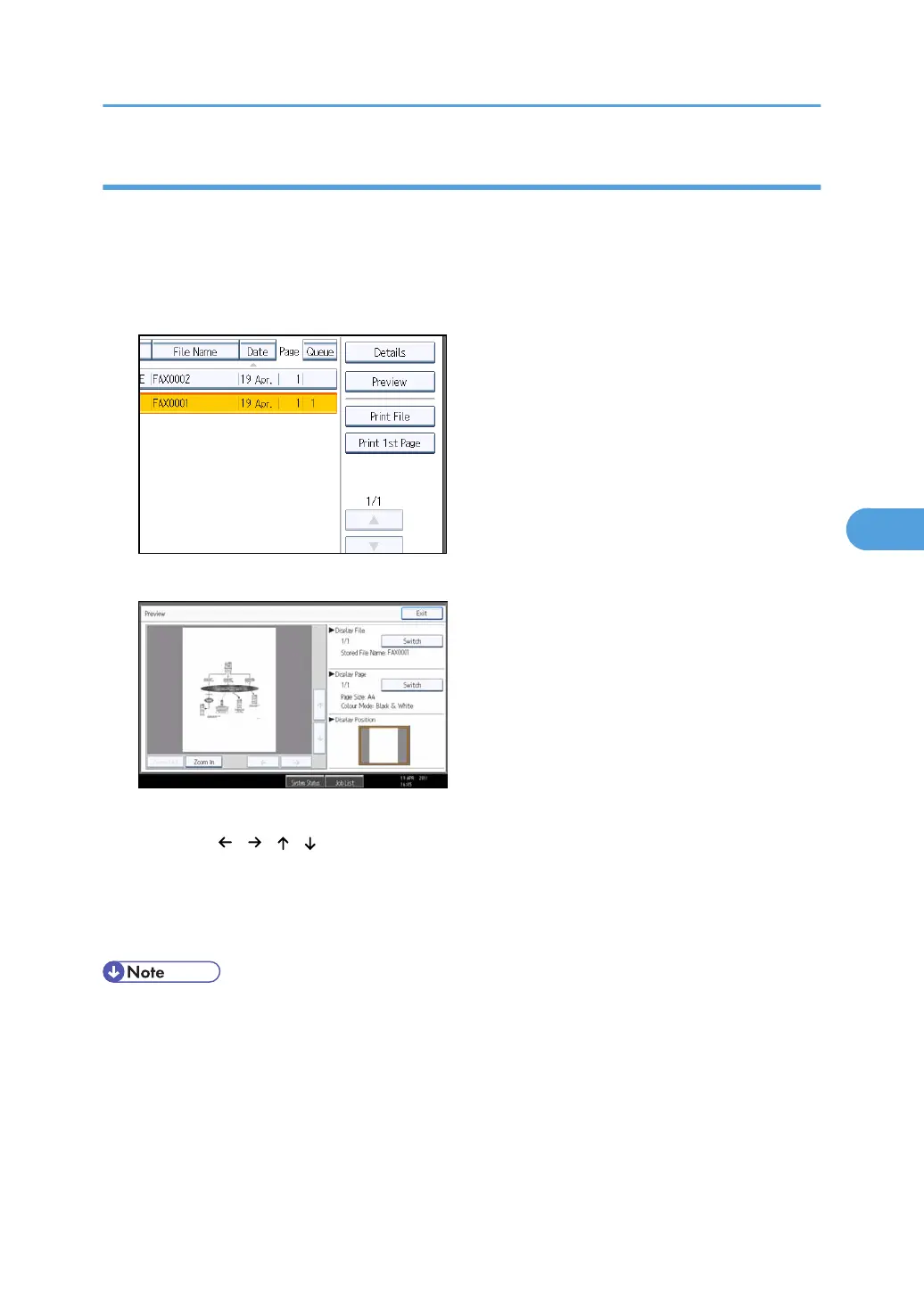
1. Select the document you want to send.
Press the Thumbnails key to switch the screen to thumbnail display.
2. Press [Preview].
3. Check the preview.
• Press [Zoom Out] or [Zoom In] to reduce or enlarge the preview image.
•
Press [
] [ ] [ ] [ ] to scroll the preview image.
•
Press [Switch] under “Display File” to display another selected file.
• Press [Switch] under “Display Page” to change the displayed page.
4. Press [Exit].
• If image files are corrupt or are larger than A3, they are not displayed on the preview window.
•
If the image file is corrupt, store it again.
• If you stored originals that had multiple mixed-size pages without using the Mixed Original Sizes
function, the displayed size might differ from the actual size for pages after the first page.
Sending a Stored File
307



 To Next Page