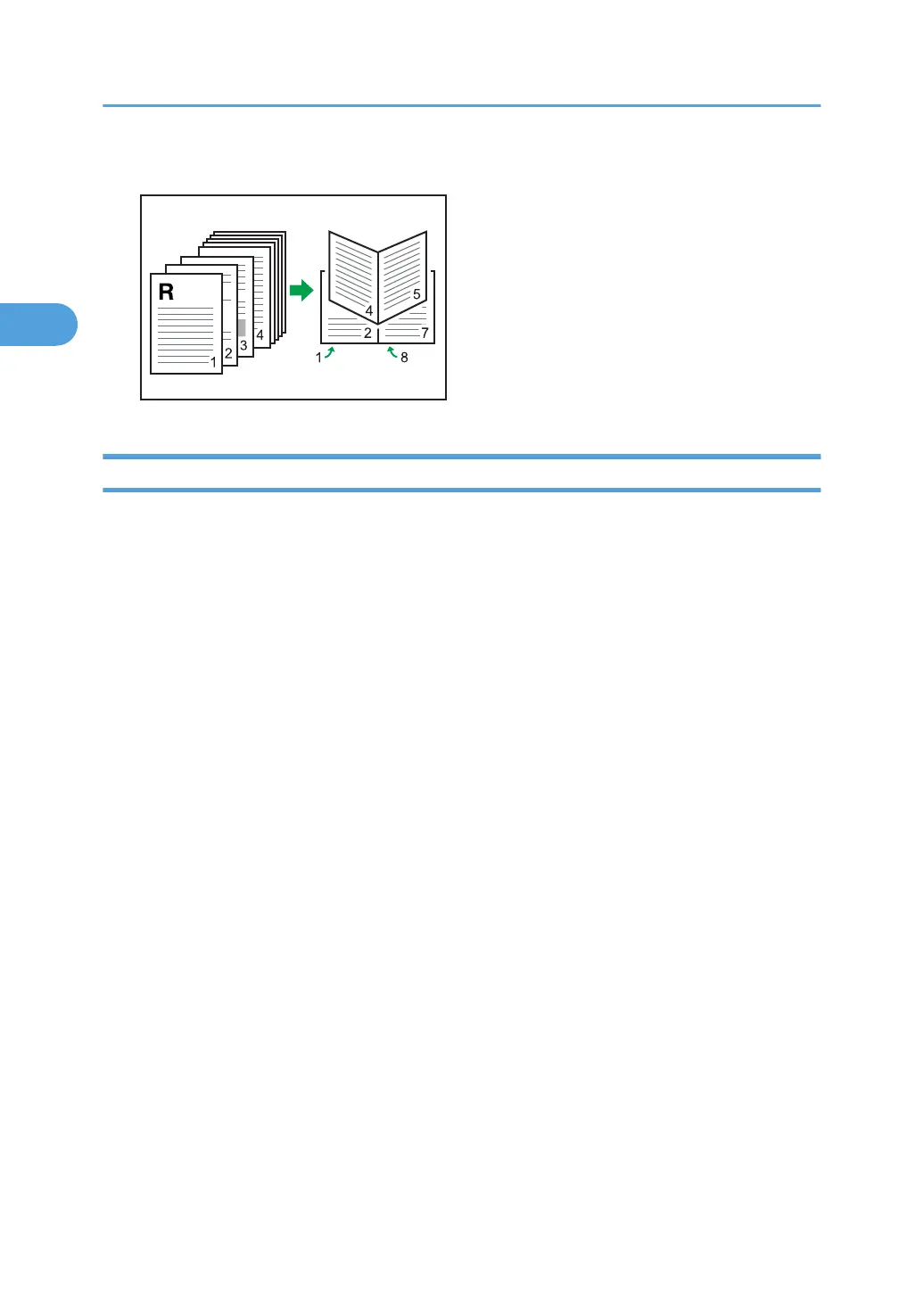
Center Binding
Combining Multiple Pages into Single Page
This section explains how to print multiple pages onto a single sheet. The combine printing function
allows you to economize on paper by printing multiple sheets at reduced size onto a single sheet.
For the PCL 6 printer driver:
1. After creating a document, open the [Printing Preferences] dialog box in the
document's native application.
The [Printing Preferences] dialog box appears.
2. To use an existing One Click Presets, click the [One Click Presets] tab, and then click
the [2 on 1] icon in the [One Click Preset List:] box.
If you do not wish to modify a custom setting that is already registered in the printer driver,
change settings such as paper size and source tray as required, and then proceed to step 8.
3. Click the [Detailed Settings] tab.
4. In the [Menu:] box, click the [Edit] icon.
5. In the [Layout:] list, select the combination pattern from the list.
6. Change any other print settings if necessary.
7. To save current setting in the One Click Preset List, click [Register Current Settings...].
Enter a name and comment that describe the setting, and then click [OK].
The newly registered icon appears in the [One Click Preset List:] area.
8. Click [OK] to close the [Printing Preferences] dialog box.
9. Print the document using the print function in the document's native application.
For the PCL 5e printer driver:
1. After creating a document, open the [Printing Preferences] dialog box in the
document's native application.
The [Printing Preferences] dialog box appears.
2. Printing Documents
72



 To Next Page