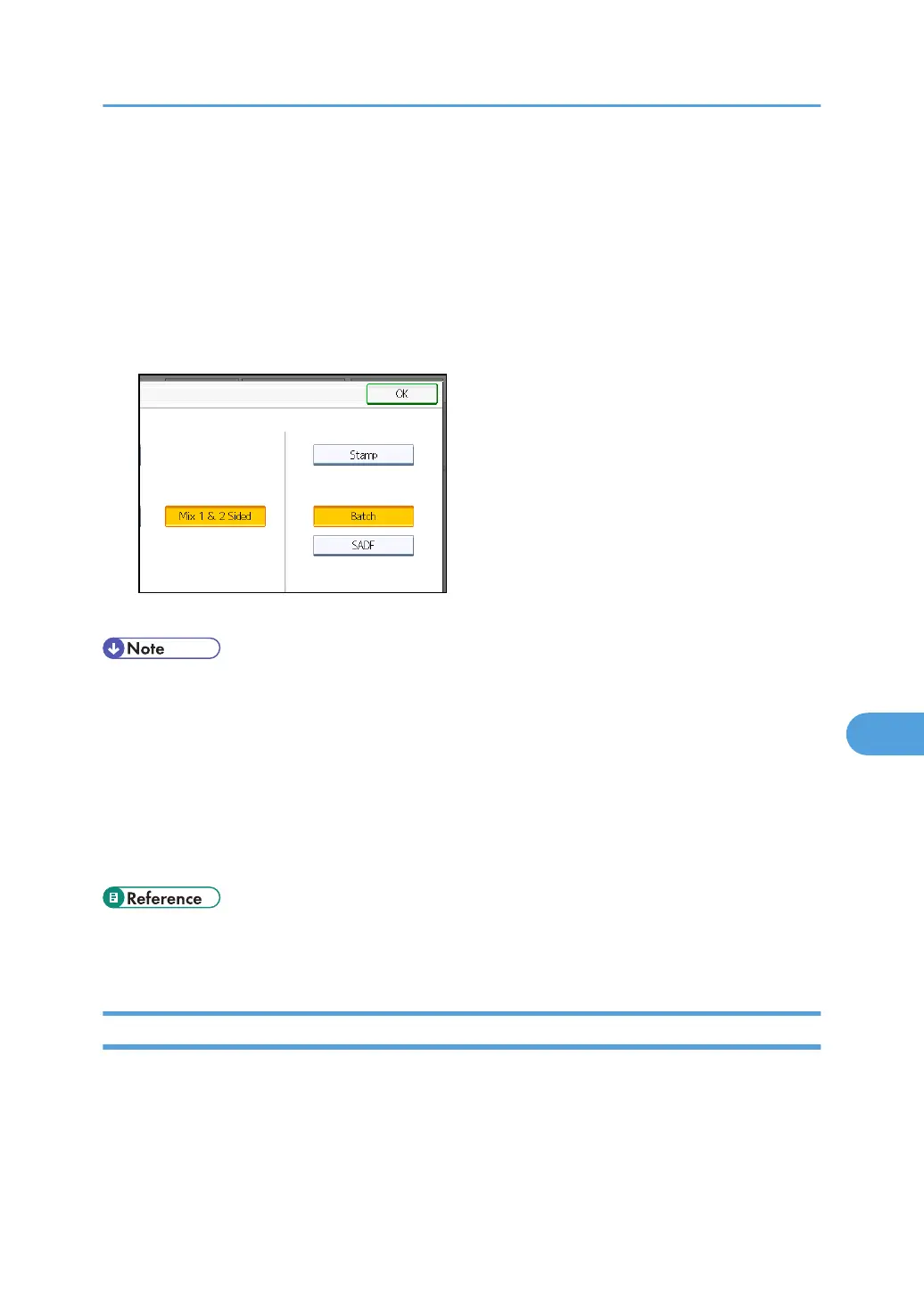
Select [Mix 1 & 2 Sided]. Then, before placing additional originals, switch between [1 Sided Original]
and [2 Sided Original], and then start scanning.
1. Press [Original Feed Type].
2. Select either [Batch] or [SADF].
If you will be scanning multiple originals multiple times, you must specify this setting beforehand.
For details, see "Batch, SADF".
3. In [Original Settings], select [Mix 1 & 2 Sided].
4. Press [OK].
• You can select [Mix 1 & 2 Sided] and [Divide] at the same time. However, the function selected
last has priority.
•
To switch the scan setting for additional originals to [1 Sided Original] after scanning one side of
the last page of a batch of two-sided originals, press [Change Setting], and then press [1 Sided
Original].
• One-sided and two-sided originals are usually output to different trays. However, if you select [Mix
1 & 2 Sided], all originals are output back side up (reversed) to the same tray. This allows you to
check the scanning order, regardless of whether they are one-sided or two-sided originals.
• p.178 "Batch, SADF"
•
p.182 "Scanning Multiple Pages of Originals as One File"
Stamp
This section explains the procedure for stamping originals that are scanned from the ADF. The stamp
indicates the originals have been scanned.
When scanning a document using ADF, the machine can stamp a circle mark at the bottom of the
original. When scanning a two-sided document, the document is marked at the bottom of the front page
and top of the rear page.
Setting of Original Feed Type
177



 To Next Page