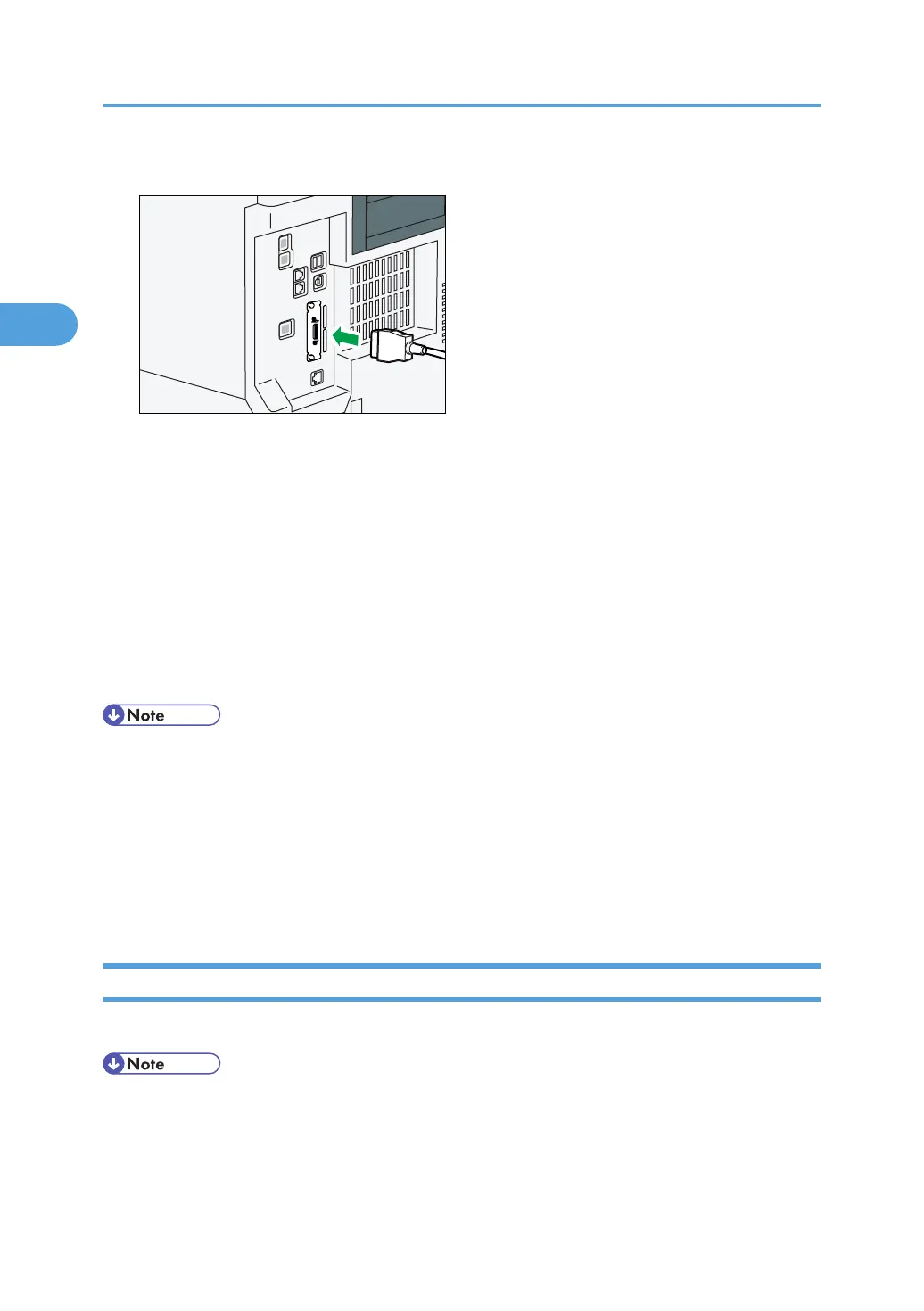
3. Connect the IEEE 1284 interface cable to the IEEE 1284 port.
You might have to use a conversion adapter to connect the cable to the interface. For details about
acquiring a conversion adapter, consult your sales or service representative.
4. Connect the other end of the cable into the interface connector on the host computer.
Check the shape of the connector to the computer. Connect the cable firmly.
5. Turn on the main power switch of the machine.
6. Turn on the host computer.
When using Windows XP/Vista/7, and Windows Server 2003/2003 R2/2008/2008 R2, a
printer driver installation screen might appear when the computer is turned on. If this happens, click
[Cancel] on the screen.
• Use a 5 meter (197 inch) or shorter cable that supports IEEE 1284 and whose performance is
guaranteed on the client computer.
•
This machine does not come with a IEEE 1284 interface cable. Make sure you purchase the
appropriate cable for the machine (connector shape).
• For details about how to turn on the main power switch, see "Turning On the Power", About This
Machine.
• For details about installing the printer driver, see "Preparing the Machine", Printer Reference.
Connecting to the Wireless LAN Interface
This section describes how to connect to the wireless LAN interface.
• Check the machine's IPv4 address and subnet mask, or the IPv6 address settings.
•
For details about how to set the IPv4 address and subnet mask from the control panel of the
machine, see "Interface Settings".
2. Connecting the Machine
78



 To Next Page