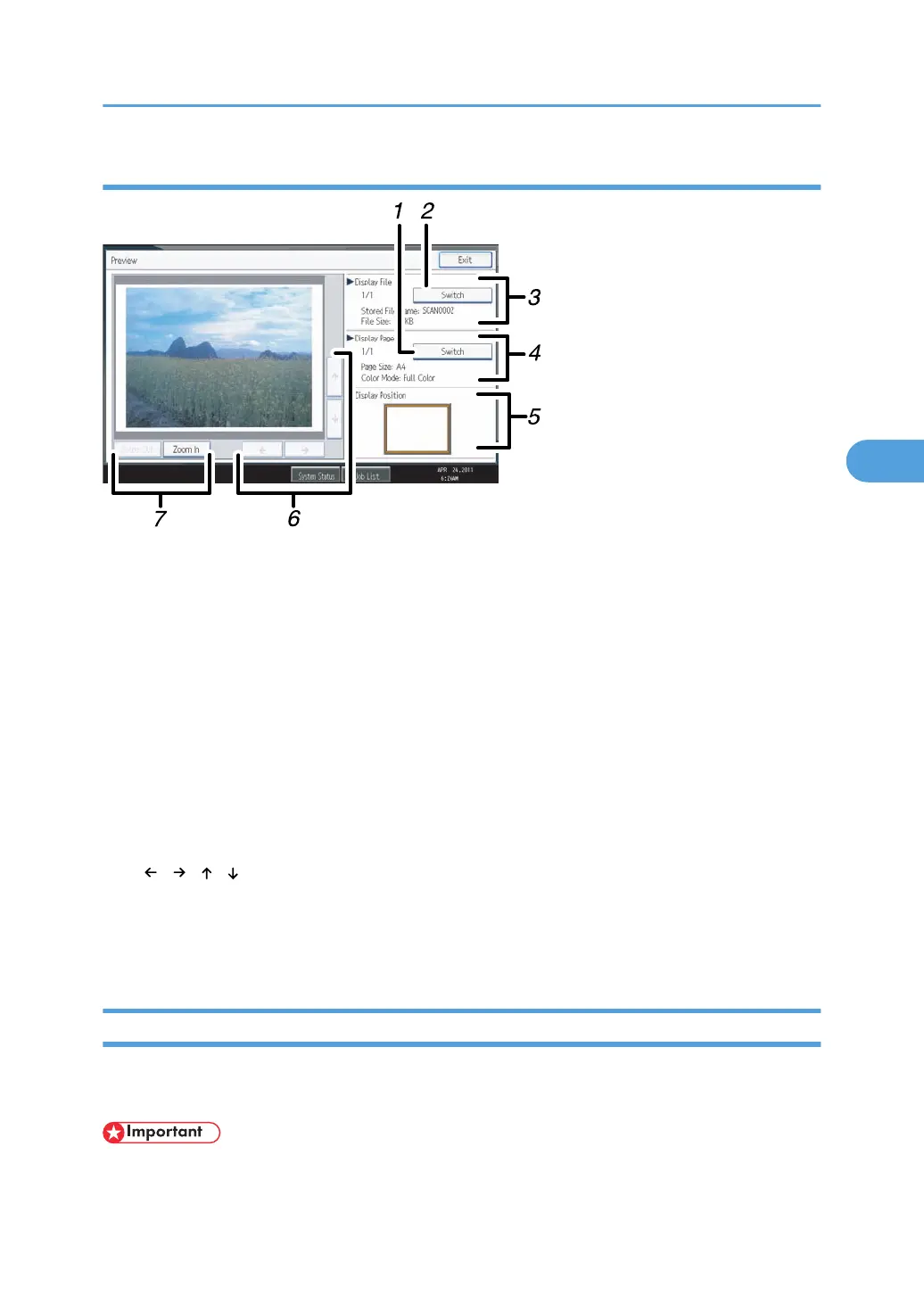
Stored File Preview Screen
1. [Switch]
You can switch to a preview of another page.
2.
[Switch]
You can switch to a preview of another file.
3. Display File
The name and size of the selected file appear.
4. Display Page
The page number of the previewed page, total number of pages, page size, and color mode appear.
5. Display Position
When the preview is enlarged, the location of the part of the page displayed on the preview screen is
indicated.
6. [
] [ ] [ ] [ ]
Press to shift the displayed area.
7.
[Zoom Out], [Zoom In]
In previewing, you can reduce or enlarge the file image.
Checking Stored Files from a Client Computer
Using DeskTopBinder Lite or Web Image Monitor, you can also display the files stored in the machine
on a client computer.
• To view stored files from a client computer, you must first make the required IPv4 address settings
using DeskTopBinder or Web Image Monitor.
Checking Stored Files
119



 To Next Page