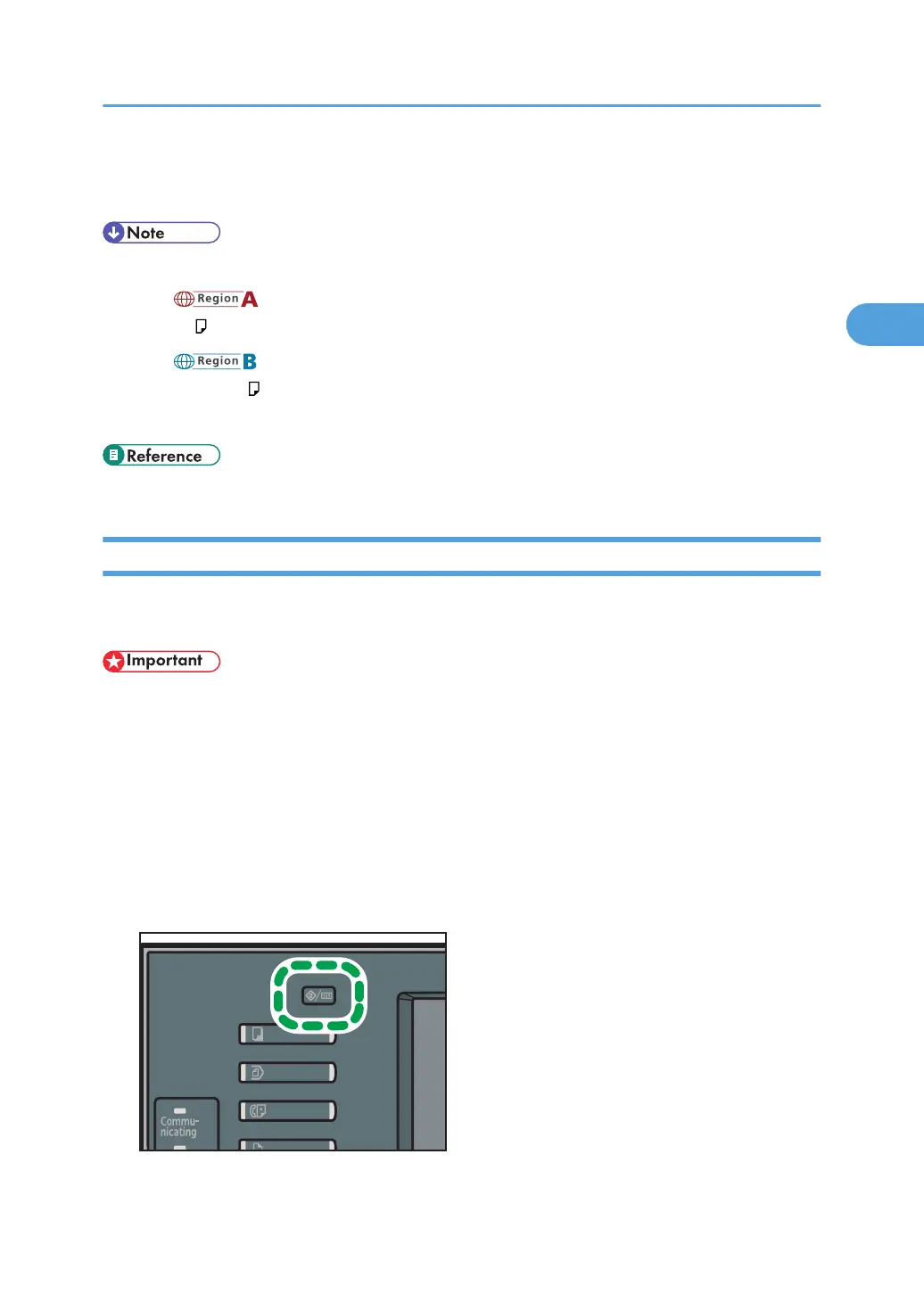
10. Press the [User Tools/Counter] key.
The initial screen appears.
• The default paper size for the bypass tray is as follows:
• (mainly Europe and Asia)
A4
• (mainly North America)
8
1
/
2
× 11
• For details about setting printer drivers, see the printer driver Help.
• p.153 "System"
Setting Thick Paper, Thin Paper or OHP Transparencies Using the Control Panel
Follow the procedure below to set the machine using the control panel when loading thick paper, thin
paper or OHP transparencies onto the bypass tray.
• If you select [Machine Setting(s)] in [Bypass Tray] under [Tray Setting Priority] in [System] of [Printer
Features], the settings made using the control panel have priority over the printer driver settings. For
details about [System] settings, see "System".
•
We recommend that you use specified OHP transparencies.
• Do not use color OHP transparencies that are coated with materials that might melt.
• OHP transparencies must be loaded face down in the tray.
• When printing onto OHP transparencies, remove printed sheets one by one.
1. Press the [User Tools/Counter] key on the control panel.
2. Press [System Settings].
Setting Paper on the Bypass Tray
59



 To Next Page