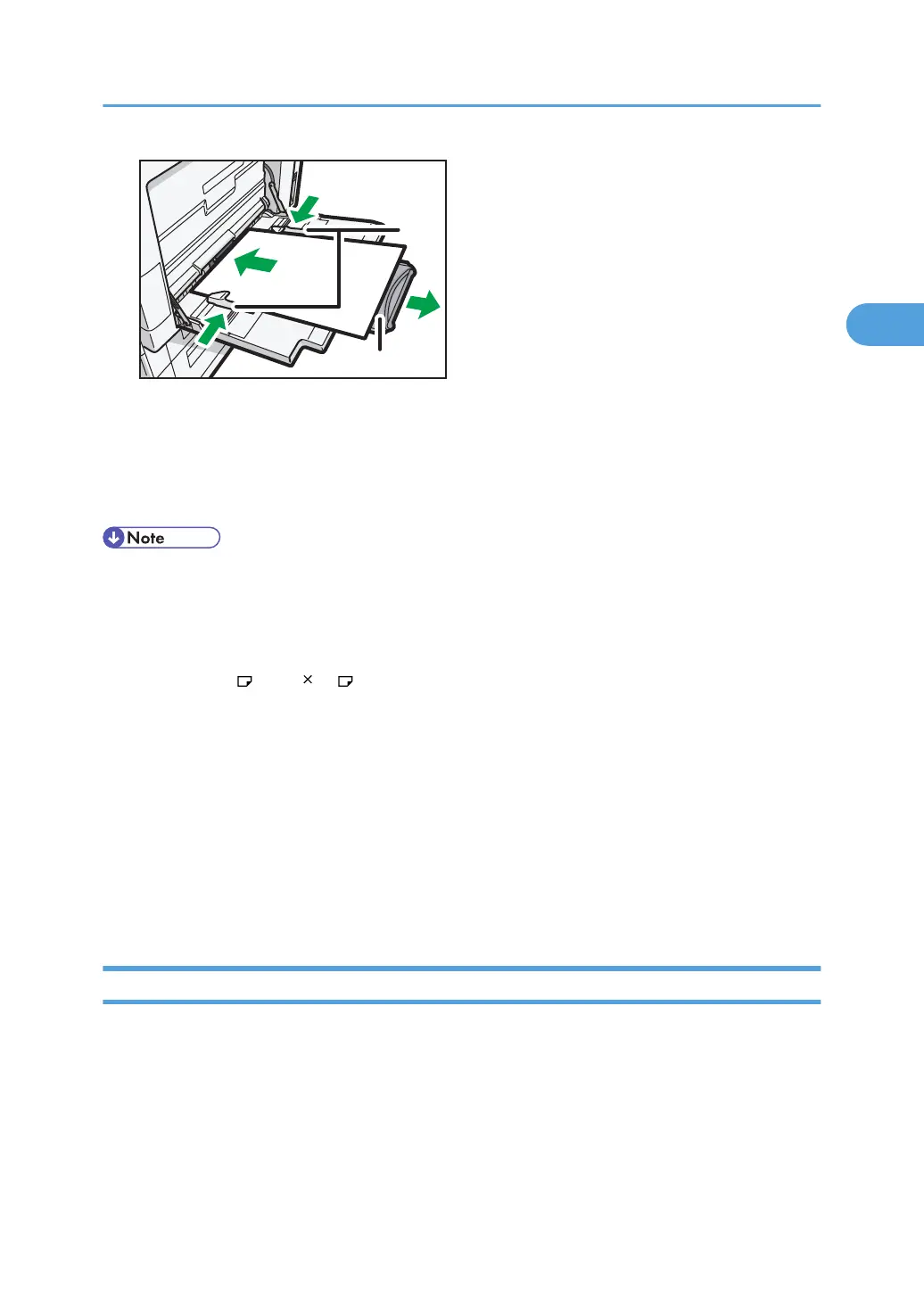
1. Paper Guide
2.
Extender
3. Configure the paper settings using both the printer driver and the control panel according
to the paper orientation.
• Certain types of paper might not be detected properly when placed on the bypass tray. If this
happens, remove the paper and place it on the bypass tray again.
•
Load only as much paper as can be held between the guides on the bypass tray. Overloading the
bypass tray can result in misfeeds and skewed images.
• To support A4
, 8
1
/
2
11 or larger paper sizes, pull out the extender.
•
To prevent multiple sheets from being fed at once, fan paper before placing it on the tray.
• The number of sheets that can be loaded in the bypass tray depends on the paper type.
• When loading letterhead paper, see "Loading Paper", About This Machine.
• Depending on the environment where the machine is being used, you might at times hear a rustling
noise from paper moving through the machine. This noise does not indicate a malfunction.
• When [Panel Key Sound] is turned off, it will not sound if you insert paper into the bypass tray. For
details about [Panel Key Sound], see "System Settings", Network and System Settings Reference.
• For details about setting printer drivers, see the printer driver Help.
Setting the Paper Size Using the Control Panel
Follow the procedure below to set the machine using the control panel when loading standard size
paper onto the bypass tray.
Setting Paper on the Bypass Tray
55



 To Next Page