• If [Auto Colour Select] is selected, the machine may fail to correctly judge colors depending on the
scanning condition or the contents of originals.
•
If you select [High Compression PDF] as the file type, you must then select one of the following for
Original Type: [Grey Scale], [Full Colour: Text / Photo], or [Full Colour: Glossy Photo].
Resolution
Select resolution for scanning originals.
Select [100 dpi], [200 dpi], [300 dpi], [400 dpi], or [600 dpi] as the scanning resolution.
• If [High Compression PDF] is selected as the file type, you cannot select [100 dpi] and [600 dpi].
For details about file types, see "Specifying the File Type and File Name".
• p.184 "Specifying the File Type and File Name"
Scan Size
Select the size of the original to be scanned.
[Auto Detect]
Scans original sizes using the automatic size detect function.
[Mixed Original Sizes]
Select [Mixed Original Sizes] to scan a batch of originals that have different lengths.
Originals are scanned by the ADF and the length of each is automatically detected.
[Custom Size]
Select [Custom Size] to scan originals whose sizes do not match a standard template or to scan
only a part of an original.
You can specify the length and width of your originals in mm or inches.
Template size
Select a template size to scan originals at a specified size regardless of the actual size of the
originals you have placed.
You can specify the following template sizes:
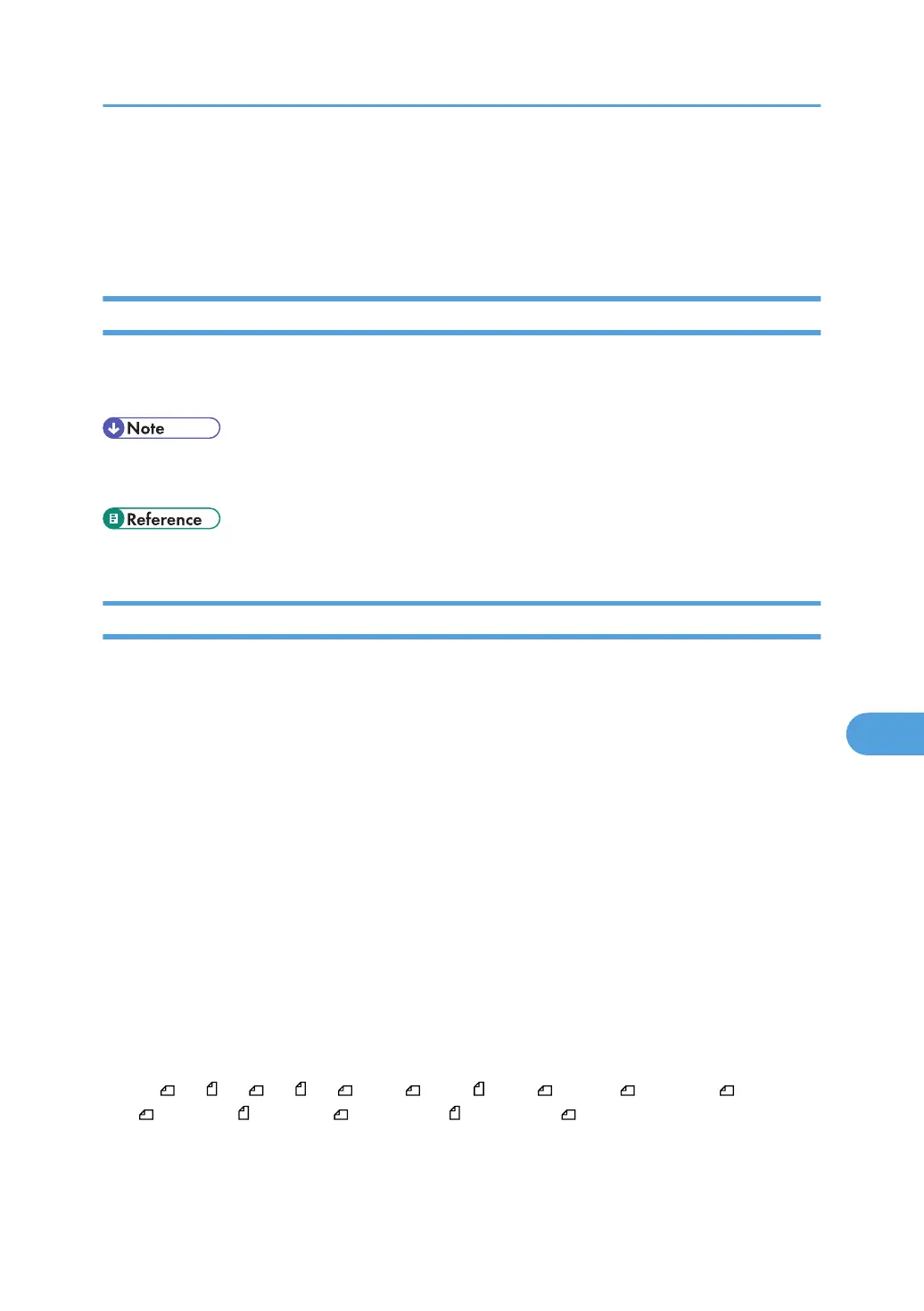
A3 , A4 , A4 , A5 , A5 , B4 JIS , B5 JIS , B5 JIS , 11 × 17 , 8
1
/
2
× 14 , 8
1
/
2
× 13
, 8
1
/
2
× 11 , 8
1
/
2
× 11 , 5
1
/
2
× 8
1
/
2
, 5
1
/
2
× 8
1
/
2
Scan Settings
165



 To Next Page