Scanning Multiple Pages of Originals as One
File
This section explains the procedure for sending multiple originals as a multi-page file or storing them as
a single stored file.
• To send multiple originals as a multi-page file, in [Send File Type / Name], select a multi-page file
type. For details about file types, see "Specifying the File Type".
1. Press [Original Feed Type].
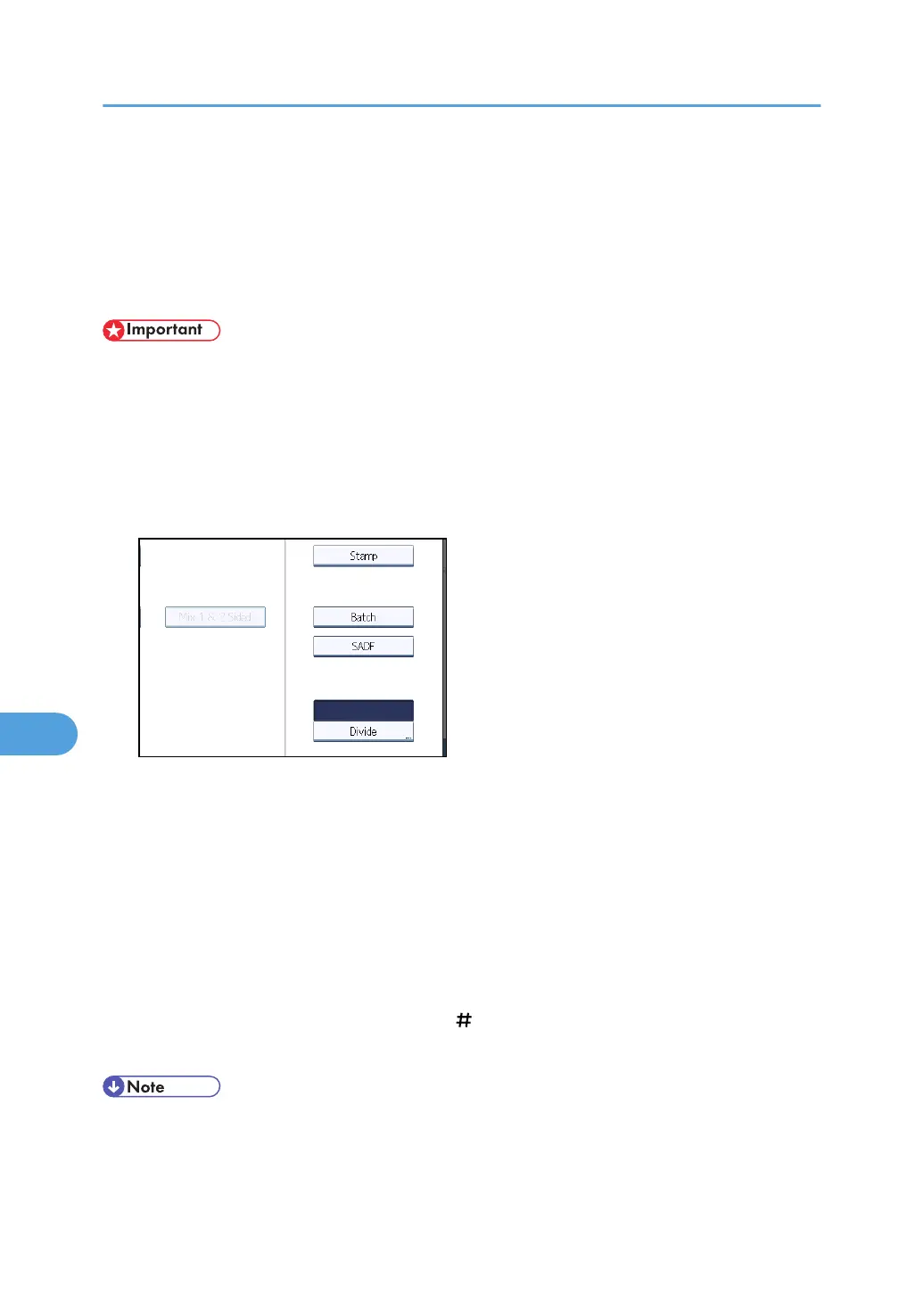
2. Select [Batch] or [SADF].
To scan originals using the exposure glass, select [Batch]. To scan originals using the ADF, select
[SADF]. For detail about [Batch] and [SADF], see "Batch, SADF".
3. Press [OK].
4. Place originals.
5. Make settings for sending or storing.
6. Press the [Start] key to scan originals.
If [Batch] is selected, place additional originals, and then press the [Start] key.
If [SADF] is selected, scanning starts automatically when you place additional originals. Place
subsequent originals after the originals have been scanned.
Repeat this step until all originals are scanned.
7. After all originals are scanned, press the [ ] key.
Storing or transmission starts.
• If [Batch] is selected, originals can be scanned using the ADF.
•
When scanning originals using the exposure glass, depending on the settings for [Wait Time for
Next Orig.: Exposure Glass] under [Scanner Features], the machine can wait for additional
8. Various Scan Settings
182



 To Next Page