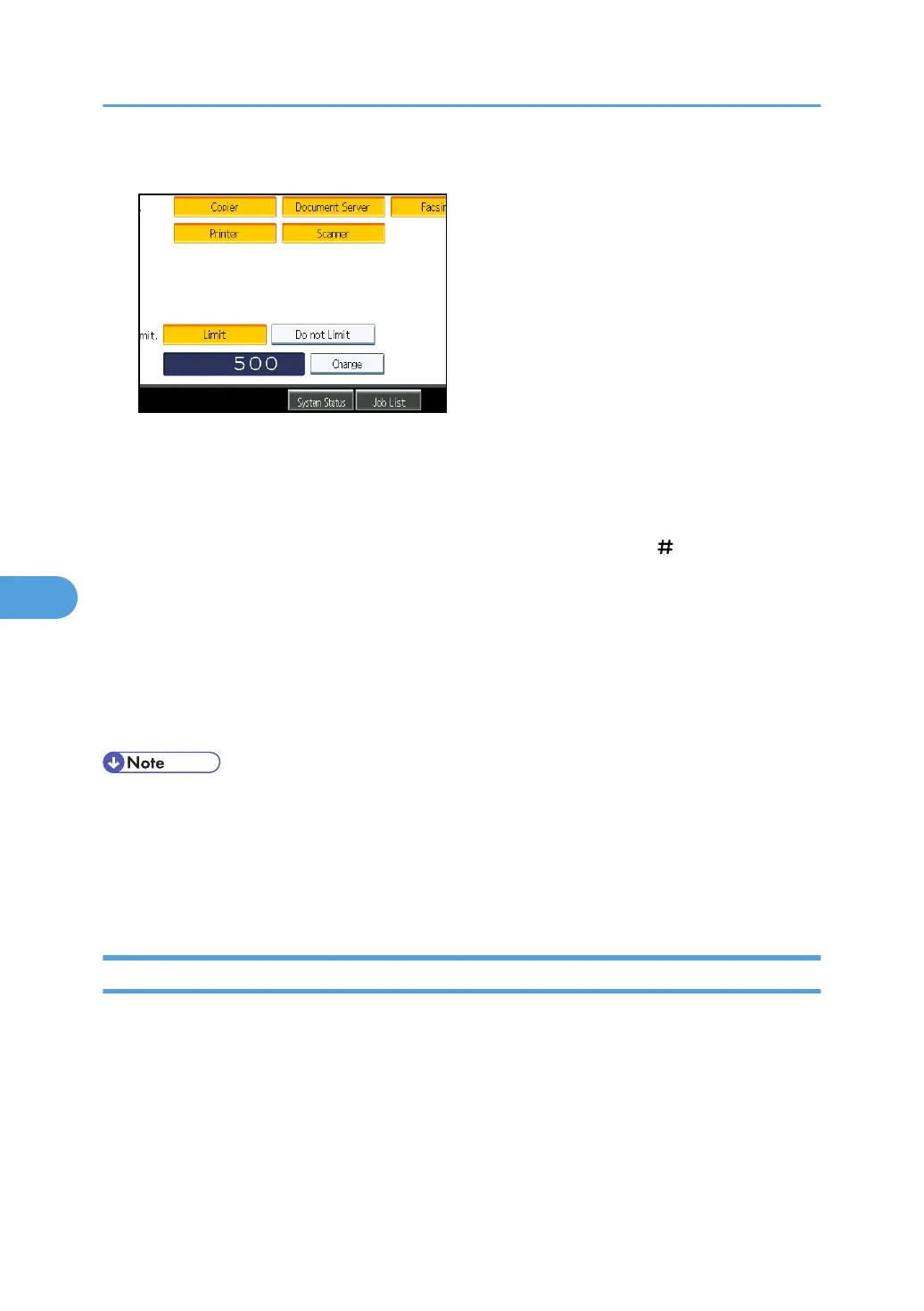
7. Press [Limit] in "Print Volum. Use Limit.".
"Print Volum. Use Limit." does not appear if you have selected [Allow Continue Use] in "Machine
action when limit is reached".
If you do not want to limit user's print volume, press [Do not Limit].
8. Press [Change], and then use the number keys to enter a value between "0" and
"999,999" as the maximum available print volume, and then press [ ].
Initial input is set to the value specified for "Print Volum. Use Limit.: Default Limit Value".
A user whose maximum print volume is set to "0" can only print jobs whose print conditions match
those with a unit value of "0".
9. Press [OK].
10. Press the [Login/Logout] key.
11. Press [Yes].
• The maximum print volume for an individual user can also be specified in [Address Book] in Web
Image Monitor.
•
You can search for users by entering a name in the text box at the top of the control panel, and
then pressing [Search].
• You can specify a maximum print volume for up to 500 users.
Checking Print Volume per User
Use the following procedure to check the volume of prints made per user to date. This procedure can be
done by any administrator.
1. Press the [User Tools/Counter] key.
2. Press [System Settings].
3. Press [Administrator Tools].
6. Managing Access to the Machine
168



 To Next Page