• Encrypting e-mail will increase its size.
•
When you specify a destination denoted by the symbol
(which indicates that e-mail sent to this
destination is always encrypted) encrypted e-mail will be sent regardless of the setting specified in
[Security].
•
If you have selected multiple destinations including destinations for which encryption has not been
configured, e-mail sent to such destinations will not be encrypted even if you specify encryption.
• If you selected [Store to HDD + Send], the e-mail will be encrypted, but the stored file will not be
encrypted. For details about encrypting stored files, see "Encrypting Data on the Hard Disk",
Security Reference.
• To encrypt stored files, you must install the optional stored document encryption card. For details
about encrypting stored files, see "Encrypting Data on the Hard Disk", Security Reference.
Sending E-mail with a Signature
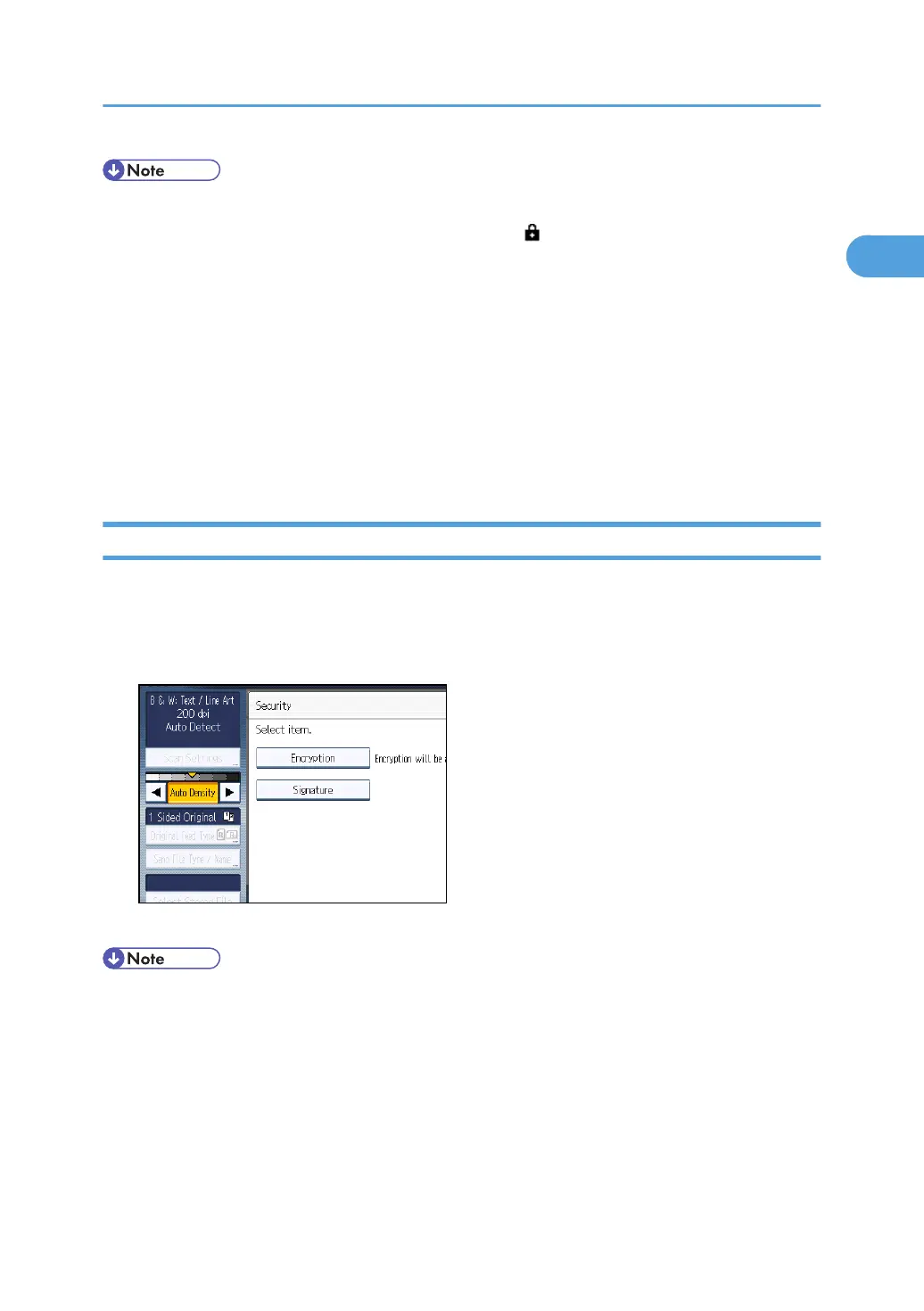
Use the following procedure to apply a signature to an e-mail that has scan file attachments.
1. Press [Security].
2. Select [Signature].
3. Press [OK].
• The certificate (device certificate) installed on this machine is used to attach signatures.
• Note that the following can result if certain signature settings are specified by the administrator:
• [Signature] does not appear. This is because you cannot apply signatures to scan files that are
sent by e-mail.
• You cannot change the [Signature] settings. This is because a signature is always applied to
scan files that are sent by e-mail.
Security Settings to E-mails
51


 To Next Page