• Load OHP transparencies one by one if they jam when loaded together.
•
To prevent multiple sheets from being fed at once, fan paper before placing it on the tray.
• The settings made will remain valid until they are reset again. After printing on OHP transparencies,
thick paper or thin paper make sure to clear settings for the next user.
• For details about setting printer drivers, see the printer driver Help.
• p.153 "System"
Setting Envelopes Using the Control Panel
Follow the procedure below to set the machine using the control panel when loading envelopes onto the
bypass tray.
• Before loading self-adhesive envelopes, be sure to fan them thoroughly. This will prevent them
sticking together. If fanning does not prevent them sticking together, load them one by one.
However, depending on the types of envelopes, you cannot use them on this machine.
•
If you select [Machine Setting(s)] in [Bypass Tray] under [Tray Setting Priority] in [System] of [Printer
Features], the settings made using the control panel have priority over the printer driver settings. For
details about [System] settings, see "System".
• Configure the paper settings appropriately using both the printer driver and the control panel.
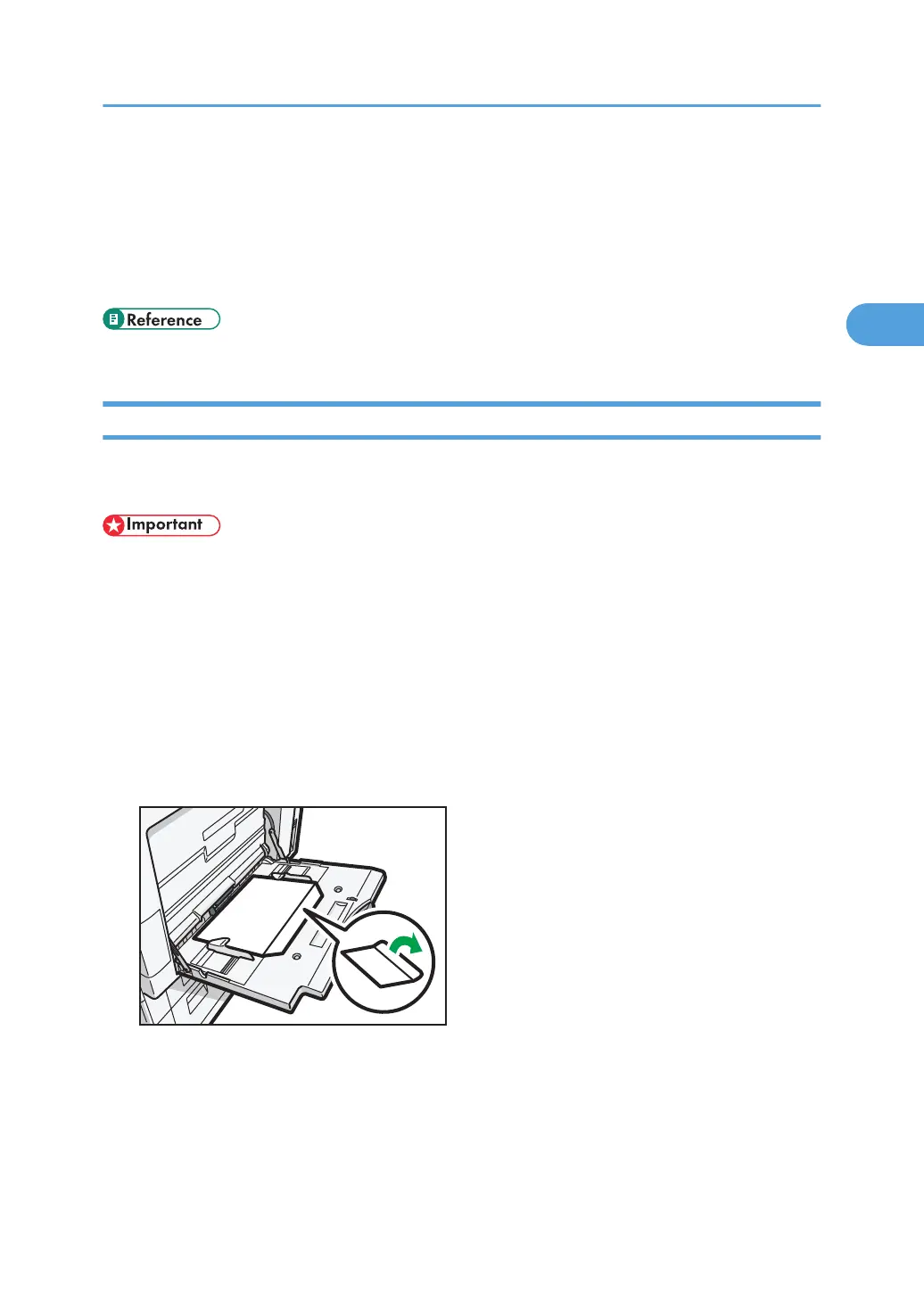
1. Open the bypass tray and set the envelopes print side down, flaps open and pointing
away from the machine. Push the envelopes into the machine until you hear the beep.
Setting Paper on the Bypass Tray
61



 To Next Page