3. To search by user name, press [Name].
To search by e-mail address, press [E-mail Address].
The soft keyboard appears.
You can also search by combining [Name] and [E-mail Address].
4. Enter the beginning of the sender's name you want to search for.
To search by e-mail address, enter the beginning of the address.
5. Press [OK].
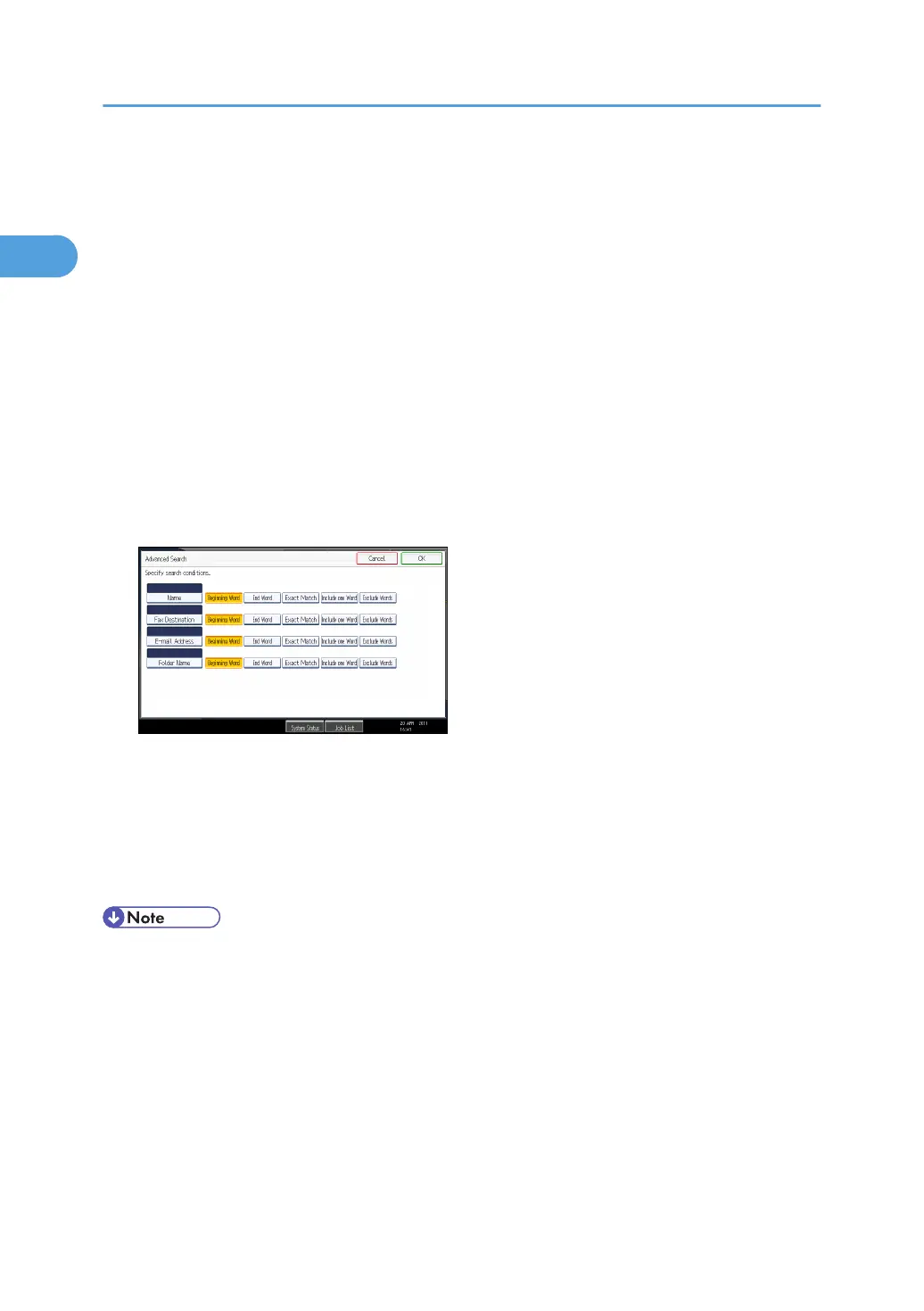
6. If necessary, press [Advanced Search] to specify the detailed search criteria, and then
press [OK].
By pressing [Advanced Search], you can search using criteria such as [Name], [Fax Destination],
[E-mail Address], and [Folder Name].
You can specify search criteria such as [Beginning Word] or [End Word]. You can refine your
search using multiple criteria.
The illustrated screen is an example. The items that actually appear on the screen may differ.
7. Press [Start Search].
Destinations that match the search criteria are displayed.
8. Select the sender.
9. Press [OK] twice.
• Search criteria that appear in [Advanced Search], such as [Name], [Fax Destination], [E-mail
Address], and [Folder Name], are registered in the machine's address book. For details, see
"Registering Addresses and Users for Facsimile/Scanner Functions", Network and System Settings
Reference.
• By pressing [Details], you can view details about the selected sender.
• By pressing [Advanced Search], the following criteria appear:
• [Beginning Word]: The names which start with the entered character or characters are
targeted.
For example, to search for "ABC", enter "A".
1. Sending Scan Files by E-mail
44



 To Next Page