The following procedure explains connecting this machine to an IPv4 network using Ethernet cable.
Note that the settings you must configure will vary depending on your operating environment. For details
about network settings and configuration procedures, see "Network Settings Required to Use Network
TWAIN Scanner", Network and System Settings Reference.
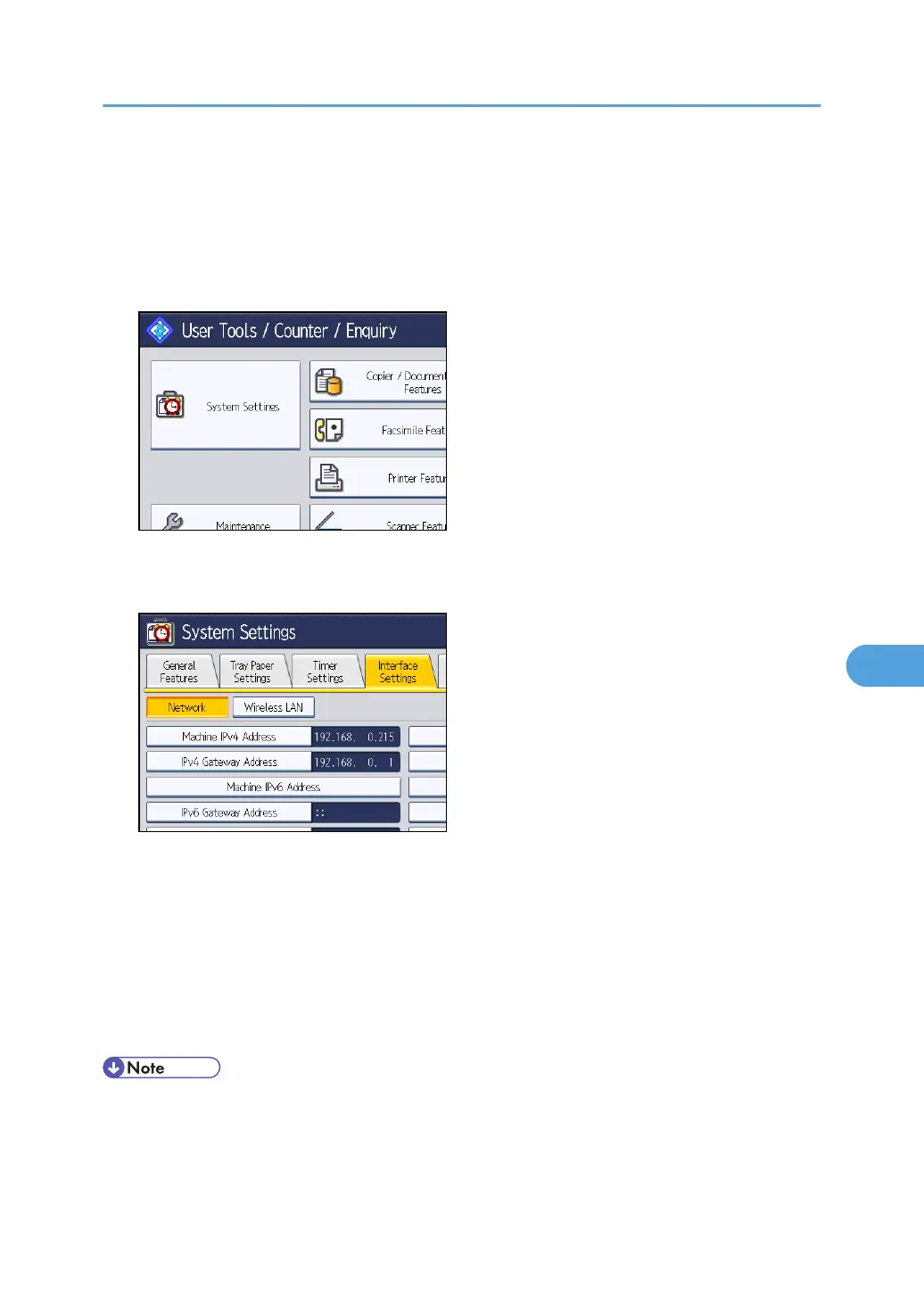
1. Press the [User Tools/Counter] key, and then press [System Settings].
The System Settings screen appears.
2. Press the [Interface Settings] tab.
3. Press [Machine IPv4 Address] to specify the machine's IPv4 address.
To specify a static IPv4 address for this machine, press [Specify], and then enter the IPv4 address
and subnet mask.
To obtain an IPv4 address from a DHCP server automatically, press [Auto-Obtain (DHCP)].
4. Press [IPv4 Gateway Address], and then enter the IPv4 gateway address.
5. Press [Effective Protocol], and then make [IPv4] active.
6. Press [Exit] twice.
• If an extended wireless LAN board (optional) is installed, press [LAN Type] on the [Interface
Settings] tab, then press [Ethernet], and then configure the network settings.
Before Using the Network TWAIN Scanner
155



 To Next Page