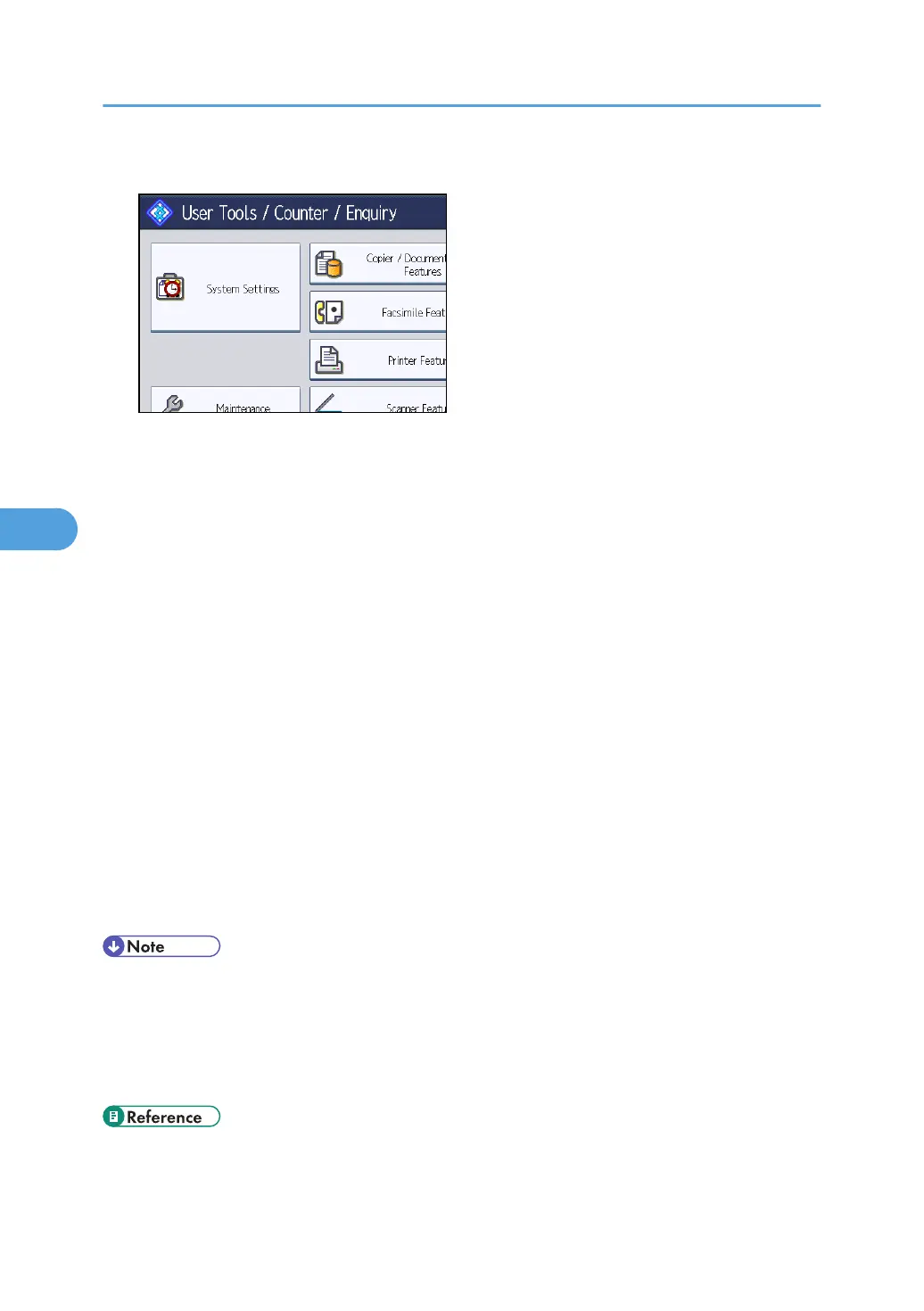
2. Press [System Settings].
3. Press [Administrator Tools].
4. Press [Address Book Management].
5. Check that [Program / Change] is selected.
6. Select the name whose folder you want to change.
Press the name key, or enter the registered number using the number keys.
You can search by the registered name, user code, fax number, folder name, e-mail address, or IP-
Fax destination.
7. Press [Folder].
8. Select the items you want to change.
When specifying a folder, enter the path directly or select it by referencing the network. For more
information, see "Locating the SMB folder manually" and "Locating the SMB folder using Browse
Network".
9. Press [Connection Test] to check the path is set correctly.
10. Press [Exit].
11. Press [OK].
12. Press [Exit].
13. Press the [User Tools/Counter] key.
• To change the name, key display and title, see "Registering Names".
•
If a security-related service such as a firewall is enabled on your computer, you may be unable to
send scan files to folders. If this happens, exempt NetBIOS or the machine's IP address from
firewall protection. For details about specifying the setting, see Windows help or contact the
vendor of the software, such as the firewall.
• p.227 "Registering Names"
5. Registering Addresses and Users for Facsimile/Scanner Functions
264



 To Next Page