Printing a Sample Print file
The following procedure describes how to print a Sample Print file with the PCL 5e/6 printer driver.
• Applications with their own drivers, such as PageMaker, do not support this function.
1. Configure Sample Print in the printer driver's properties.
For details about configuring the printer drivers, see the relevant Help files.
2. Click [Details...], and then enter a User ID in the [User ID:] box.
3. Click [OK] to close [Details...], and then click [OK] to close the printer driver's properties.
4. Start printing from the application's [Print] dialog box.
Make sure to set more than two copies.
The Sample Print job is sent to the machine, and the first set is printed.
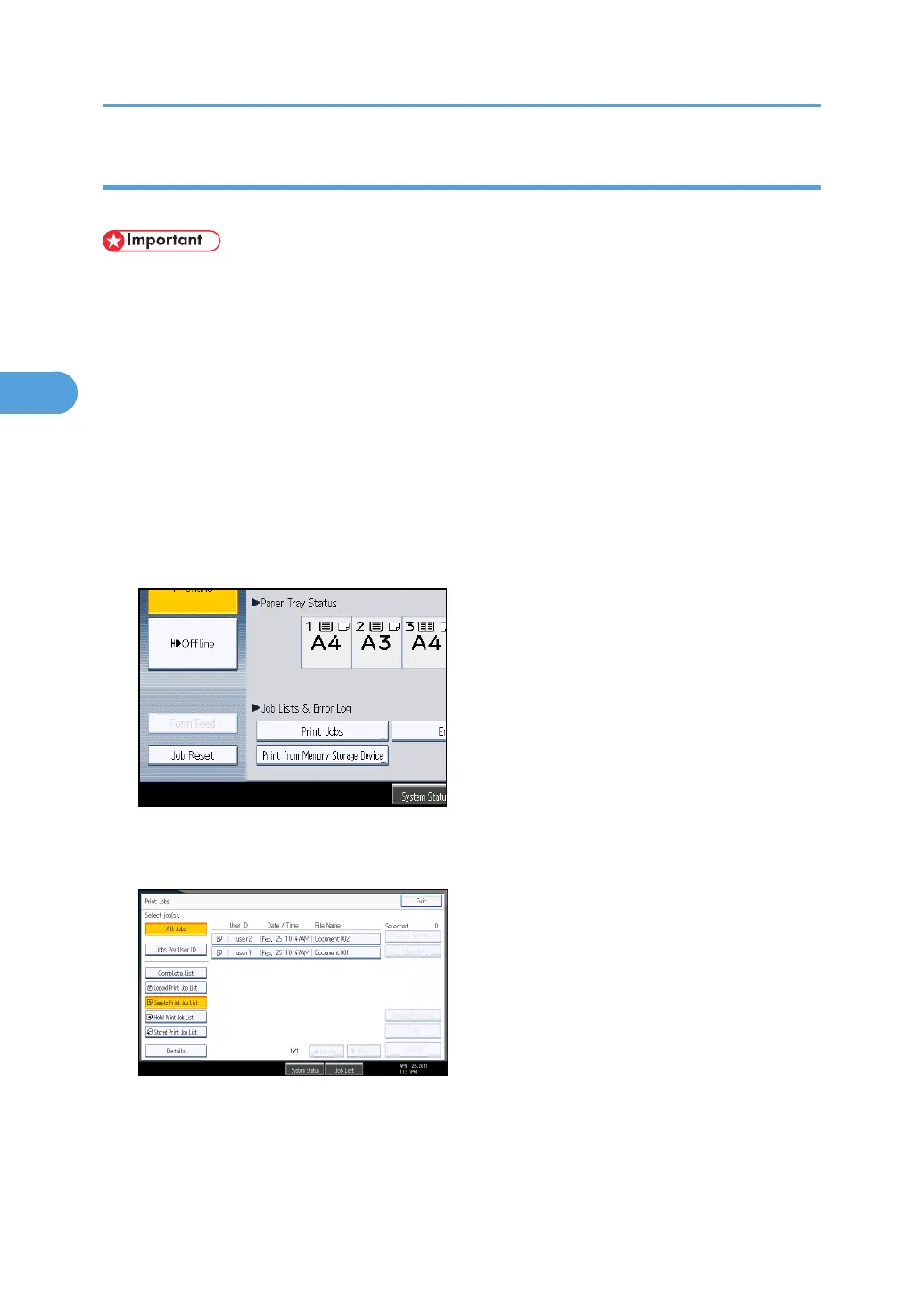
5. On the control panel, press the [Printer] key to display the printer screen.
6. Press [Print Jobs].
A list of print files stored in the machine appears.
7. Press [Sample Print Job List].
A list of Sample Print files stored in the machine appears.
Depending on the security settings, certain print jobs may not be displayed.
3. Printing Stored Documents
112



 To Next Page