8. Press [Exit] twice.
• If an extended wireless LAN board (optional) is installed, press [LAN Type ]on the [Interface
Settings] tab, then press [Ethernet], and then configure the network settings.
Configure the necessary settings in [Scanner Features]
Using [Scanner Features], you can make or change various settings related to the scanner function, such
as compressing scan data or viewing the scanner journal. Configure the scanner settings according to
your environment and how you will be using the machine.
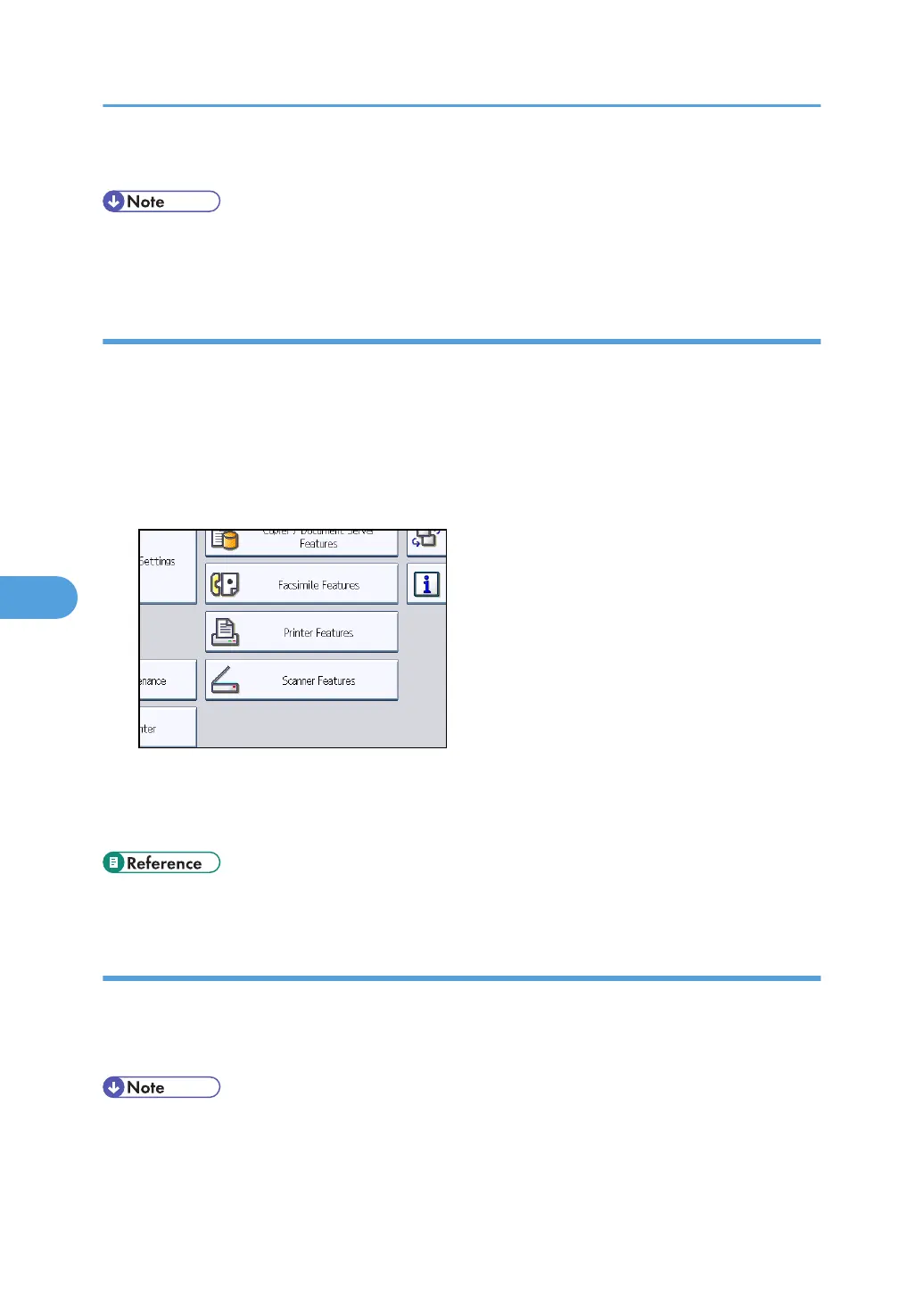
This section explains how to display the Scanner Features screen. For details about the settings on this
screen, see "Scanner Features".
1. Press the [User Tools/Counter] key, and then press [Scanner Features].
The Scanner Features screen appears.
2. Press the [General Settings], [Scan Settings], [Send Settings], or [Initial Settings] tabs and
configure the relevant settings on those tabs.
• p.199 "Scanner Features"
Configure the settings in ScanRouter delivery software
Using SR Manager (a tool for the ScanRouter delivery software), register this machine as an I/O device.
In addition, register destinations and specify such settings as the delivery type and sender.
For details about settings, see the manuals supplied with the ScanRouter delivery software.
• To view files delivered to an in-tray, DeskTopBinder Lite must be installed on the client computer.
You can download DeskTopBinder Lite from the Web site and then install it on the client computer.
6. Delivering Scan Files
136



 To Next Page