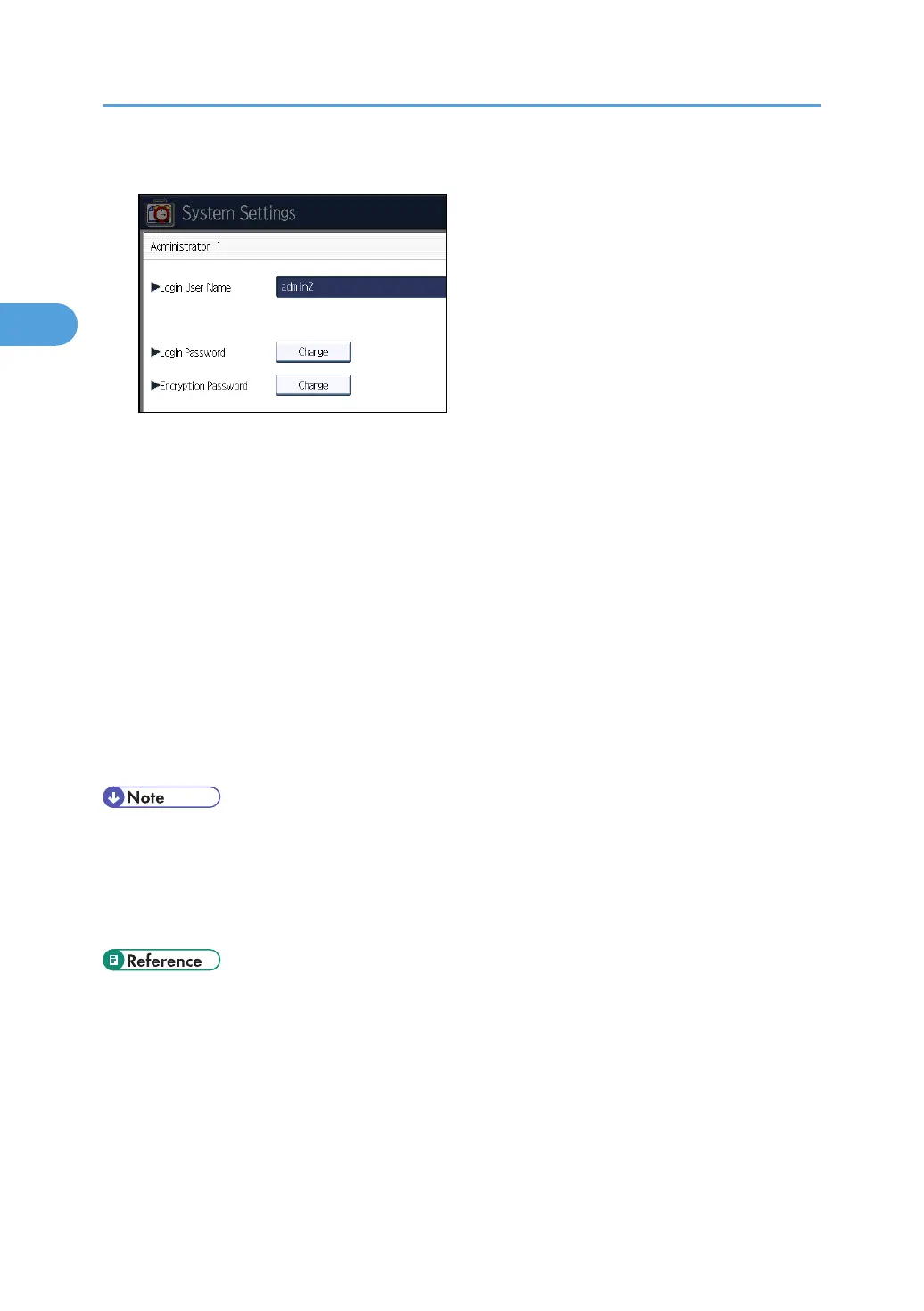
8. Press [Change] for the login password.
9. Enter the login password, and then press [OK].
Follow the password policy to make the login password more secure.
For details about the password policy and how to specify it, see "Specifying the Extended Security
Functions".
10. If a password reentry screen appears, enter the login password, and then press [OK].
11. Press [Change] for the encryption password.
12. Enter the encryption password, and then press [OK].
13. If a password reentry screen appears, enter the encryption password, and then press
[OK].
14. Press [OK] twice.
You will be automatically logged out.
15. Press the [User Tools/Counter] key.
• When registering login user names and login passwords, you can specify up to 32 alphanumeric
characters and symbols. Keep in mind that user names and passwords are case-sensitive. User
names cannot contain numbers only, a space, colon (:), or quotation mark ("), nor can they be left
blank. For details about characters that the password can contain, see "Specifying the Extended
Security Functions".
• p.35 "Logging in Using Administrator Authentication"
•
p.36 "Logging out Using Administrator Authentication"
• p.257 "Specifying the Extended Security Functions"
2. Configuring Administrator Authentication
34



 To Next Page