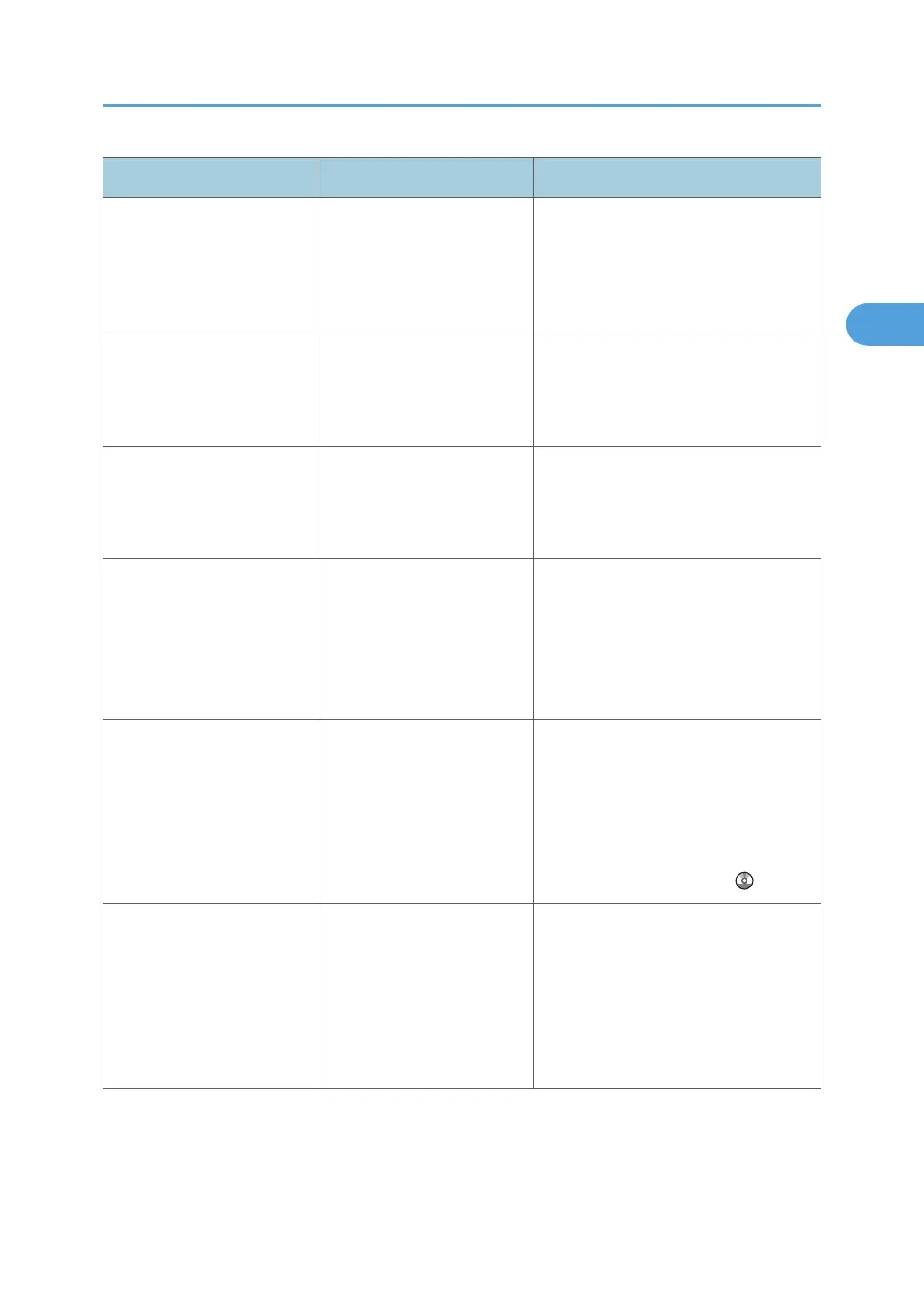
Message Causes Solutions
"Exceeded max. number of
pages per file. Do you want
to store the scanned pages
as 1 file?"
The number of scanned
pages exceeds the capacity
per file of the Document
Server.
Press [Store File] to store scanned
pages as a file. Scanned data is stored
as a file in the Document Server. If you
do not want to store scanned pages,
press [No]. Scanned data is deleted.
"Exceeded the maximum
number of sheets that can be
used. Copying will be
stopped."
The number of pages the
user is permitted to copy has
been exceeded.
Contact your administrator.
"File being stored exceeded
max. number of pages per
file. Copying will be
stopped."
The scanned originals have
too many pages to store as
one document.
Press [Exit], and then store again with
an appropriate number of pages.
"Magazine or Booklet mode
is not available due to mixed
image mode."
You selected the
"Magazine" or "Booklet"
function for originals
scanned using different
functions, such as copy and
printer.
Make sure originals for the
"Magazine" or "Booklet" function are
scanned using the same function.
"Maximum number of sets is
n."
(A figure is placed at n.)
The number of copies
exceeds the maximum copy
quantity.
You can change the maximum copy
quantity from [Max. Copy Quantity] in
[General Features] under [Copier /
Document Server Features]. For details
about Max. Copy Quantity, see
"General Features", Copy and
Document Server Reference
.
"Original is being scanned
by another function. Switch
to the following function,
then press the Stop key to
cancel scanning or press the
Start key to continue."
A function of the machine
other than the Copier
function is being used such
as the Document Server
function.
Cancel the job in progress. For
example, press [Exit], and then press
the [Document Server] key. Next, press
the [Clear/Stop] key. When the
message "The Clear / Stop key was
pressed. Are you sure you want to stop
scanning?" appears, press [Stop].
Messages Displayed When Using the Copy/Document Server Function
27



 To Next Page