Edit
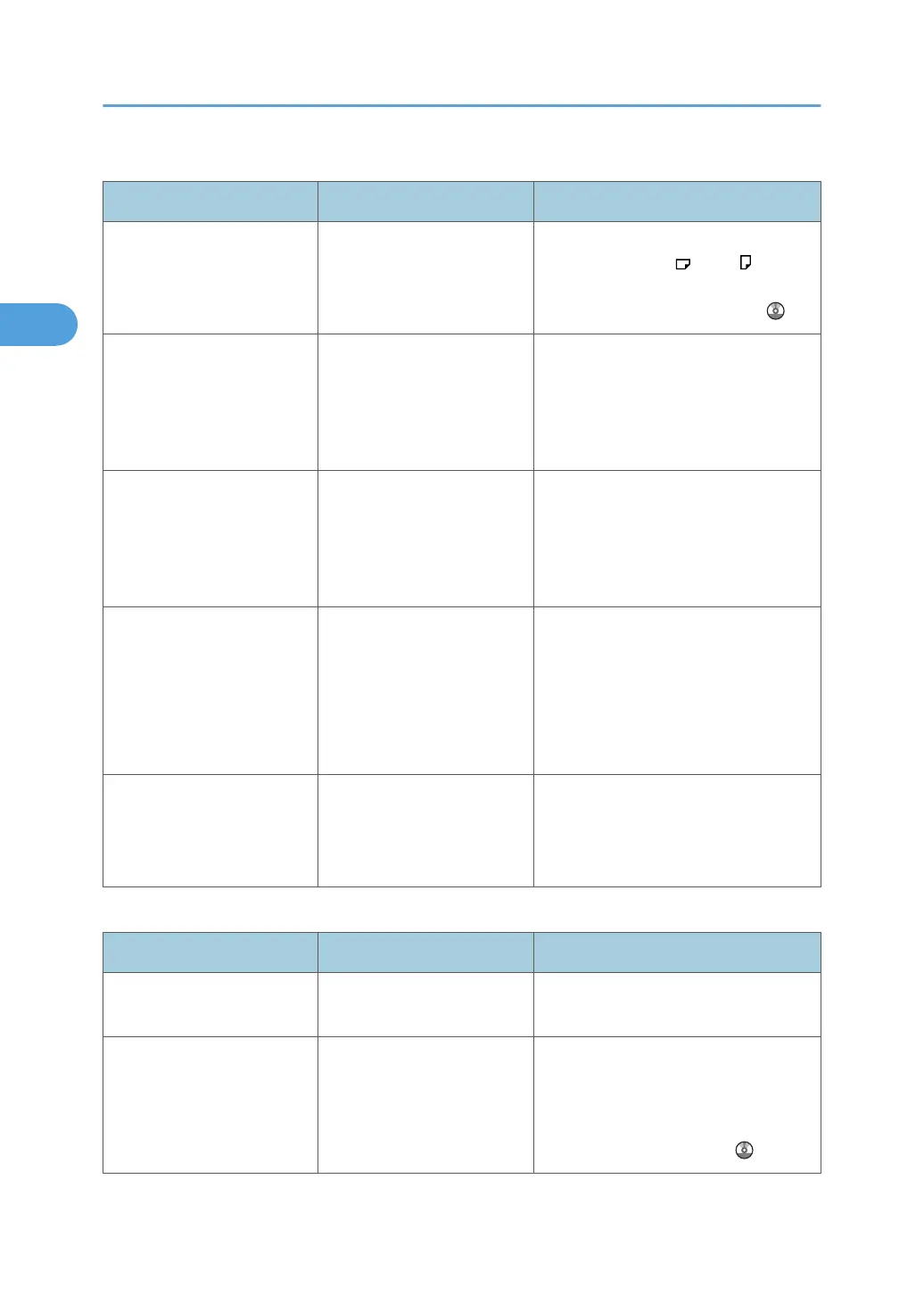
Problem Causes Solutions
In "Double Copies" mode,
parts of the original image
are not copied.
Combination of original and
copy paper is not correct.
Specify the paper size again. For
example, select A3 for A4
originals. See "Double Copies", Copy
and Document Server Reference .
In "Erase Border", "Erase
Centre", or "Erase Centre /
Border" mode, parts of the
original image are not
copied.
You have entered a wide
erased margin.
Make the margin width narrower. You
can adjust it between 2 - 99 mm (0.1 -
3.9 inches).
In "Erase Border", "Erase
Centre", or "Erase Centre /
Border" mode, parts of the
original image are not
copied.
Originals are not scanned
correctly.
Place the originals correctly.
In "Margin Adjustment"
mode, parts of the original
image are not copied.
• You set a wide erased
margin.
•
There is a lack of
margin space on the
opposite side of the
binding position.
Set a narrower margin with User Tools.
You can set the width between 0 - 30
mm (0 - 1.2 inches).
In "Image Repeat" mode, the
original image is not copied
repeatedly.
You selected copy paper the
same size as the originals, or
you did not select the proper
reproduction ratio.
Select copy paper larger than the
originals or select the proper
reproduction ratio.
Stamp
Problem Causes Solutions
The stamp position is wrong. The paper orientation is
wrong.
Check the paper orientation and stamp
position.
The stamp is not printed on
the back side of sheets when
duplex copying.
The back side stamp position
is incorrect for the paper
size.
Reset the back side stamp position. For
details about Duplex Back Page
Stamping Position, see "Copier and
Document Server Features", Copy and
Document Server Reference .
2. Troubleshooting When Using the Copy/Document Server Function
36



 To Next Page