Quick Reference Printer Guide
cPlease follow these instructions using your PCg
© 2011 Printed in China EN
US
EN
AU
D595-7305
To use this function, you must fi rst download
SmartDeviceMonitor for Client from the manufacturer’s Web
site and install it on your computer. Contact your local dealer
for information on downloading SmartDeviceMonitor for
Client.
A Right-click the PC icon at the bottom of your screen.
B Point to [Property], and then click [Monitor Device
Settings...].
C On the [Network Devices] tab, click [Browse...].
D Select your printer, and then click [OK].
E On the [Printers Folder] tab, select [To be Monitored], and
then select [Display on the task bar menu] and [Displayed
on Task Bar].
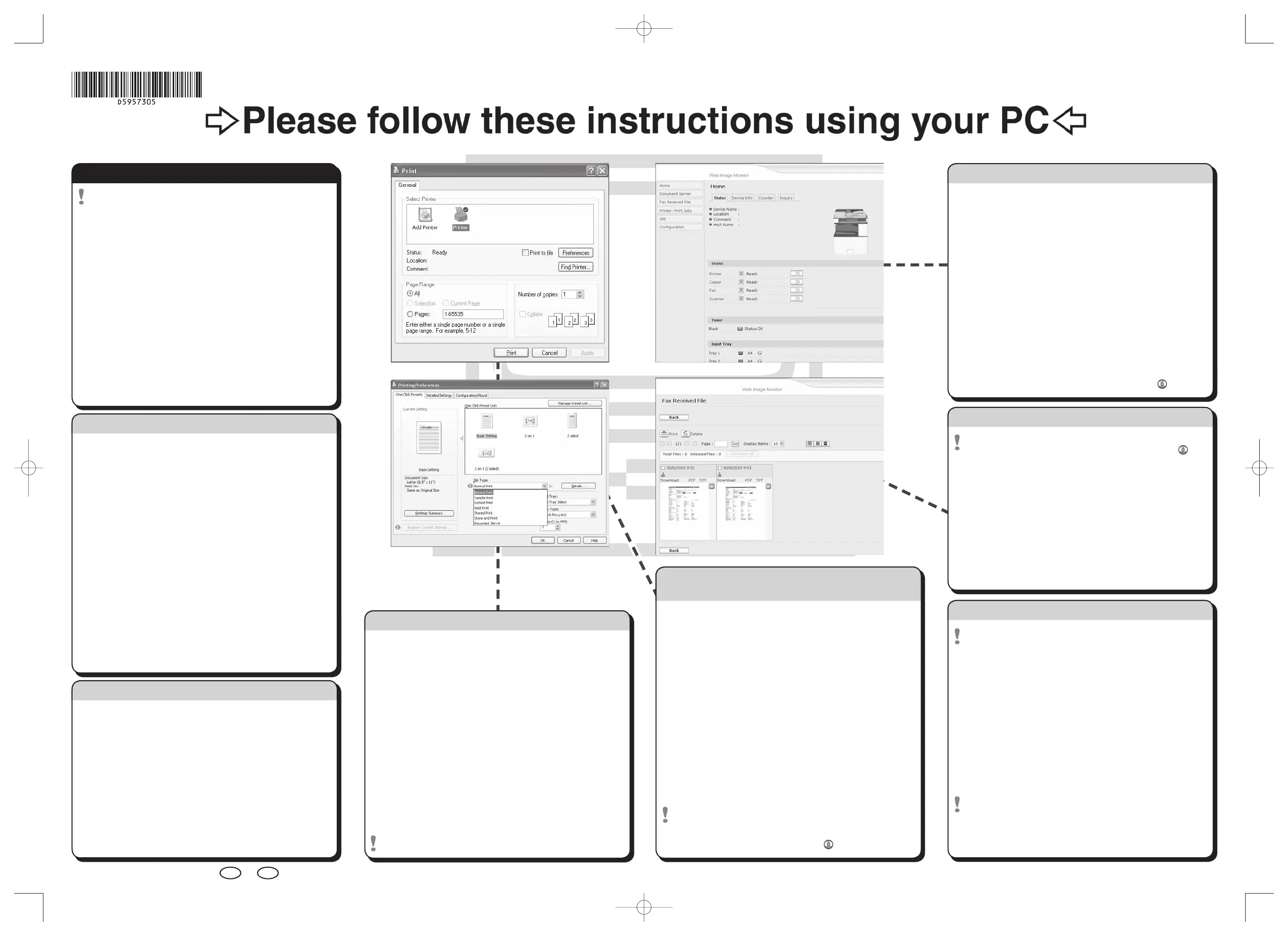
If you select this machine from the SmartDeviceMonitor for
Client icon in the notifi cation area, the monitoring screen
(Web Image Monitor) appears. You can confi rm the machine
status, confi gurations, and job histories in Web Image
Monitor.
How to install the printer driver...
You can install printer driver easily using the supplied CD-
ROM.
A Insert the provided CD-ROM into the computer’s CD-ROM
drive.
B Select an interface language, and then click [OK].
C Click [Quick Install].
PCL printer driver is installed under network environment,
and the Standard TCP/IP port will be set.
D Click [I accept the agreement.], and then click [Next >].
E Select the machine model you want to use.
F Click [Install].
The printer driver installation starts.
G Click [Finish], and then click [Exit].
A On the [File] menu, click [Print...], and then open the
[Printing Preferences] dialog box.
B In [Job Type:], select [Locked Print].
C Click [Details...].
D Specify [User ID:] and [Password:].
E Click [OK].
F Perform steps as described in ‘How to print...’ from step 4
onwards.
G Go to the machine and then press the {Printer} key.
H Press [Print Jobs].
I Press [Locked Print Job List].
J Select your document, and then press [Print].
K Enter your password, and then press [OK].
Reconfi rm by pressing [Yes].
The Locked Print fi le is printed, and deleted afterwards.
How to print a confi dential document...
How to prepare for printing...
A On the [Start] menu, click [Printers and Faxes].
B Right-click the icon of the printer you want to use, and then
click [Set as Default Printer].
C On the [File] menu, click [Properties].
D If you get the “Confi gure...” message, click [OK].
E On the [Accessories] tab, select the options and specify the
paper trays you want to use.
F Specify the paper size of the original, and then click the
[General] tab.
G Click [Printing Preferences...]. Make your settings under
[One Click Presets], [Detailed Settings], and [Confi guration/
About].
H Save the One Click Presets you have made if necessary:
click [Register Current Settings...] on the [One Click Presets]
tab, enter a name, and then click [OK].
How to print...
A Open your document.
B - Click the print icon directly, or
- On the [File] menu, click [Print...].
C Select the printer, and then open the [Printing Preferences]
dialog box.
D Make the settings you require, and then click [OK].
E Set a number of copies.
F Print the document using the print function in the document’s
native application.
A Start your Web browser.
B In your browser's address bar, enter the following:
http://machine's IP address/
C Select one of the following functions:
Home•
Document Server•
Fax Received File•
Printer: Print Jobs•
Job•
Confi guration•
Why use Web Image Monitor?
To access the machine anywhere via a Web browser.•
To provide you with the convenience of managing certain •
functions from your computer.
For details about Web Image Monitor, see “Using Web Image
Monitor”, Network and System Settings Reference
.
How to use Web Image Monitor...
How to monitor your machine in the network...
How to receive a fax to download
Setting must be made before you can receive fax documents.
For details, “Fax via Computer”, Facsimile Reference
.
A Start your Web browser.
B In your browser’s address bar, enter the following:
http://machine’s IP address/
C In the menu area to the left, click [Fax Received File].
D Click the Property icon of a fax document.
E View contents of fax documents.
F To download a fax document, click [PDF] or
[Multi-page : TIFF].
G Click [Download], and then click [OK].
How to print documents later (Hold Print)
How to print stored documents on the hard disk (Stored Print)
A On the [File] menu, click [Print...], and then open the
[Printing Preferences] dialog box.
B In [Job Type:], select [Hold Print] or [Stored Print].
C Click [Details...].
D Specify [User ID:] and [Password:] if necessary (for
password protected Stored Print documents).
E Click [OK].
F Perform steps as described in ‘How to print...’ from step 4
onwards.
G Go to the machine, and then press the {Printer} key.
H Press [Print Jobs].
I Press [Hold Print Job List] or [Stored Print Job List].
J Select your document, and then press [Print].
If you set a password in step 4, a password confi rmation
screen appears. Enter the password.
Reconfi rm by pressing [Yes] (for a Stored Print fi le, you can
enter the number of sets (up to 999) using the number keys).
The Hold Print fi le is printed, and deleted afterwards.
The Stored Print fi le is stored in the machine even after it is
printed. To delete the Stored Print fi le, see “Printing from the
Print Job Screen” , Printer Reference
.



 To Next Page