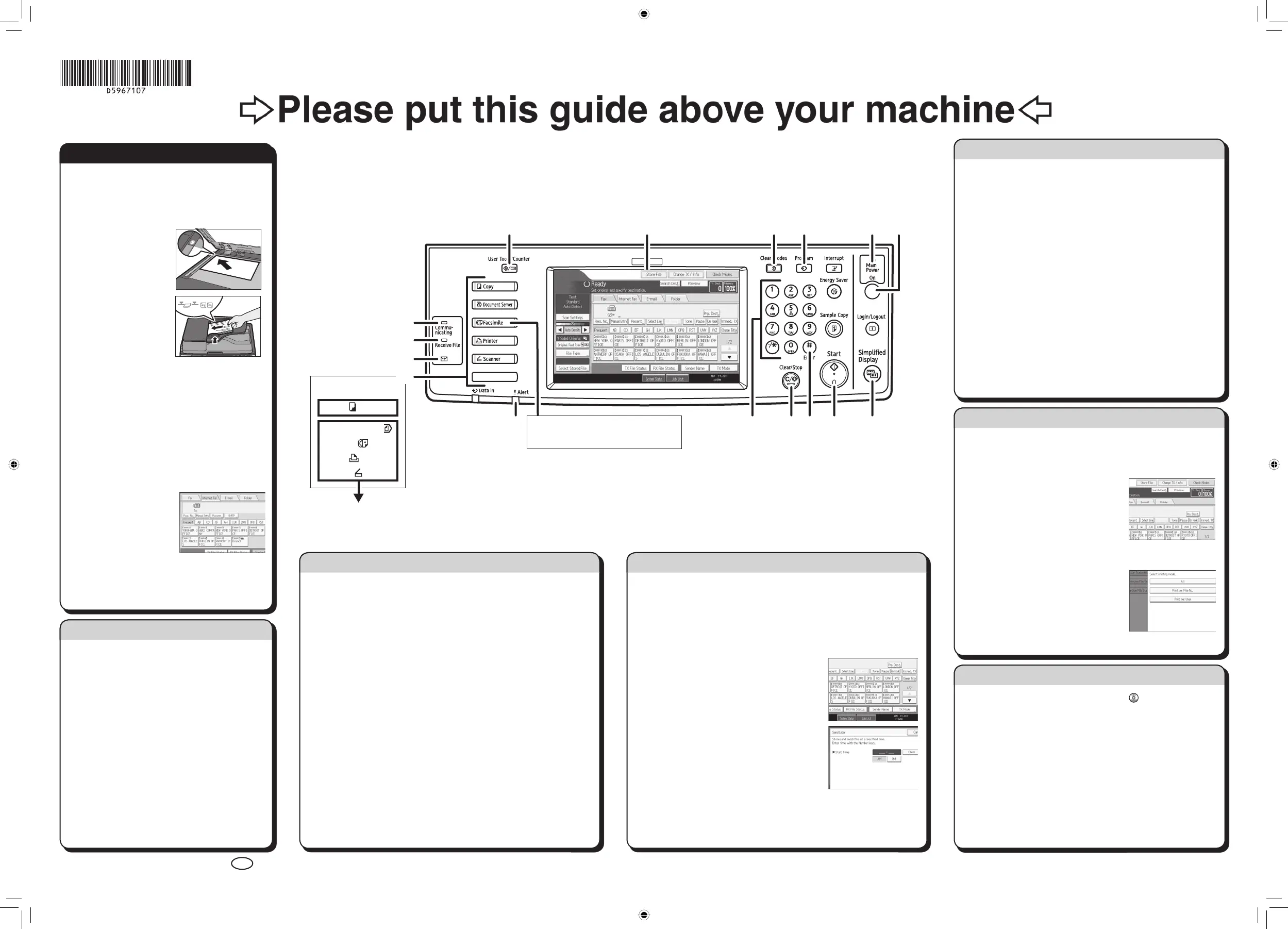
Quick Reference Fax Guide
cPlease put this guide above your machineg
© 2011 Printed in China EN
US
D596-7107
Chapter references in this guide refer to the bundled OI CD; Facsimile Reference.
1. {User Tools/Counter} key
2. Display panel
3. {Clear Modes} key
Press to clear the current settings.
4. {Program} key
Press to select the program mode.
5. Main power indicator
6. Operation switch
7. {Simplified Display} key
8. {Start} key
9. {#} key (Enter key)
Registers entered numbers or settings.
10. {Clear/Stop} key
11. Number keys
12. {Facsimile} key
Press to switch to the facsimile mode.
13. Alert indicator
14. Function keys
15. Confidential File indicator
16. Receiving File indicator
17. Communicating indicator
A Specify a transmission mode:
• Memory Transmission, or
• Immediate Transmission (selected by
pressing [Immed. TX])
B Place the original.
• Exposure glass
(face down)
• ADF (face up)
C Make the scan settings you require.
D Specify a destination.
E Press the {Start} key.
If you choose Memory Transmission, you can
send to more destinations at once. To do this,
after step 4, press:
- [Add] and specify destinations
- the {Start} key
To send to an Internet Fax,
e-mail, or folder
destination, press
[Internet Fax], [E-mail], or
[Folder] to switch the
transmission type.
How to send a fax...
(1. Transmission)
Please see the <Facsimile Reference> Operating
Instructions:
- SUB/SEP Codes (2. Other Transmission Features)
Privacy can be protected when faxing with a SUB/SEP
Code, since only people who know the SUB/SEP Code can
receive or print the fax document.
- Printed reports (4. Changing/Confirming Communication
Information) Inform you if a fax has been saved, sent, or
failed to be transmitted.
- LAN-Fax features - Sending a fax from a computer
(6. Fax via Computer)
Advanced Fax Features
Memory + Immediate
Before the original is scanned = before pressing the {Start} key:
A Press the {Clear Modes} key.
While the original is being scanned = after pressing the {Start} key:
A Press the {Clear/Stop} key.
Memory
While the original is being transmitted:
A Press the {Clear/Stop} key.
B Select the file you want to cancel.
C Press [Stop Transmission], and then press [OK].
D Press [Exit].
Before the transmission is started:
A Press [Change TX / info].
B Press [Check / Stop Transmission File].
C Select the file you want to cancel.
D Press [Stop Transmission], and then press [OK].
E Press [Exit] twice.
How to cancel a transmission...
(1. Transmission)
A Press [Store File].
B Select [Send & Store].
C Set the user name, file name, and password
as necessary, and then press [OK].
D Specify a destination, and then press the
{Start} key.
To send a fax from Document Server:
A Press [Select Stored File].
B Select the documents to be sent, and then
press [OK].
C Specify a destination, and then press the
{Start} key.
How to fax to Document Server...
(5. Storing a
Document)
A Press the {User Tools/Counter} key.
B Press [System Settings].
C Press [Administrator Tools].
D Press [Address Book Management].
E Check that [Program / Change] is selected.
F Press [New Program].
G Press [Change] and set user’s information, press [OK].
H Press [Fax Dest.].
I Press [Change] under Fax Destination, enter the fax number using
the number keys and press [OK].
J Press [OK].
K Press [Exit].
L Press the {User Tools/Counter} key.
M You will get a message ‘Destination list / machine settings are
updated...’. Press [Exit].
How to program a Destination key…
(1. Transmission)
Using this function, you can instruct the machine to send the fax
at a later time via Memory Transmission.
Advantage: you can take advantage of off-peak telephone
charges, without being at the machine.
A Place the original, and then select the scan settings you require.
B Press [TX Mode].
C Press [Send Later].
D Enter the time using the number keys
and select [AM] or [PM]. Then press
[OK].
E Press [OK].
F Specify a destination, and then press the {Start} key.
How to send at a specific time (Send Later)
(2. Other Transmission
Features)
The Journal is printed automatically after every 50
communications. You can also request a Journal at any
time, by following the procedure below.
A Press [Change TX / Info].
B Select [Print Journal].
C Select the printing method:
- [All]
- [Print per File No.]
- [Print per User]
D Press the {Start} key.
E Press [Exit] twice.
How to print the Journal...
(4. Changing/Confirming
Communication Information)
4
This button needs to be
selected as first step
897
32
16
10
13
11
14
12
17
651
15
You can also store files, print, and scan on this machine!
Please ask your sales person for these options.
☺☺
Standard available:
Copier:
Document Server:
Facsimile:
Printer:
Scanner:



 To Next Page