Maintenance
Xerox Internal Use Only Phaser 7100 Service Manual 6-13
13. Press OK to display the value fields for the selected color.
Note: Use the Down/ Up Arrow to adjust the value and Left/ Right Arrow to navigate from one
field to the other.
14. Press Back to return to the Text or Photo CalibrationChart screen.
15. Press Menu to return to the Ready to Print screen.
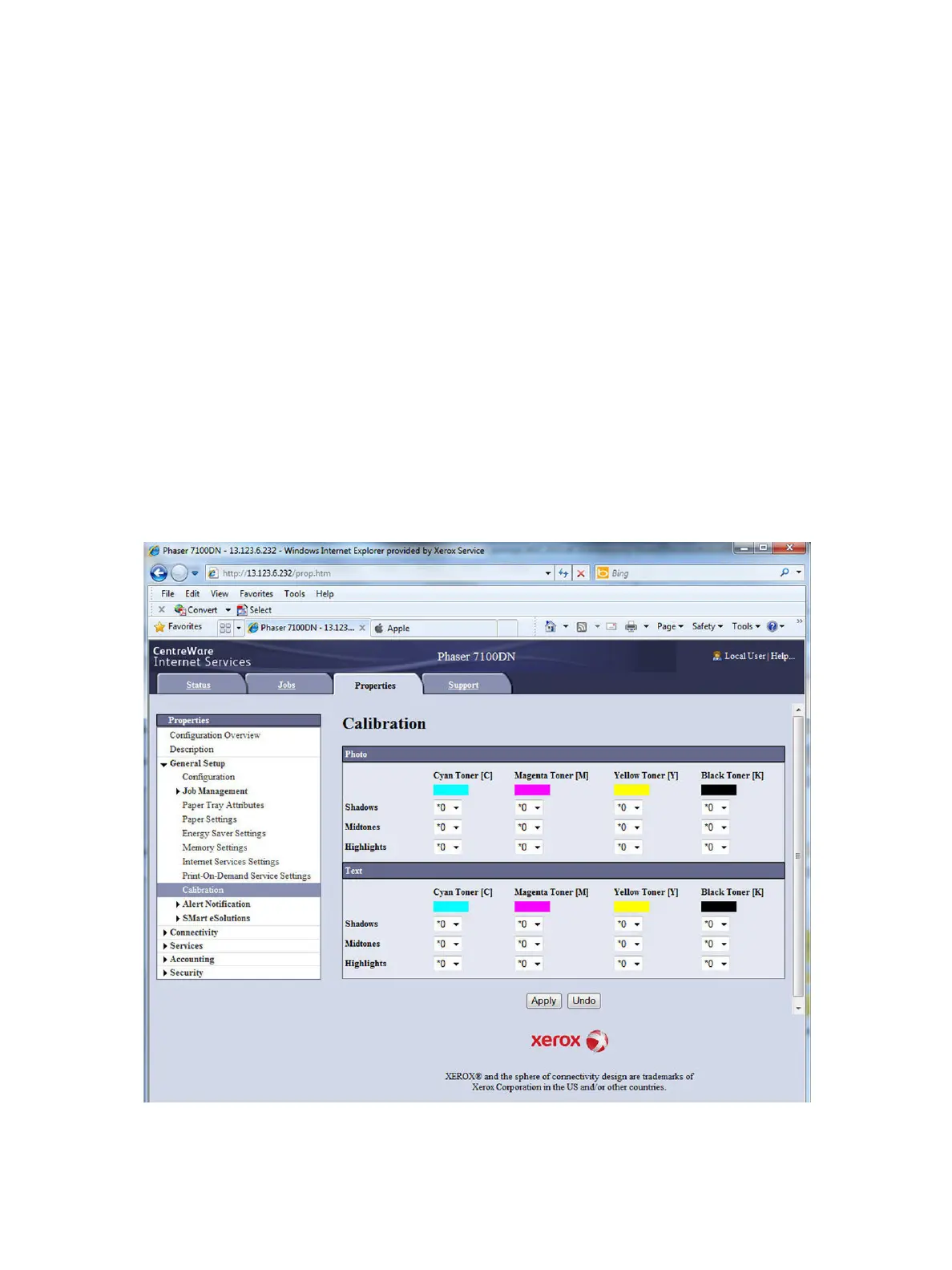
Using CWIS
1. Open a web browser.
2. Enter the printer’s IP address.
3. On the top menu, click Properties.
4. On the left side, expand General Setup.
5. Select Calibration.
6. A Calibration window appears on the left side.
7. Use the pull-down selections to make appropriate adjustments for each color of the Photo/ Text
(Shadows, Midtones, and Highlights).
8. Click Apply to complete the procedure.
9. A Settings have been changed window appears.


 To Next Page
 Loading...