Page 6-40
Programming
INTER-TEL
®
AXXESS
®
MANUAL VERSION 11.0 – May 2008
Session Manager
7. SESSION MANAGER
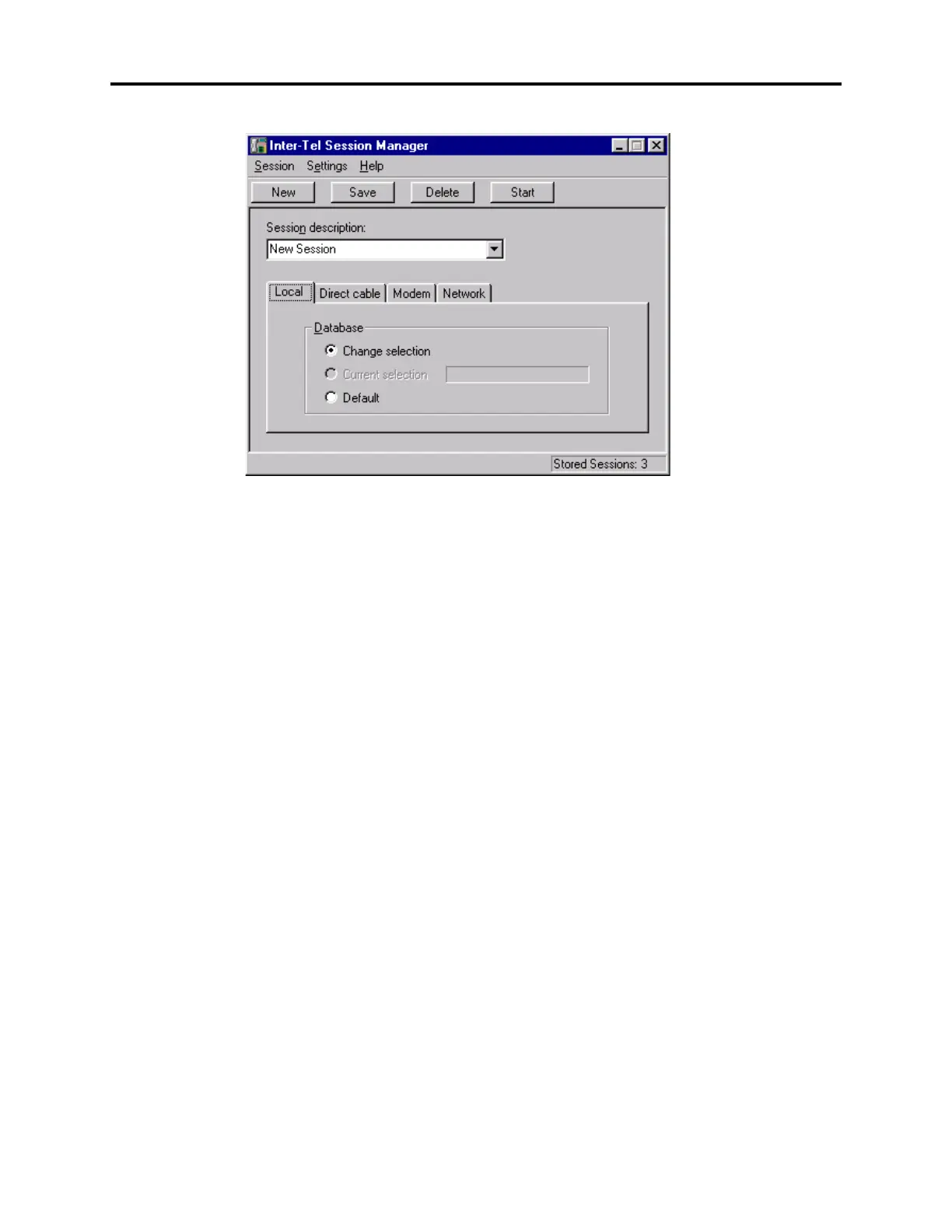
7.1 The Session Manager, shown above, is the application you will use to start all of your
programming “sessions.” Each session can have unique connection settings. This allows you to
enter information once for each database you will be programming and save their settings. For
example, you may want to have a session stored for each node in a networked system. An
unlimited number of sessions can be stored. In addition, you can export/import session settings
to use saved information on a different PC. The session manager also allows multiple sessions
to be running at the same time as long as each one uses a different database. This provides
more flexibility for programming or viewing databases at numerous sites.
7.2 The following pages describe the features and operations contained in the session man-
ager.
A. SESSION MENU AND BUTTON BAR
• New: To create a new session, select New on the button bar or from the Session drop-
down menu. A default set of values will be displayed in the program fields. (The system
version will be defaulted to the latest version installed on the PC.)
• Save: After you have modified the session description and connection type information,
choose
Save on the button bar or from the Session drop-down menu.
• Delete: Select
Delete or menu option to remove the currently displayed session. If a
local database exists for this session, it will also be deleted.
• Start: To start a session, scroll to the desired session in the Session Description box (or
create a new session). Then select
Start from the Session drop-down menu or the button
bar at the top of the screen.
• Export Session Settings File: If you have sessions that you want to save for use on
another computer, select
Export Session Settings File from the Session menu. Then
select the desired name and location of the file. When you click
Save, the information
for all session settings is saved as a .txt file.
• Import Session Settings File: To import existing session information, select
Import
Session Settings File
from the Session menu. Then select the name of the .txt file
that you want to import. When you click
Open, the sessions are automatically added to
the registry (i.e., existing sessions are not overwritten) and available for use in the Ses-
sion Manager.



 To Next Page