Page B-10
Appendix B — RS232
INTER-TEL
®
AXXESS
®
MANUAL VERSION 11.0 – May 2008
Flow Control
NOTE: If you plan on attaching the PCDPM to anything other than a PC serial port, you will
need to make sure that the other device has hardware flow control turned on. The other device
should be using RTS/CTS or DTR/CTS flow control. If the other device uses any other pins for
hardware flow control, you will need to make your own custom adapter or cable to support such
a non-standard form of hardware handshaking.
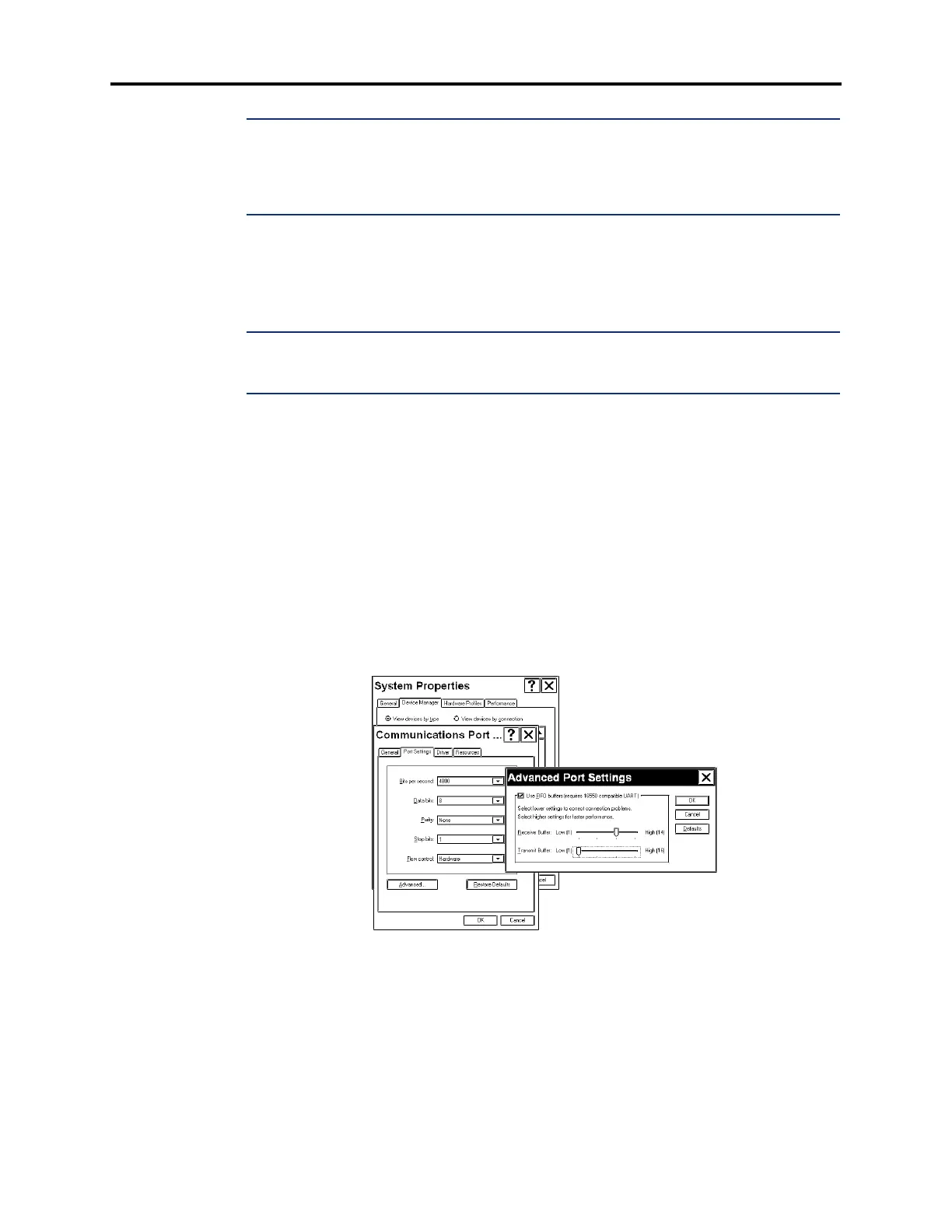
8.7 Windows 95/98 or Windows NT 5.0 Advanced Port Settings: If the PCDPM will be
attached to a PC running Windows 95 or Windows 98, the PC’s serial port transmit buffer
FIFO must be set to “Low” (1 byte) since the PCDPM’s data input buffer is very small (15
bytes).
NOTE: This procedure does not apply to PCs running Windows 3.1 or earlier or Windows NT
4.0. And, unless the 16550 UART FIFO option has been purposely enabled, it does not apply to
PCs running Windows NT 3.51 or Windows for Workgroups 3.11.
1. From the Start Menu, select Settings and then Control Panel.
2. Double-click on System, and then select Device Manager.
3. Double-click on Ports, and then double-click on the appropriate COM port icon (or
select
COM port and then select Properties). Be sure to select the COM port physically
attached to the PCDPM.
4. Select Port Settings, and then select Advanced.
5. In the Advanced Port Settings window (shown below), set the Transmit Buffer setting
to
Low (1) by moving the slide control all the way to the left.
6. Select OK to save the new setting, exit back out of Control Panel, and then reboot the
PC.



 To Next Page