Page 6-108
Programming
INTER-TEL
®
AXXESS
®
MANUAL VERSION 11.0 – May 2008
Selecting a Voice Processor Type in Local Mode
Selecting a Voice Processor Type in Local Mode
2.8 With the maintenance release of v9.1, when you enable a voice processor in local mode,
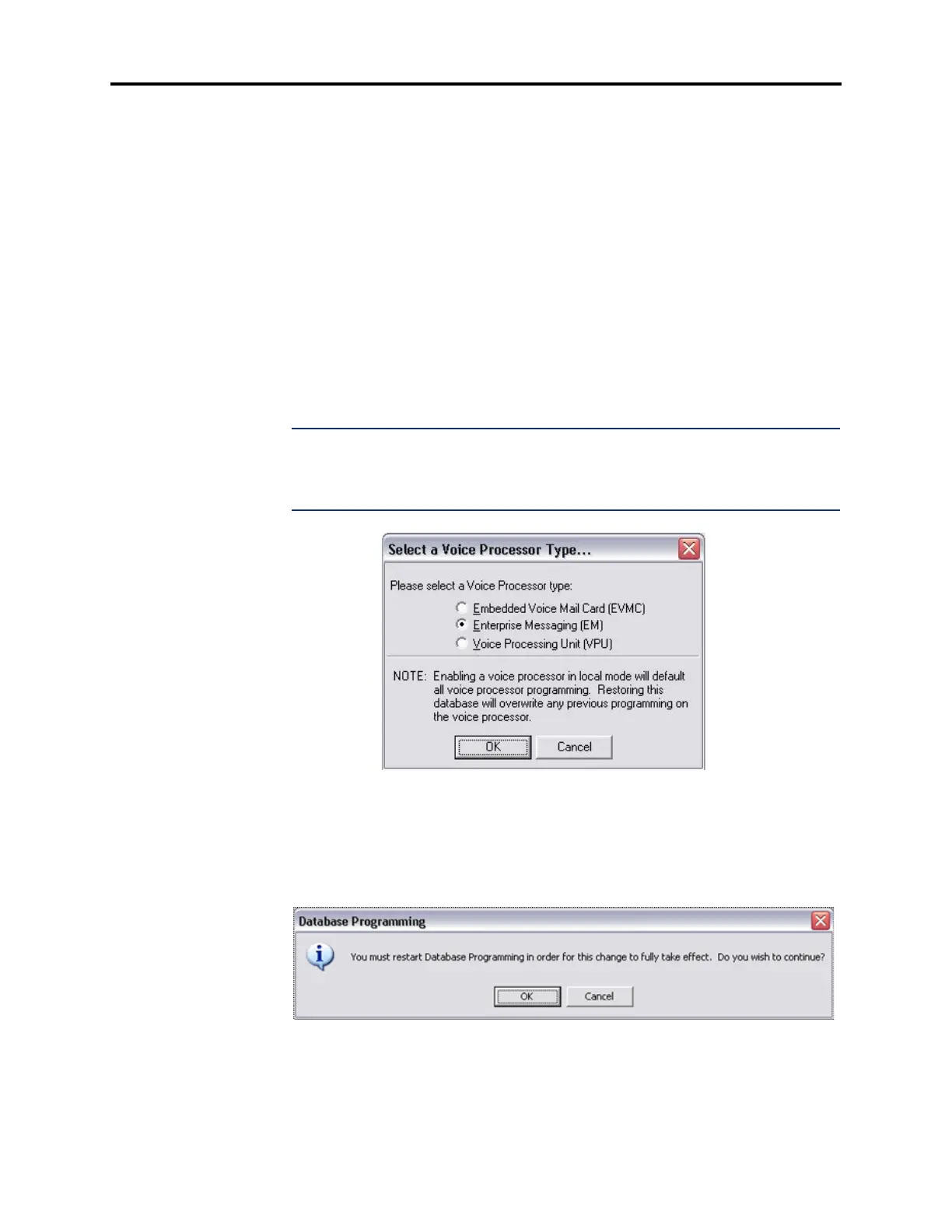
you may be prompted to choose a voice processor type. The Select a Voice Processor Type dia-
log appears only if you have saved the database from a remote session that did not have the
voice processor physically connected. For the Inter-Tel-recommended process, see page 6-109.
2.9 The Select a Voice Processor Type dialog allows you to identify a known type of voice
processor that has not been enabled in the system configuration. It does not, however, allow
you to change a voice processor type after the database has been created.
2.10 To enable a voice processor in local mode:
1. Launch Session Manager and start a session of DB Programming.
2. From the left pane of the DB Studio main screen, select the System folder. Contents of
the System folder appear in the right pane.
3. Toggle the value of the “Voice Processor Enable” feature to Yes.
NOTE: The Select a Voice Processor Type dialog appears only if you have saved the
database from a remote session that does not have a voice processor physically con-
nected. After the Voice Processor function is enabled and a database is saved in a
remote session, the Select a Voice Processor Type dialog does not display again.
4.
Select the option button for the voice processor type you know is connected to the sys-
tem.
5. Click OK to continue programming the selected voice processor. If you select Cancel,
the Voice Processor Enable field in the System folder toggles to
No. If you select a
voice processor type, or if one already exists in the database, you must restart the sys-
tem in order for the changes to take effect. The following message window appears.
6. Click OK. The voice processor type is updated in DB Programming and the session
closes. Clicking
Cancel toggles the Voice Processor Enable value in the System folder
to “No” cancels any Select a Voice Processor Type selection made, and displays the DB
Studio main window.



 To Next Page