Page 6-378
Programming
INTER-TEL
®
AXXESS
®
MANUAL VERSION 11.0 – May 2008
Mailbox Programming
4.92 To create a Non-Associated Mailbox:
1. Right-click in any area of the screen. An option box appears.
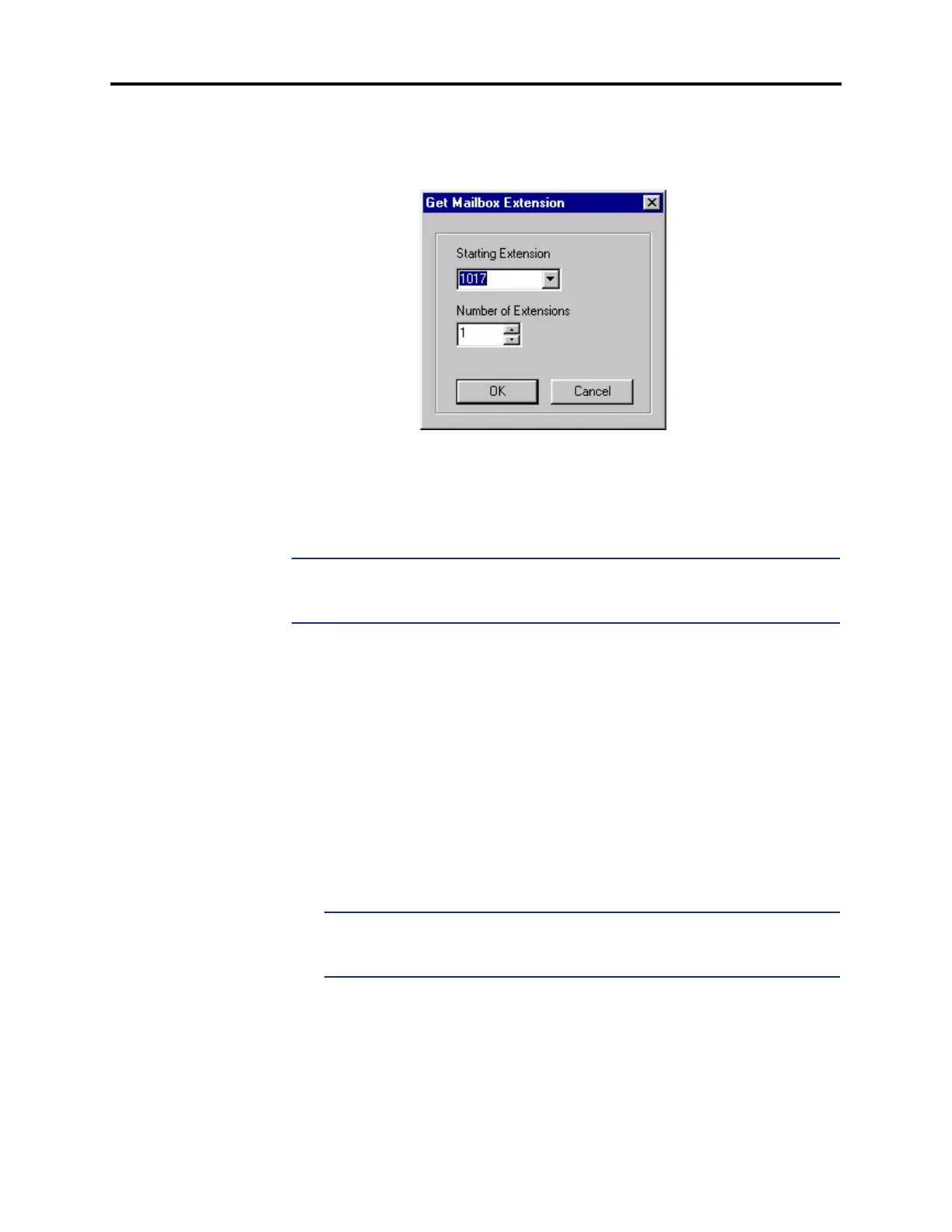
2. Select Create Non-Associated Mailbox. The following screen appears.
3. Enter the extension number you want to use for the first item in the Starting Extension
field. Then indicate the number of items you want to create in the Number of Exten-
sions field. The new mailboxes will be assigned sequentially to the next available num-
bers. When created, they appear in the programming window. You can program the
mailboxes or change the mailbox numbers as described below.
NOTE: If any mailbox extensions conflict with existing extensions, those mailboxes are
not created. If this occurs, a dialog box appears, listing the mailboxes that were not cre-
ated.
— Extension: (Not programmable for associated mailboxes.) To change an existing
mailbox number, select the number and enter the new number (or scroll to an
available number using the arrow). Then press
ENTER or click on another field to
save your change.
— Description and Username: (Not programmable for associated mailboxes.) Enter
a description of up to 20 characters in the Description text box. This description is
used in the mailbox directory and should be entered in the form “last name, first
name” (with a comma and space separating the names). Enter a name of up to 10
characters in the Username text box. This is the name that will appear on phone
displays. Do not use slash (/), backslash (\), vertical slash (|) or tilde (~) characters
in usernames. Do not use Control characters in descriptions or usernames.
— Delete Mailbox: To remove a mailbox from the list highlight the mailbox(es) and
right-click. Then select
Delete.
NOTE: Attempting to delete a mailbox that is in use will cause serious perfor-
mance issues for the voice processing system. Verify that the mailbox is not in use
before deleting it.
— Clear Mailboxes Messages: If you have an active direct-connection or remote
programming session, you can clear (erase) all the messages in a mailbox. Select
the mailbox(es) you want to clear and then right-click. Select
Clear Message(s)
from the Selected Mailboxes option.



 To Next Page