Page 7-100
Troubleshooting
INTER-TEL
®
AXXESS
®
MANUAL VERSION 11.0 – May 2008
Obtaining a Software License
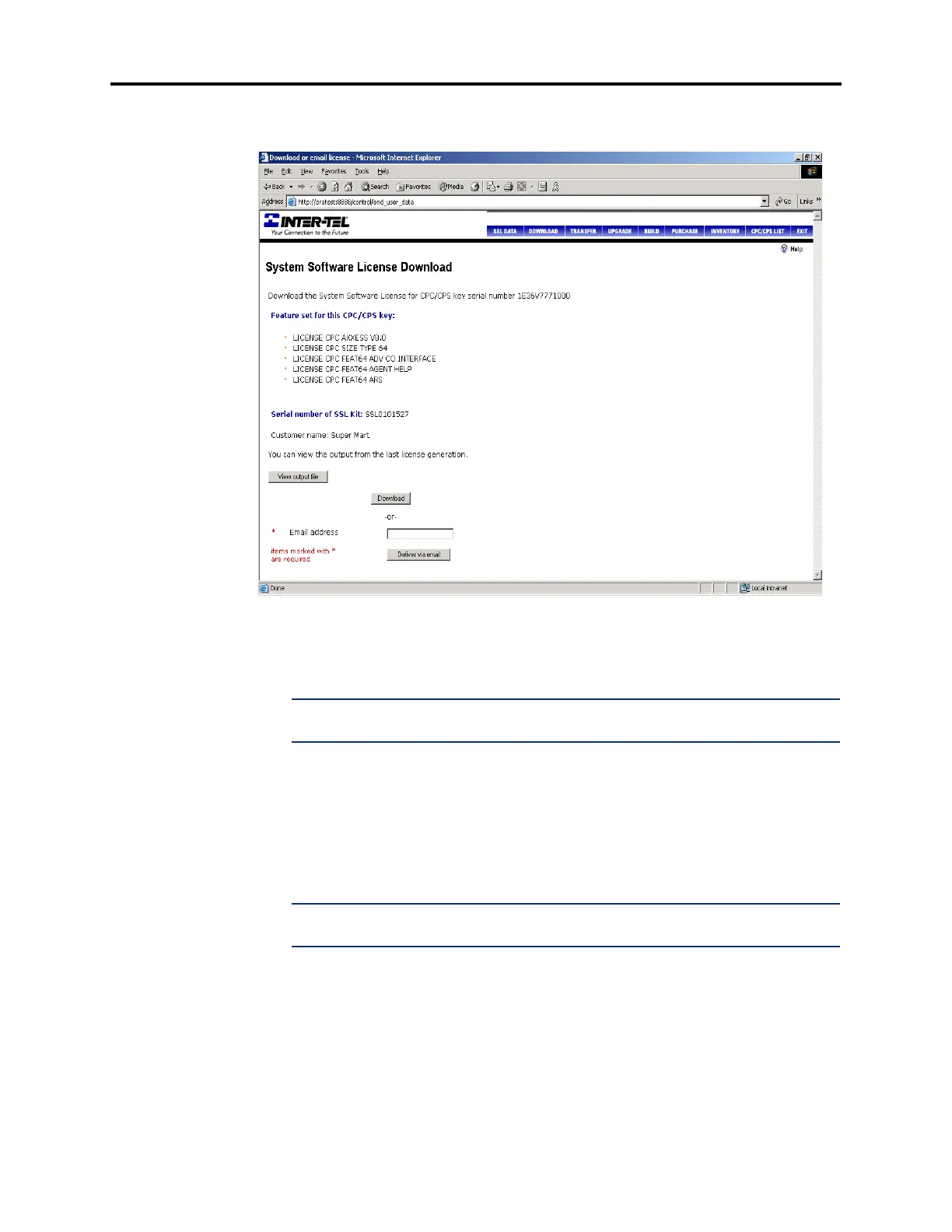
15. Click Submit. A screen, similar to the one below, displays a summary of the software
license.
16. EITHER, Click Download to download the license directly to your PC. If you select
this option, a standard Windows Save screen appears, allowing you to browse for the
file destination. Set the Save as type field to “All Files.” The license is saved as an
.isl file.
NOTE: The Save as type field is set to “Text Document” by default. If you do not
change the setting to “All Files,” the file will be downloaded as a .txt file.
If you select this option, a standard Windows Save screen appears, allowing you to
browse for the file destination. The license is saved as an .isl file.
OR, Click
Deliver via email to e-mail the license to an address. If you select this option,
you are prompted for an e-mail address. The license is attached to the e-mail message
as an .isl file. You must then save the file to a location that is accessible by the DB
Programming PC.
NOTE: The View output file button allows you to view the license information in a
text-based file.



 To Next Page